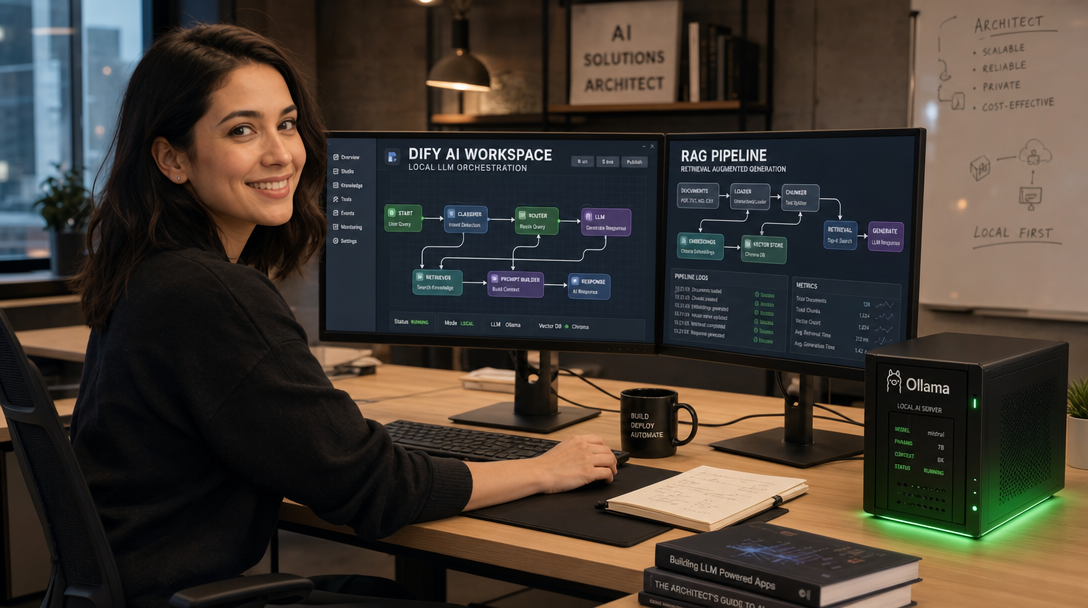
While standalone chat interfaces like Open-WebUI provide convenient access to local Large Language Models, enterprise engineering teams and advanced homelab operators require more than simple chat prompts. Modern generative AI engineering demands visual multi-agent workflow orchestration, complex Retrieval-Augmented Generation (RAG) knowledge pipelines, prompt testing canvases, and production-grade API endpoints. Dify has emerged as the leading open-source LLM application development platform. By pairing Dify with Docker Compose, PostgreSQL (pgvector), and a local Ollama instance, you can build an entirely private, self-contained AI operating system without leaking proprietary data or incurring commercial cloud API costs.
Why Choose Dify for Local AI Workloads?
Dify bridges the gap between raw model inference engines and user-facing business applications. Rather than hand-coding LangChain or LlamaIndex scripts for every internal tool, Dify provides an intuitive visual canvas with enterprise capabilities:
- Visual Workflow Canvas: Design multi-agent workflows with branching logic, tool invocation (code execution, web searching, SQL queries), and human-in-the-loop approvals.
- Comprehensive RAG Engine: Native document ingestion supporting PDF, Markdown, Word, and web crawling with automatic chunking, hybrid keyword/vector search, and reranking.
- Pluggable Vector Databases: Built-in support for PostgreSQL with the
pgvectorextension, Qdrant, Weaviate, Milvus, and Chroma. - Model Agnostic: Connect seamlessly to local inference servers (Ollama, vLLM, LocalAI) and proprietary cloud providers under unified API keys.
- Backend-as-a-Service (BaaS): Every published workflow, agent, and knowledge base immediately exposes secure REST API endpoints with role-based access tokens.
Architecture Overview
Dify is a microservices-based application built for horizontal scalability. Understanding its core container components is essential for reliable deployment and debugging:
+-------------------------------------------------------------------------+
|                        Browser / Client Requests                        |
+-------------------------------------------------------------------------+
                                    |
                                    v (HTTP / Port 80)
                    +-------------------------------+
                    |          Nginx Proxy          |
                    |     (Static Assets & API)     |
                    +-------------------------------+
                                    |
          +-------------------------+-------------------------+
          |                                                   |
          v                                                   v
+-------------------+                               +-------------------+
|     dify-web      |                               |     dify-api      |
| (Next.js Frontend)|                               | (Flask API Server)|
+-------------------+                               +-------------------+
                                                              |
                                  +---------------------------+
                                  |
                                  v
+-------------------+     +---------------+     +-----------------------+
|  Celery Workers   | <== |  Redis Cache  | ==> | PostgreSQL (pgvector) |
| (Async RAG Tasks) |     |  & Task Queue |     | (App State & Vectors) |
+-------------------+     +---------------+     +-----------------------+
          |
          v (Host Gateway: 11434)
+-------------------------------------------------------------------------+
|                         Local Ollama Instance                           |
|       - LLMs: Qwen 3.6 / Llama 3.3   - Embeddings: nomic-embed-text      |
+-------------------------------------------------------------------------+
Prerequisites
- A dedicated server or VM running Ubuntu 24.04/26.04 LTS or Debian 12.
- Modern multi-core CPU (at least 4 cores) and 16 GB+ RAM (32 GB recommended when running LLMs and vector indexing simultaneously).
- Docker Engine 26+ and Docker Compose v2.26+.
- An existing Ollama installation running on the host system or another network server with models pulled (e.g.,
qwen2.5-coder,llama3.3, andnomic-embed-text).
Step 1: Preparing Ollama for Container Networking
By default, Ollama binds its API listener strictly to 127.0.0.1:11434. Because Dify runs inside a dedicated Docker bridge network, containers cannot reach the host’s loopback address. You must instruct Ollama to listen on all interfaces or on the Docker bridge IP.
On the host machine running Ollama via systemd, create an override configuration:
sudo mkdir -p /etc/systemd/system/ollama.service.d
cat <<EOF | sudo tee /etc/systemd/system/ollama.service.d/override.conf
[Service]
Environment="OLLAMA_HOST=0.0.0.0:11434"
Environment="OLLAMA_ORIGINS=*"
EOF

sudo systemctl daemon-reload
sudo systemctl restart ollama
Verify that Ollama responds across the network and pull the required models:
# Verify HTTP response
curl -s http://127.0.0.1:11434/api/tags | grep -o '"models"'

# Pull high-performance reasoning model and embeddings
ollama pull qwen2.5:14b
ollama pull nomic-embed-text
Step 2: Cloning Dify and Configuring Environment Variables
Clone the official Dify deployment repository into your server’s application directory:
sudo mkdir -p /opt/dify
cd /opt/dify
git clone --depth 1 https://github.com/langgenius/dify.git .
cd docker
cp .env.example .env
Generate cryptographic secret keys and configure the environment variables inside /opt/dify/docker/.env:
# Generate random 48-character secret keys
SECRET_KEY=$(openssl rand -base64 36)
sed -i "s|^SECRET_KEY=.*|SECRET_KEY=${SECRET_KEY}|g" .env
Open .env with your editor and verify the following key production parameters:
# Core Secrets
SECRET_KEY=YOUR_GENERATED_SECRET_KEY_HERE

# Database configuration (PostgreSQL with pgvector)
DB_USERNAME=postgres
DB_PASSWORD=dify_secure_pg_password_2026
DB_HOST=db
DB_PORT=5432
DB_DATABASE=dify

# Redis Cache
REDIS_HOST=redis
REDIS_PORT=6379
REDIS_PASSWORD=dify_redis_secure_pass

# Vector Database Selection (Default: pgvector inside PostgreSQL)
VECTOR_STORE=pgvector

# Storage Provider (local filesystem or S3)
STORAGE_TYPE=local
STORAGE_LOCAL_PATH=/app/api/storage

# Web UI and API Ports
EXPOSE_NGINX_PORT=80
EXPOSE_NGINX_SSL_PORT=443
Step 3: Docker Compose Stack Configuration
Dify provides a modular docker-compose.yaml. To allow containers to cleanly communicate with your host’s Ollama instance, ensure that extra_hosts mapping host.docker.internal:host-gateway is present on the api and worker service blocks.
Inspect the service definitions or apply the host gateway mapping in docker-compose.yaml:
# Excerpt of api and worker services in docker-compose.yaml
services:
  api:
    image: langgenius/dify-api:0.15.3
    restart: unless-stopped
    environment:
      - CONSOLE_API_URL=http://localhost/console/api
      - CONSOLE_WEB_URL=http://localhost
      - SERVICE_API_URL=http://localhost/api
      - APP_WEB_URL=http://localhost
    extra_hosts:
      - "host.docker.internal:host-gateway"
    depends_on:
      - db
      - redis

  worker:
    image: langgenius/dify-api:0.15.3
    restart: unless-stopped
    command: ["celery", "-A", "app.celery", "worker", "-P", "gevent", "-c", "8", "-Q", "dataset,generation,mail", "-l", "INFO"]
    extra_hosts:
      - "host.docker.internal:host-gateway"
    depends_on:
      - db
      - redis
Launch the complete Dify stack in detached mode:
docker compose up -d
docker compose ps
Wait approximately 60 seconds while the database migrations, pgvector extension initialization, and Redis connections settle. Check logs to confirm clean startup:
docker compose logs api --tail 50Step 4: Initial Setup and Administrator Account
Open your browser and navigate to http://<your-server-ip>/install (or your custom domain mapped to the server). The initial setup wizard prompts you to initialize the primary administrator account:
- Enter your administrator email address (e.g.,
admin@homelab.internal). - Set a strong administrator passphrase.
- Define your workspace name (e.g.,
Biteno Engineering AI Hub). - Click Set Up to finalize the database initialization and log into the main dashboard.
Step 5: Configuring Ollama as LLM and Embedding Provider
To power Dify without relying on cloud APIs, register your local Ollama instance inside Dify’s Model Provider settings:
- Click on your profile avatar in the top-right corner and select Settings > Model Provider.
- Locate the Ollama card and click Add Model.
- Configure the LLM inference model:
- Model Type: LLM
- Model Name:
qwen2.5:14b(or your pulled model name) - Base URL:
http://host.docker.internal:11434 - Context Window:
32768 - Max Tokens:
4096
- Click Save. Dify sends a validation ping to Ollama and flags the model with a green status checkmark.
- Click Add Model again to register the embedding model:
- Model Type: Text Embedding
- Model Name:
nomic-embed-text - Base URL:
http://host.docker.internal:11434
- Click Save.
Step 6: Building a Private RAG Knowledge Base
With Ollama connected, you can ingest technical documents, architecture diagrams, and runbooks into an isolated semantic search repository:
- Navigate to the Knowledge tab on the top navigation bar and click Create Knowledge.
- Upload your internal documentation files (e.g., Markdown notes, PDF infrastructure audits, system architecture guides).
- Select Custom Indexing Technique:
- Segmentation: Automatic or by specific Markdown headings (
###). - Chunk Size:
500characters with a50character overlap. - Index Method: High Quality (Embeddings generated via
nomic-embed-text). - Retrieval Setting: Vector Search with a similarity threshold of
0.7and Top-K set to4.
- Segmentation: Automatic or by specific Markdown headings (
- Click Save and Process. The background Celery worker container pulls chunks, generates vector embeddings via Ollama, and stores them in PostgreSQL’s
pgvectortable.
Step 7: Creating an Autonomous Agent Workflow
Once your knowledge base is indexed, create a dedicated AI application:
- Go to the Studio tab and click Create from Blank > Chat App (or Workflow for multi-step graph pipelines).
- Name your app
Infrastructure Copilotand select Agent Assistant mode. - In the prompt canvas, assign your system instructions:
You are an expert DevOps and Site Reliability Engineer. Answer questions using the provided Knowledge Base context. If the answer cannot be found in the documentation, state that explicitly. Always output clean, tested bash and YAML configurations. - Under Context, click Add and select the Knowledge Base created in Step 6.
- Under Model, select
qwen2.5:14b (Ollama). - Test the agent interactively in the preview panel, then click Publish.
Production Hardening and Best Practices
- Tune Celery Concurrency: By default, Celery workers can spawn multiple concurrent embedding tasks. If your server lacks dedicated GPUs, concurrent embeddings can overwhelm CPU and RAM. Adjust the worker concurrency parameter in
docker-compose.yamlusing-c 4or-c 2. - Automated Database Backups: The PostgreSQL container holds all app metadata, user accounts, and vector indices. Schedule daily automated SQL dumps:
docker exec -t docker-db-1 pg_dump -U postgres dify | gzip > /backup/dify-$(date +%F).sql.gz - TLS Termination via Reverse Proxy: Do not expose Dify’s default port 80 directly to untrusted networks. Place Caddy, Traefik, or Nginx in front of Dify to enforce HTTPS and Let’s Encrypt certificates.
- Configure File Upload Limits: In
.env, setUPLOAD_FILE_SIZE_LIMIT=50(MB) to prevent users from crashing worker threads with oversized multi-gigabyte files.
Troubleshooting Common Dify & Ollama Issues
1. Connection Error: “Failed to connect to host.docker.internal:11434”
Cause: Ollama is listening only on loopback (127.0.0.1), or the Docker daemon on Linux does not recognize host.docker.internal.
Fix: Ensure the systemd override has OLLAMA_HOST=0.0.0.0:11434 set. Verify with ss -tulpn | grep 11434. On Linux, ensure extra_hosts: - "host.docker.internal:host-gateway" is added under both the api and worker service blocks in docker-compose.yaml. Alternatively, use your host’s Docker bridge gateway IP (commonly 172.17.0.1:11434).
2. Celery Worker Out of Memory (OOM) During Document Parsing
Cause: Ingesting massive scanned PDFs or DOCX files causes Python document parsers (Unstructured / PyPDF) to consume several gigabytes of RAM in the worker container.
Fix: Add memory limits and swap allowances to the worker service in docker-compose.yaml (e.g., deploy.resources.limits.memory: 8G). Pre-process massive documents into Markdown before uploading to maximize parsing speed and retrieval accuracy.
3. PostgreSQL pgvector Extension Missing or Migration Error
Cause: Using a vanilla PostgreSQL image instead of the official Dify-provided database image containing pre-compiled vector libraries.
Fix: Always use the image specified in Dify’s compose file (langgenius/dify-postgresql:15-alpine or standard pgvector/pgvector:pg15). Log into PostgreSQL manually via docker exec -it docker-db-1 psql -U postgres -d dify and verify with \dx that the vector extension is active.
Conclusion
Self-hosting Dify alongside Ollama delivers the agility of modern cloud AI builders with the absolute security and economic predictability of private infrastructure. Whether you are generating technical documentation, deploying automated support agents, or building semantic search engines over proprietary codebases, this Docker Compose architecture puts full control of the AI development lifecycle directly into your hands.

Hi, I’m Mark, the author of Clever IT Solutions: Mastering Technology for Success. I am passionate about empowering individuals to navigate the ever-changing world of information technology. With years of experience in the industry, I have honed my skills and knowledge to share with you. At Clever IT Solutions, we are dedicated to teaching you how to tackle any IT challenge, helping you stay ahead in today’s digital world. From troubleshooting common issues to mastering complex technologies, I am here to guide you every step of the way. Join me on this journey as we unlock the secrets to IT success.