Building complex AI pipelines—ranging from Retrieval-Augmented Generation (RAG) to autonomous multi-agent decision systems—often demands writing extensive Python boilerplate code using frameworks like LangChain or LlamaIndex. While code-first development offers flexibility, maintaining, visualizing, and iterating on multi-step agent graphs can quickly become cumbersome for engineering teams.
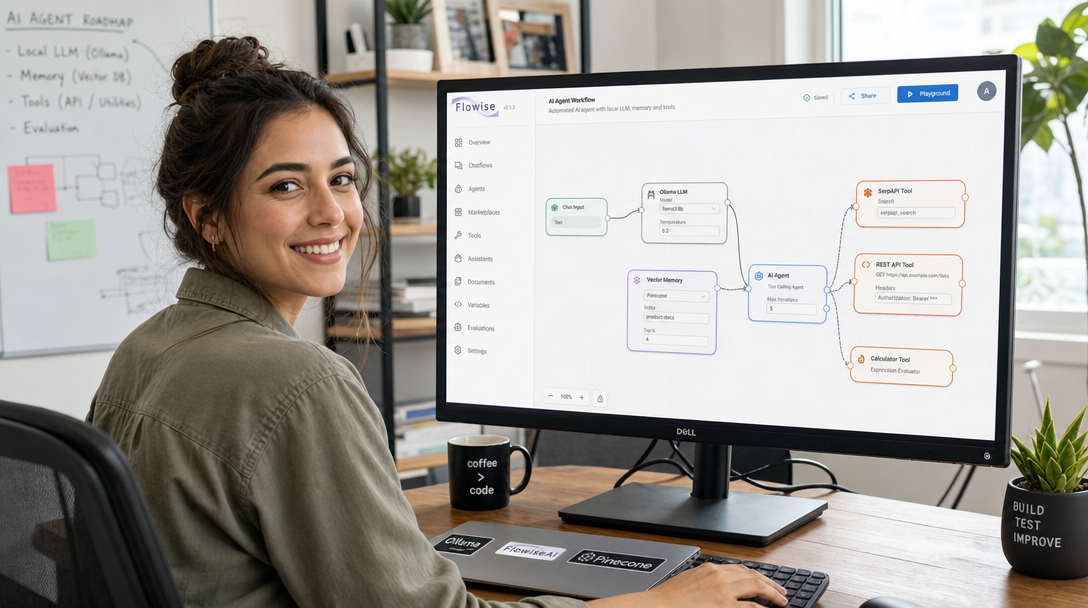
Flowise AI provides a transformative low-code visual interface for building LLM applications and agentic workflows. By running Flowise alongside a local Ollama instance inside Docker Compose, you gain a private, self-hosted AI automation studio. You can drag and drop nodes, wire vector databases, connect custom API tools, and execute models entirely on your own infrastructure with zero third-party data leakage.
What is Flowise AI?
Flowise is an open-source visual node-based UI designed around LangChain.js. It allows developers to construct modular AI workflows known as Chatflows and Agentflows. Key capabilities include:
- Drag-and-Drop Node Canvas: Connect LLMs, prompt templates, memory buffers, document loaders, and vector stores visually.
- Multi-Agent Orchestration: Build supervisor-worker agent architectures, autonomous web search agents, and sequential task runners.
- First-Class Ollama Integration: Native support for local LLMs and embeddings via Ollama’s HTTP API.
- REST API & Embedded Chat Widgets: Every flow created in Flowise automatically exposes a secure REST API endpoint and an embeddable JavaScript chat popup for web apps.
- Production Vector Store Connectors: Built-in nodes for ChromaDB, Qdrant, Pinecone, Weaviate, and PostgreSQL with PGVector.
Architecture Overview
To ensure high performance and persistence, we run Flowise backed by a dedicated PostgreSQL database rather than the default SQLite file. An internal bridge network connects Flowise directly to Ollama for low-latency inference:
+-------------------------------------------------------------+
|                     Docker Host Network                     |
|                                                             |
|  +--------------------+             +--------------------+  |
|  |     Flowise UI     | <-- HTTP -- |   Local Browser    |  |
|  |    (Port 3000)     |             |  (Client Access)   |  |
|  +--------------------+             +--------------------+  |
|       |          |                                          |
|       |          +------------------+                       |
|       v                             v                       |
|  +---------------+          +--------------------+          |
|  |  PostgreSQL   |          |       Ollama       |          |
|  | (Persistence) |          |  (Port 11434 / GPU)|          |
|  +---------------+          +--------------------+          |
|                                     |                       |
|                             +---------------+               |
|                             | NVIDIA Driver |               |
|                             +---------------+               |
+-------------------------------------------------------------+
Step 1: Preparing Directory Structure and Environment
Create a dedicated directory on your server for the Flowise and Ollama stack:
mkdir -p ~/flowise-docker/flowise_data ~/flowise-docker/postgres_data
cd ~/flowise-docker
Generate a secure password for your database and create an .env file:
cat <<EOF > .env
POSTGRES_USER=flowise
POSTGRES_PASSWORD=$(openssl rand -hex 16)
POSTGRES_DB=flowise
FLOWISE_USERNAME=admin
FLOWISE_PASSWORD=$(openssl rand -hex 12)
SECRETKEY=$(openssl rand -hex 32)
EOF
Step 2: Complete Docker Compose Configuration
Create the docker-compose.yml file containing the three integrated services: Flowise, PostgreSQL, and Ollama with GPU acceleration:
services:
  ollama:
    image: ollama/ollama:latest
    container_name: ollama
    restart: unless-stopped
    ports:
      - "127.0.0.1:11434:11434"
    volumes:
      - ollama_models:/root/.ollama
    # GPU support (comment out deploy section if running on CPU)
    deploy:
      resources:
        reservations:
          devices:
            - driver: nvidia
              count: all
              capabilities: [gpu]
    networks:
      - ai_net

  postgres:
    image: postgres:16-alpine
    container_name: flowise-postgres
    restart: unless-stopped
    environment:
      POSTGRES_USER: ${POSTGRES_USER}
      POSTGRES_PASSWORD: ${POSTGRES_PASSWORD}
      POSTGRES_DB: ${POSTGRES_DB}
    volumes:
      - ./postgres_data:/var/lib/postgresql/data
    networks:
      - ai_net

  flowise:
    image: flowiseai/flowise:latest
    container_name: flowise
    restart: unless-stopped
    depends_on:
      - postgres
      - ollama
    ports:
      - "127.0.0.1:3000:3000"
    environment:
      - PORT=3000
      - DATABASE_TYPE=postgres
      - DATABASE_PORT=5432
      - DATABASE_HOST=postgres
      - DATABASE_NAME=${POSTGRES_DB}
      - DATABASE_USER=${POSTGRES_USER}
      - DATABASE_PASSWORD=${POSTGRES_PASSWORD}
      - FLOWISE_USERNAME=${FLOWISE_USERNAME}
      - FLOWISE_PASSWORD=${FLOWISE_PASSWORD}
      - SECRETKEY_PATH=/root/.flowise
      - APIKEY_PATH=/root/.flowise
      - LOG_LEVEL=info
    volumes:
      - ./flowise_data:/root/.flowise
    networks:
      - ai_net

networks:
  ai_net:
    name: ai_net
    driver: bridge

volumes:
  ollama_models:
    name: ollama_models
Step 3: Starting the Stack and Downloading Models
Launch the containers in detached mode:
docker compose up -d
Monitor container logs to ensure PostgreSQL initialized and Flowise completed its database migrations:
docker compose logs -f flowise
Once running, pull your preferred inference and embedding models inside the Ollama container:
# Pull conversational LLM
docker exec -it ollama ollama run llama3.1:8b

# Pull text embedding model for RAG workflows
docker exec -it ollama ollama pull nomic-embed-text
Step 4: Building Your First Local Multi-Agent Workflow
Open your browser and navigate to http://localhost:3000 (or your server IP via an SSH tunnel: ssh -L 3000:localhost:3000 user@server-ip). Log in using the credentials defined in your .env file.
Constructing an Autonomous Researcher Agent
- Click Agentflows → Add New.
- From the left palette, drag in an Ollama Chat Model node.
- Set Base URL to
http://ollama:11434(using the internal Docker network name). - Set Model Name to
llama3.1:8b.
- Set Base URL to
- Drag in a Tool Agent / Supervisor node and connect the Ollama model to the agent’s LLM socket.
- Add tools to the agent:
- Calculator Tool: For deterministic mathematical operations.
- Custom Webhook / API Tool: Connect internal REST endpoints or MCP bridges.
- Retriever Tool: Connect a local ChromaDB or In-Memory vector store loaded with your PDF documentation.
- Click Save and open the test chat window in the top-right corner to test autonomous tool-calling in real time.
Exposing Flowise via Reverse Proxy with HTTPS
For remote access across your team, never expose port 3000 nakedly to the internet. Pair Flowise with a reverse proxy like Caddy or Traefik with automatic SSL:
flowise.yourdomain.com {
    reverse_proxy localhost:3000
    tls admin@yourdomain.com
}
Production Tips & Troubleshooting
- Container Communication: When entering the Ollama URL inside Flowise nodes, always use
http://ollama:11434rather thanlocalhostor127.0.0.1, aslocalhostrefers to the Flowise container itself. - Secret Key Backups: Flowise encrypts stored API credentials using the key generated in
/root/.flowise. Always back up the./flowise_datafolder alongside your PostgreSQL volume. - Memory Consumption: Running local models and multi-turn agent memories requires adequate RAM. Ensure your host machine has at least 16 GB of system RAM and 8 GB of VRAM for comfortable 8B model execution.
Conclusion
Deploying Flowise AI with Ollama and PostgreSQL via Docker Compose provides a private, visually intuitive platform for building advanced AI agents. You can prototype, test, and deploy complex autonomous workflows in minutes while keeping all data and model inference safely on your own hardware.

Hi, I’m Mark, the author of Clever IT Solutions: Mastering Technology for Success. I am passionate about empowering individuals to navigate the ever-changing world of information technology. With years of experience in the industry, I have honed my skills and knowledge to share with you. At Clever IT Solutions, we are dedicated to teaching you how to tackle any IT challenge, helping you stay ahead in today’s digital world. From troubleshooting common issues to mastering complex technologies, I am here to guide you every step of the way. Join me on this journey as we unlock the secrets to IT success.