Large Language Models (LLMs) running locally with Ollama provide unprecedented privacy, zero subscription fees, and complete control over your sensitive data. However, out of the box, even the most capable local models—such as Qwen 3.6, DeepSeek, or Mistral—suffer from a fundamental limitation: they are isolated inside their model weights. They cannot inspect your local file systems, query internal databases, or interact with external development tools without extensive custom glue code.
This is where the Model Context Protocol (MCP) changes the paradigm. Developed as an open standard, MCP provides a unified protocol that connects AI assistants to external context, tools, and prompts. In this hands-on guide, we will explore how to containerize MCP servers using Docker Compose and connect them seamlessly to local Ollama instances for robust, secure, and extensible tool-augmented AI workflows.
Understanding the Model Context Protocol (MCP) Architecture
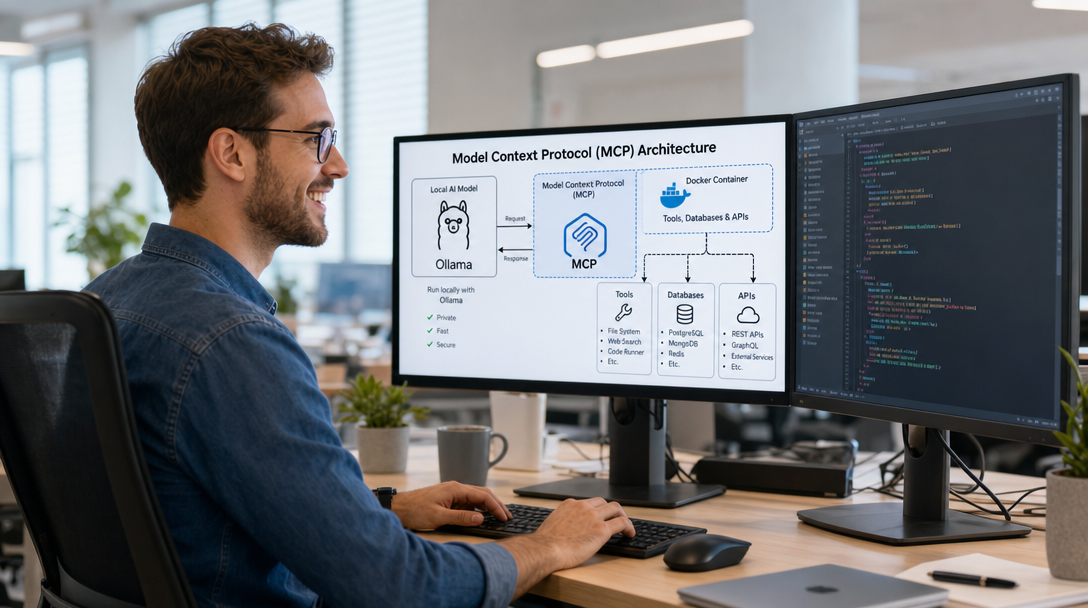
Before diving into configuration files, it is crucial to understand how MCP components communicate. The MCP specification defines three distinct roles:
- MCP Host / Client: The application that orchestrates the user interaction, manages model prompts, and queries MCP servers (e.g., an MCP-enabled agent, Open-WebUI, Claude Desktop, or custom Python orchestration scripts).
- Local LLM Engine (Ollama): The inference engine executing the neural weights locally on your CPU or GPU.
- MCP Servers: Lightweight services exposing specific data sources and callable functions (tools) via the standardized protocol. Examples include file system readers, SQLite database connectors, Git analyzers, and web fetchers.
MCP supports two primary transport mechanisms: Standard I/O (stdio) for processes running on the same host, and Server-Sent Events (SSE) / HTTP for remote or containerized services. For Docker-based architectures, SSE and HTTP networking provide clean isolation and seamless multi-service orchestration.
Architecture Overview: Docker Network Topology
When running MCP servers alongside Ollama in Docker, keeping containers in an isolated user-defined bridge network ensures that tools cannot inadvertently access unauthorized host ports. The diagram below illustrates the communication flow:
+--------------------------------------------------------------+
|                     Host Machine / Server                    |
|                                                              |
|  +--------------------+             +---------------------+  |
|  |     MCP Client     | -- HTTP --> |       Ollama        |  |
|  |  (Orchestrator)    |             |  (Port 11434 / GPU) |  |
|  +--------------------+             +---------------------+  |
|            |                                                 |
|            | (MCP Protocol via SSE / JSON-RPC)               |
|            v                                                 |
|  +--------------------+             +---------------------+  |
|  |   MCP Filesystem   |             |     MCP SQLite      |  |
|  |     (Container)    |             |     (Container)     |  |
|  +--------------------+             +---------------------+  |
|            |                                   |             |
|    (Read-Only Mount)                   (Data Volume)         |
|            v                                   v             |
|   /home/data/workspace                /var/lib/sqlite/db     |
+--------------------------------------------------------------+
Step 1: Docker Compose Setup for Ollama and MCP Services
Let’s create a production-grade docker-compose.yml file that sets up Ollama with GPU passthrough alongside two essential MCP servers: a sandboxed Filesystem MCP server and an SQLite MCP server.
Create a working directory on your server:
mkdir -p ~/docker-mcp-ollama/workspace ~/docker-mcp-ollama/data
cd ~/docker-mcp-ollama
Now, save the following configuration as docker-compose.yml:
services:
  ollama:
    image: ollama/ollama:latest
    container_name: ollama
    restart: unless-stopped
    ports:
      - "127.0.0.1:11434:11434"
    volumes:
      - ollama_models:/root/.ollama
    # Enable NVIDIA GPU acceleration (omit this block if running on CPU)
    deploy:
      resources:
        reservations:
          devices:
            - driver: nvidia
              count: all
              capabilities: [gpu]
    networks:
      - mcp_network

  mcp-filesystem:
    image: node:20-slim
    container_name: mcp-filesystem
    restart: unless-stopped
    working_dir: /app
    command: >
      sh -c "npm install -g @modelcontextprotocol/server-filesystem &&
             npx @modelcontextprotocol/server-filesystem /workspace"
    volumes:
      # Mount the target folder in read-only mode for safety
      - ./workspace:/workspace:ro
    networks:
      - mcp_network
    stdin_open: true
    tty: true

  mcp-sqlite:
    image: python:3.11-slim
    container_name: mcp-sqlite
    restart: unless-stopped
    working_dir: /app
    command: >
      sh -c "pip install --no-cache-dir mcp-server-sqlite &&
             python -m mcp_server_sqlite --db-path /data/production.db"
    volumes:
      - ./data:/data
    networks:
      - mcp_network
    stdin_open: true
    tty: true

networks:
  mcp_network:
    name: mcp_network
    driver: bridge

volumes:
  ollama_models:
    name: ollama_models
Step 2: Starting the Stack and Downloading Models
Start the Docker Compose services in detached mode:
docker compose up -d
Verify that Ollama is healthy and responding:
curl http://127.0.0.1:11434/api/tags
Next, pull an instruction-tuned model with first-class function calling, structured JSON output, and agentic tool-use capabilities, such as the latest qwen3.6 (or qwen3.6:27b for high-VRAM setups):
docker exec -it ollama ollama run qwen3.6
Step 3: Connecting MCP to Local AI Clients
To let your AI client discover and invoke the tools exposed by the Docker containers, configure an MCP client configuration file (e.g. mcp_config.json). Using standard Docker execution commands, the client bridges the containerized stdio transport transparently:
{
  "mcpServers": {
    "filesystem": {
      "command": "docker",
      "args": [
        "exec",
        "-i",
        "mcp-filesystem",
        "npx",
        "-y",
        "@modelcontextprotocol/server-filesystem",
        "/workspace"
      ]
    },
    "sqlite": {
      "command": "docker",
      "args": [
        "exec",
        "-i",
        "mcp-sqlite",
        "python",
        "-m",
        "mcp_server_sqlite",
        "--db-path",
        "/data/production.db"
      ]
    }
  }
}
Security Best Practices for Containerized MCP
Giving an AI model access to execution tools introduces inherent security risks if not properly bounded. When running MCP servers in production, adhere to these security principles:
- Enforce Read-Only Mounts: Always mount host directories with the
:roflag unless write access is strictly required. For example,./workspace:/workspace:roprevents accidental file deletion or malicious tampering. - Run as Non-Root Users: Ensure your MCP container images execute with a non-privileged UID (e.g.,
user: "1000:1000"). - Isolate Network Bridges: Never bind MCP server ports to
0.0.0.0on public interfaces. Keep them restricted to internal Docker bridge networks or bind them strictly to127.0.0.1. - Require Explicit Confirmation for Dangerous Tools: In your MCP client configuration, configure human-in-the-loop approvals for destructive operations such as database mutations (
DROP,DELETE) or file system overwrites.
Troubleshooting Common MCP & Docker Issues
1. Container Exits Immediately with Code 0
Because stdio-based MCP servers wait for input from standard in, Docker containers may exit immediately if standard I/O streams are closed. Ensure that stdin_open: true and tty: true are declared in your docker-compose.yml.
2. Permission Denied Errors on Volumes
If the MCP server inside the container cannot read files in the mounted directory, verify file permissions on the host system:
ls -ld ./workspace
chmod 755 ./workspace
3. Function Calling Hallucinations
Smaller LLMs (under 7B parameters) frequently struggle with formatting strict JSON tool calls. For dependable multi-tool orchestration with MCP, use modern models with dedicated agentic and function-calling architectures such as qwen3.6 (or qwen3.6:27b-coding).
Conclusion
Combining Docker Compose, Ollama, and the Model Context Protocol (MCP) unlocks a private, enterprise-grade AI execution environment. By encapsulating tools inside disposable, sandboxed containers, you give your local AI models the exact context and capabilities they need—without compromising the security of your host system.

Hi, I’m Mark, the author of Clever IT Solutions: Mastering Technology for Success. I am passionate about empowering individuals to navigate the ever-changing world of information technology. With years of experience in the industry, I have honed my skills and knowledge to share with you. At Clever IT Solutions, we are dedicated to teaching you how to tackle any IT challenge, helping you stay ahead in today’s digital world. From troubleshooting common issues to mastering complex technologies, I am here to guide you every step of the way. Join me on this journey as we unlock the secrets to IT success.