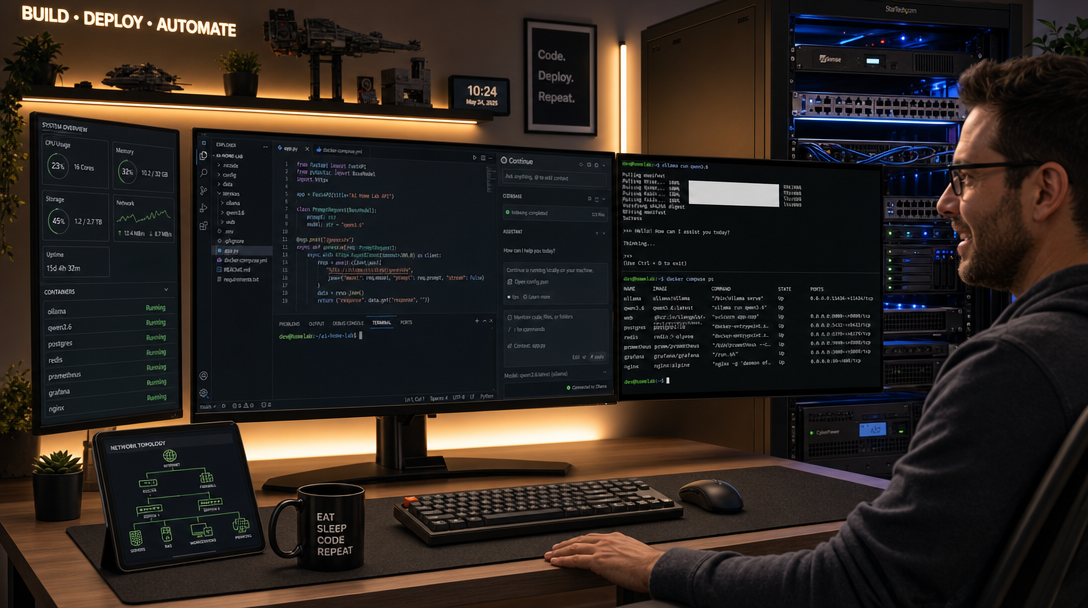
Modern software development teams increasingly rely on AI-assisted coding tools for inline tab autocomplete, multi-file refactoring, docstring generation, and architectural discussions. While SaaS-based proprietary assistants like GitHub Copilot, Cursor, and Claude Dev deliver remarkable productivity gains, they present severe privacy, compliance, and Intellectual Property (IP) dilemmas for privacy-conscious organizations, healthcare providers, financial institutions, and homelab engineers. Sending proprietary source trees, API keys, database connection strings, and unreleased business logic to third-party cloud infrastructure is often strictly prohibited by corporate governance and strict data privacy regulations.
Fortunately, open-weights coding models have made a monumental leap. The modern Qwen 3.6 model family (incorporating dedicated coder architectures) rivals top-tier proprietary APIs in code synthesis, function calling, and deep contextual reasoning across Python, TypeScript, Rust, Go, and C++. When paired with Ollama running in Docker Compose and Continue.dev—the leading open-source IDE extension for VS Code and JetBrains—you can deploy a completely private, zero-data-leakage AI coding environment that runs locally on your workstation or self-hosted GPU homelab server.
In this guide, you will learn how to architect, deploy, and harden a production-grade self-hosted Continue.dev setup powered by Ollama and Qwen 3.6. We cover NVIDIA GPU hardware passthrough, optimized multi-concurrency environment tuning, Continue configuration schemas for chat and tab-autocomplete, local codebase embeddings for full repository indexing, and essential troubleshooting techniques.
Architecture Overview: Private AI Pair Programming
A resilient self-hosted AI coding infrastructure separates the client IDE interface from the resource-intensive inference engine. Rather than running inference directly inside developer laptops, hosting the Ollama server on a dedicated Docker host (equipped with an NVIDIA RTX 3090, 4090, or data center GPU) allows entire engineering teams to share computational resources securely over encrypted Tailscale meshes or private local networks.
+-----------------------------------------------------------------------+
|  Developer Workstation (VS Code / Cursor / JetBrains IDE)             |
|                                                                       |
|   +---------------------------------------------------------------+   |
|   | Continue.dev Extension                                        |   |
|   |                                                               |   |
|   |  [Tab Autocomplete]  --> FIM Queries (Qwen 3.6 Coder 7B)      |   |
|   |  [Interactive Chat]  --> Complex Reasoning (Qwen 3.6 35B)     |   |
|   |  [@Codebase Index]   --> Vector Embeddings (nomic-embed-text) |   |
|   +-------------------------------+-------------------------------+   |
+-----------------------------------|-----------------------------------+
                                    |
            HTTP / HTTPS via LAN or Tailscale Mesh (Port 11434)
                                    |
+-----------------------------------v-----------------------------------+
|  Linux Server / Homelab Node (Ubuntu 24.04 LTS / Debian 12)           |
|                                                                       |
|   +---------------------------------------------------------------+   |
|   | Docker Container: Ollama Inference Engine                     |   |
|   |                                                               |   |
|   |   - NVIDIA Container Toolkit (CUDA Passthrough)               |   |
|   |   - OLLAMA_KEEP_ALIVE=24h (Instant Model Response)            |   |
|   |   - OLLAMA_ORIGINS="*" (Allowed Web/IDE Extensions)           |   |
|   |   - Persistent Storage: /root/.ollama (Models Cache)          |   |
|   +-------------------------------+-------------------------------+   |
|                                   |                                   |
|   +-------------------------------v-------------------------------+   |
|   | Host Hardware: GPU VRAM (RTX 4090 / A5000 / RTX 3090)         |   |
|   +---------------------------------------------------------------+   |
+-----------------------------------------------------------------------+
Prerequisites & VRAM Allocation
Before launching the stack, verify that your server satisfies the minimum hardware and software prerequisites:
- Linux OS: Ubuntu 22.04/24.04 LTS, Debian 12, or Rocky Linux 9 with root/sudo privileges.
- NVIDIA Drivers: Version 535.xx or newer installed on the host. Verify with
nvidia-smi. - NVIDIA Container Toolkit: Configured as the default runtime in
/etc/docker/daemon.json. - VRAM Capacity:
- 8 GB VRAM: Suitable for
qwen3.6:7b-coder(quantized 4-bit) for both autocomplete and chat. - 16 GB VRAM: Capable of hosting
qwen3.6:14b-coderalongside an embedding model. - 24 GB+ VRAM: The sweet spot for running
qwen3.6:35b-coderfor deep architectural refactoring andqwen3.6:7bfor sub-100ms autocomplete simultaneously.
- 8 GB VRAM: Suitable for
Check your NVIDIA container runtime readiness on the host before proceeding:
# Verify host driver and CUDA capabilities
nvidia-smi

# Test Docker container GPU passthrough
docker run --rm --gpus all nvidia/cuda:12.4.1-base-ubuntu22.04 nvidia-smi
Step 1: Production Docker Compose Configuration
Create a dedicated directory on your server to house the Ollama deployment:
mkdir -p /opt/ollama-continue && cd /opt/ollama-continueCreate the docker-compose.yml file. We configure specific environment parameters crucial for coding assistants: OLLAMA_ORIGINS must allow requests originating from IDE browser runtimes (VS Code web views), OLLAMA_KEEP_ALIVE prevents the model from unloading between pauses in typing, and OLLAMA_NUM_PARALLEL enables concurrent requests so autocomplete queries do not block conversational chat.
services:
  ollama:
    image: ollama/ollama:latest
    container_name: ollama-service
    restart: unless-stopped
    ports:
      - "11434:11434"
    volumes:
      - ollama_models:/root/.ollama
    environment:
      - OLLAMA_KEEP_ALIVE=24h
      - OLLAMA_ORIGINS=vscode-webview://*,vscode-file://*,chrome-extension://*,http://localhost:*,http://127.0.0.1:*
      - OLLAMA_NUM_PARALLEL=4
      - OLLAMA_MAX_LOADED_MODELS=2
      - OLLAMA_FLASH_ATTENTION=1
    deploy:
      resources:
        reservations:
          devices:
            - driver: nvidia
              count: all
              capabilities: [gpu]

volumes:
  ollama_models:
    name: ollama_models_storage
Launch the container in detached mode:
docker compose up -dVerify that Ollama initialized and identified your GPU properly:
docker logs -f ollama-serviceStep 2: Pulling State-of-the-Art Qwen 3.6 & Embedding Models
Modern coding workflows require three distinct model roles:
- Chat & Instruction Model: High parameter count for architectural analysis, writing complex algorithms, and reviewing pull requests (e.g.,
qwen3.6:35b-coderorqwen3.6:14b-coder). - Tab Autocomplete (Fill-in-the-Middle – FIM): Ultra-fast, lower-latency model optimized specifically for completing the current line or function prefix/suffix (e.g.,
qwen3.6:7b-coder). - Embeddings Model: Lightweight transformer model used by Continue to vectorize and search your entire workspace repository for contextual retrieval (e.g.,
nomic-embed-text).
Execute the following commands to pull the models into your persistent Docker volume:
# Pull the primary chat model (Qwen 3.6 Coder)
docker exec -it ollama-service ollama pull qwen3.6:35b-coder

# Pull the high-speed FIM autocomplete model
docker exec -it ollama-service ollama pull qwen3.6:7b-coder

# Pull the local embedding model for codebase vector search
docker exec -it ollama-service ollama pull nomic-embed-text
Inspect the pulled models to ensure proper quantization and storage:
docker exec -it ollama-service ollama listStep 3: Configuring the Continue.dev Extension in VS Code
Install the Continue extension from the Visual Studio Code Marketplace (or Open VSX Registry in VSCodium). Once installed, click the Continue icon in the activity bar, open settings (gear icon), or edit the configuration file directly located at:
- Linux / macOS:
~/.continue/config.yaml - Windows:
%USERPROFILE%\.continue\config.yaml
Paste the following production configuration into your config.yaml. If your Ollama server is hosted on a separate machine across your local network or VPN, replace http://localhost:11434 with your server’s LAN IP or Tailscale domain name (e.g., http://192.168.1.150:11434):
name: Local-SelfHosted-AI
models:
  - name: "Qwen 3.6 Coder 35B"
    provider: "ollama"
    model: "qwen3.6:35b-coder"
    apiBase: "http://192.168.1.150:11434"
    roles:
      - "chat"
      - "edit"
      - "apply"
    requestOptions:
      timeout: 120

tabAutocompleteModel:
  name: "Qwen 3.6 Coder 7B Autocomplete"
  provider: "ollama"
  model: "qwen3.6:7b-coder"
  apiBase: "http://192.168.1.150:11434"

embeddingsProvider:
  provider: "ollama"
  model: "nomic-embed-text"
  apiBase: "http://192.168.1.150:11434"

tabAutocompleteOptions:
  useCache: true
  debounceDelay: 250
  maxPromptTokens: 1024

customCommands:
  - name: test
    prompt: "Write a comprehensive test suite covering edge cases for the selected code using modern testing frameworks."
    description: "Generate unit tests"
  - name: refactor
    prompt: "Refactor the selected code for readability, performance, and adherence to clean code principles without altering behavior."
    description: "Refactor code"
Save the file. Continue will automatically hot-reload the configuration. Test the setup by pressing Ctrl + L (or Cmd + L on macOS) to open the chat window, type Explain the current function, and verify that inference streaming begins immediately from your local container.
Step 4: Indexing Codebases with Local RAG (@codebase)
One of the most potent capabilities of Continue.dev is the @codebase context provider. By leveraging your locally hosted nomic-embed-text model, Continue scans your project workspace, generates embeddings for code chunks, and stores them in a local SQLite-backed LanceDB vector store on your machine.
To initialize repository indexing:
- Open a repository in your IDE.
- In the Continue chat prompt, type
@codebase How does our authentication middleware handle JWT validation?. - Continue will perform semantic search across your entire codebase, inject relevant file snippets into the prompt, and pass the context to Qwen 3.6 for an accurate, repository-aware answer.
To exclude temporary artifacts, build directories, and environment secrets from being indexed, ensure your project contains an .ignore or .gitignore file containing entries such as node_modules/, dist/, venv/, and .env.
Step 5: Security Hardening & Network Isolation
By default, Ollama binds to 0.0.0.0:11434 without built-in authentication. In a multi-user corporate or homelab environment, exposing this port directly to an untrusted subnet invites unauthorized resource exhaustion. Implement the following hardening controls:
- Tailscale Private Mesh: Bind the host port strictly to the Tailscale interface (e.g.,
100.x.y.z:11434:11434in your Compose file) so only authenticated devices can communicate with Ollama. - Caddy Reverse Proxy with Basic Auth / API Keys: Front the container with Caddy or Nginx to enforce SSL encryption and Bearer token headers if you require remote internet access.
- Firewall Ingress Rules: Use UFW or iptables to restrict traffic on port 11434 to explicit workstation IP addresses:
# Deny public ingress on port 11434
sudo ufw deny 11434/tcp

# Allow specific developer machine
sudo ufw allow from 192.168.1.50 to any port 11434 proto tcp
Troubleshooting Common Production Issues
1. GPU Not Detected / Falling Back to Slow CPU Inference
Symptoms: Token generation is painfully slow (1–3 tokens/second), and nvidia-smi reveals 0% GPU utilization during active prompts.
Resolution: Ensure the host has the NVIDIA Container Toolkit configured. Edit /etc/docker/daemon.json to register the runtime:
{
  "default-runtime": "nvidia",
  "runtimes": {
    "nvidia": {
      "path": "nvidia-container-runtime",
      "runtimeArgs": []
    }
  }
}
Restart the Docker daemon with sudo systemctl restart docker and recreate your containers with docker compose down && docker compose up -d.
2. Continue.dev Shows “Failed to fetch” or CORS Rejection
Symptoms: The Continue panel displays a red warning reading Connection failed to http://server:11434 or browser developer tools log CORS header 'Access-Control-Allow-Origin' missing.
Resolution: The Ollama daemon rejects requests from unknown webview origins unless explicitly authorized. Ensure your docker-compose.yml contains OLLAMA_ORIGINS="*" or includes vscode-webview://*. Apply the change and restart the container:
docker compose down && docker compose up -d3. Tab-Autocomplete Delays or Out-of-Memory (OOM) Container Crash
Symptoms: When typing in your editor, tab completions lag by 2–4 seconds, or the Ollama container abruptly exits with status code 137 (OOM killed).
Resolution: Concurrently loading two large models (a 35B chat model and a 7B autocomplete model) requires at least 24 GB VRAM. If your GPU has 12–16 GB VRAM, configure OLLAMA_MAX_LOADED_MODELS=1 or downgrade your chat model to qwen3.6:14b-coder. Additionally, adjust the debounceDelay in config.yaml to 350ms to prevent rapid keystrokes from queueing unnecessary completion requests.
Conclusion & Key Takeaways
Deploying Continue.dev with Ollama and Qwen 3.6 inside Docker Compose provides the ultimate balance between cutting-edge AI coding acceleration and uncompromising data privacy. By hosting your own open-weights models, your codebase remains strictly within your physical or virtual perimeter while your engineering workflow gains instant tab autocompletions, codebase-wide semantic search, and autonomous refactoring.
To take your private AI infrastructure even further, consider integrating a LiteLLM proxy in Docker for centralized team key management, or connect Model Context Protocol (MCP) servers to grant your assistant deep access to local databases, git branches, and continuous integration logs.

Hi, I’m Mark, the author of Clever IT Solutions: Mastering Technology for Success. I am passionate about empowering individuals to navigate the ever-changing world of information technology. With years of experience in the industry, I have honed my skills and knowledge to share with you. At Clever IT Solutions, we are dedicated to teaching you how to tackle any IT challenge, helping you stay ahead in today’s digital world. From troubleshooting common issues to mastering complex technologies, I am here to guide you every step of the way. Join me on this journey as we unlock the secrets to IT success.