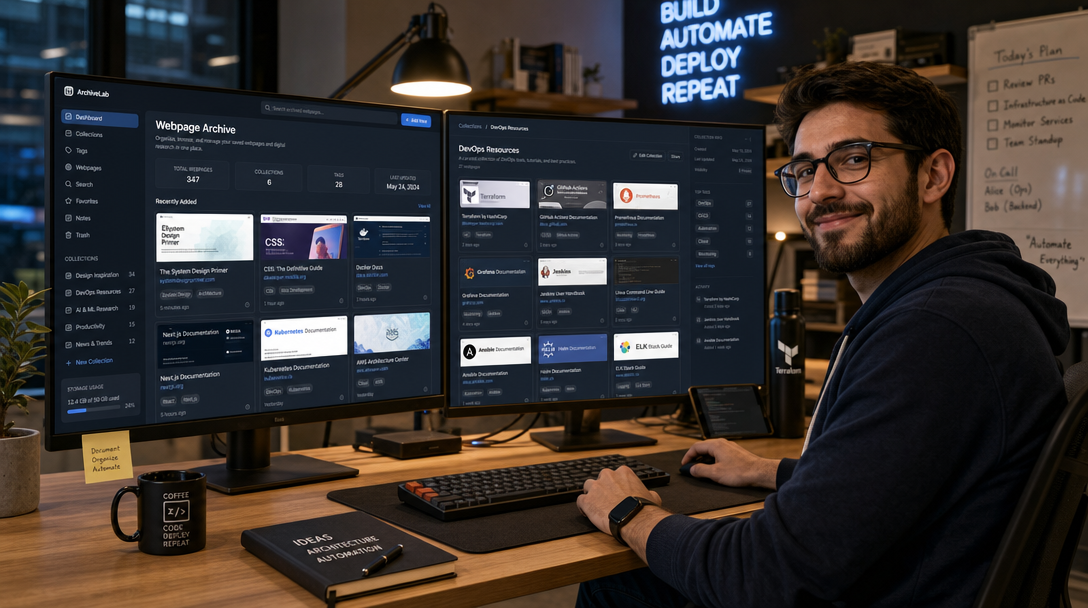
Every software engineer, security analyst, and technical researcher has experienced the frustrating phenomenon of “link rot.” You bookmark an indispensable technical walkthrough, a critical GitHub issue explanation, or a vendor API specification, only to return six months later and find an HTTP 404 error, an expired domain, or a paywalled redirect. According to a landmark study by the Pew Research Center, roughly 38% of all web pages that existed in 2013 are no longer accessible today, and even 8% of pages created in 2023 have already vanished into the digital void.
Traditional browser bookmarks and basic bookmarking services (such as Pocket or Raindrop.io) only store pointers—static Uniform Resource Locators (URLs). When the remote web server deletes the target asset, your bookmark becomes useless. Linkwarden solves this vulnerability permanently. It is a modern, collaborative, open-source bookmark manager that does not simply save a link; it deploys an automated headless browser engine to capture an immutable copy of the webpage in multiple formats: a full-page responsive screenshot, a sanitized reader-view text extraction, and an archival PDF document.
Linkwarden Architectural Topology
Linkwarden is designed around a decoupled, microservices architecture engineered for high concurrency and robust media rendering. The stack consists of three core components:
- Linkwarden Core: A Next.js application that serves the responsive React user interface, handles REST API routing, processes user authentication via NextAuth, and orchestrates background capture tasks.
- PostgreSQL 16: The relational database storing user accounts, team permissions, hierarchical collections, tags, metadata, and full-text search indexes.
- Playwright Headless Browser: A specialized containerized instance of Chromium driven by Playwright. When a user creates a link, Linkwarden instructs Playwright to render the target URL, wait for dynamic client-side DOM hydration, scroll through the viewport, and export a high-fidelity screenshot and PDF.
Captured snapshots can be stored on local persistent disk volumes or offloaded to S3-compatible object storage backends such as MinIO S3 Object Storage.
+-----------------------------------------------------------------------+
|             User Desktop / Mobile / Browser Extensions                |
+-----------------------------------------------------------------------+
                                    |
                            (HTTPS / Port 443)
                                    v
+-----------------------------------------------------------------------+
|                    Reverse Proxy (Caddy / Traefik / Nginx)             |
|              - Automated TLS Termination & SSL Certificates           |
|              - Header Injection & Rate Limiting                       |
+-----------------------------------------------------------------------+
                                    |
                            (Internal Network)
                                    v
+-----------------------------------------------------------------------+
|                     Linkwarden Web App (Port 3000)                    |
|   - Next.js / React Frontend   - NextAuth Session Management          |
|   - REST API Controllers       - Background Task Queue                |
+-----------------------------------------------------------------------+
         |                                           |
         v (Database Queries)                        v (Scrape / Snapshot)
+------------------------+                  +---------------------------+
| PostgreSQL 16 DB       |                  | Playwright Microservice   |
| - Users & Permissions  |                  | - Headless Chromium       |
| - Collections & Tags   |                  | - PDF Generation          |
| - Links & Metadata     |                  | - Full-Page Screenshots   |
+------------------------+                  +---------------------------+
                                                     |
                                                     v (Asset Storage)
                                            +---------------------------+
                                            | Local Volume / MinIO S3   |
                                            | - /data/storage/          |
                                            +---------------------------+
Prerequisites and Host Directory Preparation
Because the Playwright rendering engine spins up actual Chromium browser instances to execute JavaScript on arbitrary remote websites, resource sizing must account for concurrent page rendering:
- Compute: Minimum 2 vCPU cores (4 vCPU cores recommended for active multi-user teams).
- Memory: 2 GB RAM minimum, 4 GB recommended (Chromium processes require sufficient memory to prevent Out-Of-Memory segmentation faults on complex Single Page Applications).
- Operating System: Any modern Linux distribution (Ubuntu 24.04 LTS, Debian 12, Rocky Linux 9) with Docker Engine and Docker Compose v2 installed.
- Storage: Fast NVMe or SSD storage for the PostgreSQL database and captured screenshots/PDFs.
Create a dedicated host directory tree for configuration, database storage, and preserved web assets:
sudo mkdir -p /opt/linkwarden/{data,pgdata}
sudo chown -R 1000:1000 /opt/linkwarden/data
cd /opt/linkwarden
Generating Cryptographic Secrets
Linkwarden requires a cryptographically random string to sign JSON Web Tokens (JWT) and secure user session cookies. Generate a strong 64-character hex secret using openssl:
openssl rand -hex 32
Save this generated value. It will be assigned to NEXTAUTH_SECRET in the environment configuration.
Production Docker Compose Specification
Create the /opt/linkwarden/docker-compose.yml file. This production configuration connects the Next.js Linkwarden container to an isolated PostgreSQL instance and the dedicated Playwright scraper service across an internal bridge network:
services:
  postgres:
    image: postgres:16-alpine
    container_name: linkwarden-postgres
    restart: unless-stopped
    environment:
      POSTGRES_USER: linkwarden
      POSTGRES_PASSWORD: StrongDbPassword_ChangeMe!
      POSTGRES_DB: linkwarden
    volumes:
      - ./pgdata:/var/lib/postgresql/data
    healthcheck:
      test: ["CMD-SHELL", "pg_isready -U linkwarden -d linkwarden"]
      interval: 10s
      timeout: 5s
      retries: 5
    deploy:
      resources:
        limits:
          memory: 1024M
    networks:
      - linkwarden-backend

  linkwarden:
    image: ghcr.io/linkwarden/linkwarden:v2.9.3
    container_name: linkwarden-app
    restart: unless-stopped
    depends_on:
      postgres:
        condition: service_healthy
    ports:
      - "127.0.0.1:3000:3000"
    environment:
      # Database Connection
      - DATABASE_URL=postgresql://linkwarden:StrongDbPassword_ChangeMe!@postgres:5432/linkwarden
      # Authentication & Base URL
      - NEXTAUTH_SECRET=a8f9c1e2d3b4567890abcdef1234567890abcdef1234567890abcdef12345678
      - NEXTAUTH_URL=https://links.yourdomain.com
      # Storage Configuration (Local Volume)
      - STORAGE_FOLDER=/data
      # Scraper Configuration
      - AUTOSCROLL_TIMEOUT=15000
      - RE_ARCHIVE_LIMIT=5
    volumes:
      - ./data:/data
    deploy:
      resources:
        limits:
          cpus: '2.0'
          memory: 2048M
        reservations:
          memory: 512M
    networks:
      - linkwarden-backend
      - linkwarden-frontend

  playwright:
    image: mcr.microsoft.com/playwright:v1.49.0-jammy
    container_name: linkwarden-playwright
    restart: unless-stopped
    ipc: host
    init: true
    deploy:
      resources:
        limits:
          cpus: '2.0'
          memory: 2048M
    networks:
      - linkwarden-backend

networks:
  linkwarden-backend:
    internal: true
  linkwarden-frontend:
    driver: bridge
Reverse Proxy Configuration with Caddy
Modern browser extensions and authentication cookies require strict HTTPS enforcement. Using Caddy as an automated reverse proxy guarantees zero-touch SSL certificate acquisition via Let’s Encrypt while injecting necessary security headers.
Add the following block to your Caddyfile:
links.yourdomain.com {
    encode zstd gzip

    # Set maximum request body to 100MB for large manual file uploads
    request_body {
        max_size 100MB
    }

    # Proxy to Linkwarden Next.js service
    reverse_proxy 127.0.0.1:3000 {
        header_up X-Real-IP {remote_host}
        header_up X-Forwarded-For {remote_host}
        header_up X-Forwarded-Proto {scheme}
    }

    # Security & Isolation Headers
    header {
        Strict-Transport-Security "max-age=31536000; includeSubDomains; preload"
        X-Content-Type-Options "nosniff"
        X-Frame-Options "SAMEORIGIN"
        Referrer-Policy "strict-origin-when-cross-origin"
    }
}
Deploying and Initial Account Hardening
Start the container cluster using Docker Compose:
docker compose up -d
Verify that all containers reach healthy and running states:
docker compose ps
Open your browser and navigate to https://links.yourdomain.com. On the first launch, create your primary administrator account.
Critical Security Step: Disabling Open Registration: By default, Linkwarden allows anyone who reaches the login page to register a new account. To secure a private homelab or internal corporate instance, disable public signups immediately after registering your admin account. Add the following environment variable to the linkwarden service in your docker-compose.yml:
- NEXT_PUBLIC_DISABLE_REGISTRATION=true
Apply the update by recreating the container:
docker compose up -d --force-recreate linkwarden
Connecting Browser Extensions for One-Click Archiving
Linkwarden’s real power emerges when integrated directly into desktop and mobile browser workflows. Official browser extensions exist for Chromium browsers (Google Chrome, Brave, Microsoft Edge) and Mozilla Firefox:
- Install the official Linkwarden extension from the Chrome Web Store or Firefox Add-ons repository.
- In the Linkwarden web dashboard, navigate to Settings > Access Tokens and click Create Token. Give it an identifier such as
workstation-browser-extension. - Click the Linkwarden extension icon in your browser toolbar, enter your instance URL (e.g.,
https://links.yourdomain.com), and paste the generated access token. - Whenever you browse to an insightful technical article or documentation page, click the extension icon, choose an organized Collection (e.g.,
DevOps,Kubernetes,Security), apply relevant tags, and click Save.
The background Playwright daemon immediately queues the URL, pulls the complete page DOM, takes a pixel-accurate screenshot, extracts clean text for full-text keyword indexing, and compiles an immutable PDF copy.
Troubleshooting Common Linkwarden Deployment Issues
1. Webpage Snapshots Fail or Hang Indefinitely
Symptom: Links are successfully saved with their title and favicon, but the PDF and screenshot cards remain blank or report “Archiving Failed.”
Cause: Complex modern Single Page Applications (SPAs) often fail to trigger standard DOM load events due to infinite scroll scripts, aggressive cookie consent banners, or anti-bot Cloudflare Turnstile challenges. Alternatively, the Playwright container lacks access to the host’s shared memory (/dev/shm).
Solution: Ensure ipc: host is defined on the playwright service in docker-compose.yml. This allows Chromium to utilize the host’s shared memory partition, preventing browser crashes. Additionally, adjust AUTOSCROLL_TIMEOUT=15000 to give heavy JavaScript pages up to 15 seconds to finish asset loading before capturing the viewport.
2. Infinite Redirect Loop During Login
Symptom: Entering valid credentials causes the browser to reload continuously or redirect between /api/auth/signin and the homepage without establishing an active session.
Cause: A protocol mismatch between the public-facing URL and internal container network. If NEXTAUTH_URL is defined as http://... instead of https://..., NextAuth rejects session cookie exchange over HTTPS.
Solution: Verify that NEXTAUTH_URL strictly matches your external domain with the https:// scheme: NEXTAUTH_URL=https://links.yourdomain.com. Ensure your reverse proxy properly passes the X-Forwarded-Proto https header to the container.
3. Storage Permission Denied (EACCES)
Symptom: Linkwarden container logs display Error: EACCES: permission denied, mkdir '/data/...' when attempting to write PDF or image assets to disk.
Cause: The Linkwarden container runs internally as non-root user node (UID 1000). If the host folder /opt/linkwarden/data was created by root, the container process cannot create subdirectories.
Solution: Reset the file ownership on the host: sudo chown -R 1000:1000 /opt/linkwarden/data and restart the stack.
Conclusion: Future-Proof Knowledge Preservation
Deploying Linkwarden with Docker Compose bridges the divide between lightweight link curation and archival digital preservation. By utilizing an automated Playwright headless browser alongside PostgreSQL and Next.js, engineering teams and homelab builders insulate their critical reference library from internet link rot, corporate paywalls, and content takedowns. Pair Linkwarden with password managers like Vaultwarden and document repositories like Paperless-ngx to complete a self-hosted productivity ecosystem.

Hi, I’m Mark, the author of Clever IT Solutions: Mastering Technology for Success. I am passionate about empowering individuals to navigate the ever-changing world of information technology. With years of experience in the industry, I have honed my skills and knowledge to share with you. At Clever IT Solutions, we are dedicated to teaching you how to tackle any IT challenge, helping you stay ahead in today’s digital world. From troubleshooting common issues to mastering complex technologies, I am here to guide you every step of the way. Join me on this journey as we unlock the secrets to IT success.