What if you could have a powerful, ready-to-use operating system designed specifically for gaming and creative work, without the usual hours of complex setup? That’s the promise of a specialized distribution built for modern users. We are exploring a unique operating system born from Fedora. Created by Thomas Crider, a respected developer known as GloriousEggroll, this platform arrives pre-loaded with essential gaming drivers, performance tweaks, and multimedia tools. This eliminates the frustrating configuration that often comes with other linux distributions. This guide is crafted for beginners. We walk you through the entire process, from understanding the system’s unique features to final optimizations. Our goal is to provide clear information that makes the journey simple and successful. By the end, you will feel confident. You will have a fully functional system tailored for performance right out of the box.
Key Takeaways
- Nobara is a Fedora-based operating system optimized for gaming and multimedia.
- It was developed by Thomas Crider (GloriousEggroll), a prominent figure in the gaming community.
- The system comes pre-configured with drivers and codecs, saving significant setup time.
- This guide is designed for individuals new to this type of software.
- We cover everything from system requirements to post-setup configuration.
- Following these steps ensures a smooth and successful setup process.
Understanding Nobara Linux and Its Unique Features
We begin by exploring the core identity of this specialized operating system. It is built directly upon the solid foundation of Fedora, inheriting its renowned stability and security. This foundation is then specifically enhanced for modern gaming and creative tasks.
This distribution arrives with a significant advantage: pre-configured drivers for NVIDIA, AMD, and Intel graphics cards. This eliminates a major hurdle that often complicates setup on other linux distributions. The system is ready for action right away.
Overview of Nobara as a Fedora-Based Distribution
This platform maintains full compatibility with Fedora’s extensive software repositories. However, it adds specialized packages and performance tweaks. The result is a powerful, purpose-built solution that saves users from hours of manual configuration.
Pre-Installed Gaming, Multimedia, and Productivity Tools
The software selection is impressive. It includes tools like Wine and Proton for running Windows games. For creators, OBS Studio and essential video codecs are included. These tools provide a complete, ready-to-use suite for various needs.
Key Differences Between Nobara and Regular Fedora
The main differences are practical. This version includes components that Fedora typically omits due to licensing. It also features custom-tuned desktop environments and gaming kernels. These features deliver a polished, high-performance experience that stands out for users seeking an optimized system.
System Requirements and Pre-Installation Preparations
Ensuring your equipment aligns with the platform’s demands will guarantee optimal performance from the start. We outline the essential system requirements and preparatory steps for a smooth setup process.
Hardware and Software Requirements
Your computer needs specific components to run this specialized operating system effectively. The baseline requirements include a dual-core 64-bit processor, though a quad-core CPU is recommended for better performance.
Memory is crucial for demanding applications. While 4GB RAM meets minimum system needs, we suggest 8GB or more for gaming and streaming activities.
Storage space must be adequate for the operating system and your files. At least 30GB free space is required, with SSDs offering significant speed advantages over traditional hard drives.
Graphics capabilities are essential for modern computing. Your system should have an NVIDIA, AMD, or Intel GPU with Vulkan support for optimal visual performance.
An internet connection is necessary throughout the setup. This ensures access to critical updates, drivers, and gaming platforms that enhance the user experience.
Downloading the Nobara 42 ISO
Acquiring the installation file is your first practical step. Visit the official project website to download the correct version for your needs.
You’ll choose between different desktop environments during the download process. Select GNOME or KDE Plasma based on your personal preference and workflow requirements.
Verifying file integrity protects against corrupted downloads. Always check the ISO file after acquisition to prevent potential installation issues.
Backing up important data is a critical safety measure. This precaution is especially vital if you plan to modify existing operating system configurations.
How to install nobara linux on Your System
Now we move to the practical phase. This part of the guide details the essential procedure to get the operating system onto your computer. We break it down into clear, manageable actions.
Creating a Bootable USB Installer
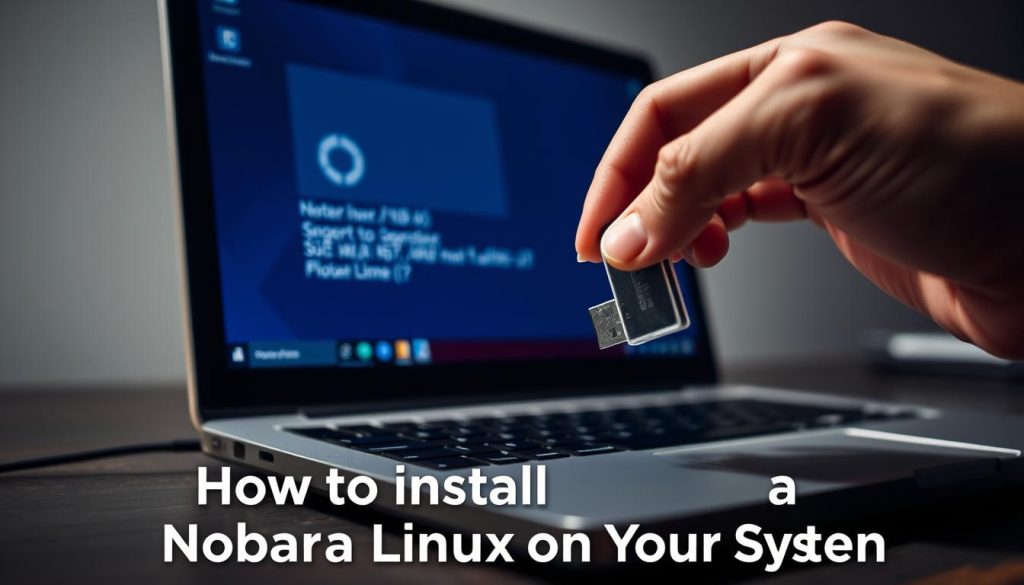
The first critical step is preparing the installation media. You will transform a standard USB drive into a bootable installer. This media will launch the setup environment.
We recommend reliable tools for this task. Balena Etcher offers excellent cross-platform simplicity. Rufus provides advanced options for Windows users. Fedora Media Writer is the official choice for Fedora-based distributions.
The process is straightforward. Select the downloaded ISO file. Choose the correct USB drive, noting that all data on it will be erased. Initiate the writing process, which typically takes a few minutes.
Booting from USB and Starting the Installation Process
Next, you need to boot your computer from the USB drive. Restart your system and access the boot menu. The key to press (like F12 or Delete) varies by manufacturer.
Once booted, you will see a menu. Select “Install Nobara” to begin. The graphical installer will guide you through the setup. This includes language, region, and keyboard selection.
The disk partitioning step is next. You can choose automatic partitioning for simplicity. Alternatively, manual partitioning offers more control for advanced users.
Finally, create your user account. Set a username and a secure but memorable password. After the system copies all necessary packages and reboots, you will have a fresh desktop ready for system administration tasks and customization.
Post-Installation Optimization for Gaming and Multimedia
Unlocking full performance requires attention to driver configuration and gaming tools. We guide you through essential adjustments that enhance your system’s capabilities.
Configuring Drivers and Performance Tweaks
Your graphics drivers are crucial for optimal performance. Verify they are current using the system’s package manager. This ensures compatibility with demanding applications.
Regular updates provide important improvements. The platform includes specialized gaming kernels that reduce latency. These settings deliver smoother frame rates.
Utilizing Lutris and Other Gaming Tools
Lutris serves as your primary gaming hub. This software supports titles from multiple sources like Steam and GOG. It simplifies managing your game library.
For Windows titles, Wine provides essential compatibility. Lutris uses custom versions optimized for gaming performance. These tools work together seamlessly.
Explore additional packages through enabled repositories. The community maintains installers for thousands of titles. This expands your gaming options significantly.
Conclusion
This distribution successfully bridges a critical gap in the software landscape. It offers a refined experience that respects both your time and technical goals.
You now have the information and confidence to harness its full potential. The desktop environment is pre-configured for immediate productivity and entertainment.
Remember, the available packages and features are just the beginning. The enabled repositories offer countless additional packages for you to discover.
We encourage all users to explore beyond this guide. Each user can tailor the system to their unique workflow.
This platform stands as a testament to community-driven development. It delivers a powerful, ready-to-use solution for modern computing demands.
FAQ
What are the main differences between this distribution and standard Fedora?
Is my hardware compatible with this operating system?
How do I get the official ISO file to begin the setup?
What gaming tools and software are included after setup?
How does the project handle updates and software repositories?