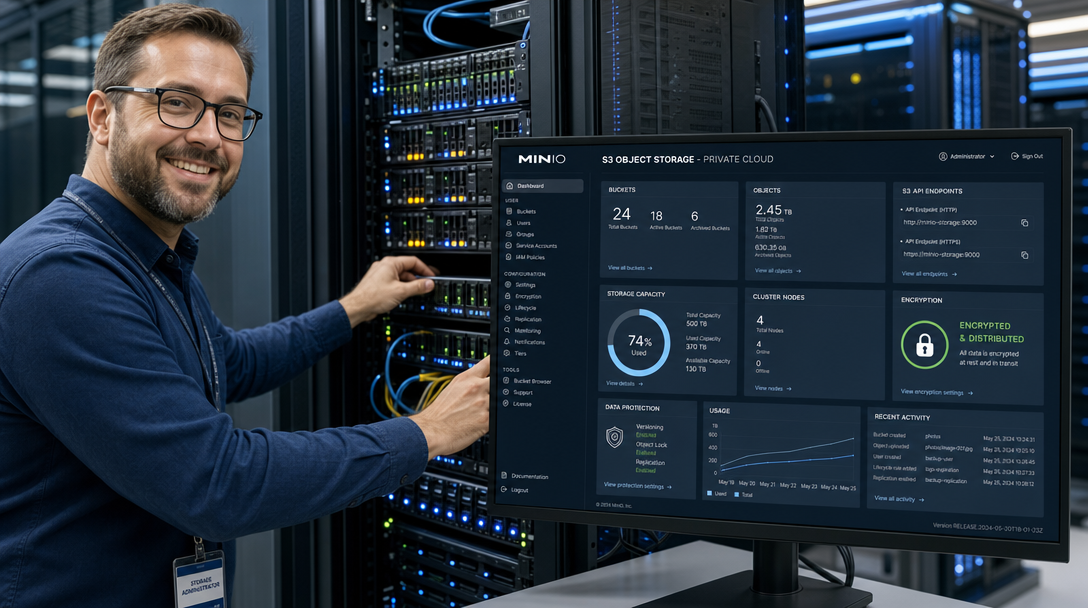
Modern cloud-native applications and self-hosted infrastructure have decisively outgrown traditional POSIX file systems (NFS, SMB, or direct local directory mounts). Whether you are backing up Docker volumes with Restic, archiving K3s etcd cluster snapshots, storing media blobs for Nextcloud, aggregating logs with Grafana Loki, or hosting multi-gigabyte AI model checkpoints, the industry standard interface is Amazon S3 (Simple Storage Service) object storage.
However, relying on public cloud S3 providers (such as AWS S3, Google Cloud Storage, or Azure Blob) introduces significant monthly subscription bills, punitive egress data transfer fees, and external data sovereignty concerns. MinIO is a blazingly fast, Kubernetes-native, S3-compatible object storage suite written in Go. Capable of multi-gigabyte per second throughput, MinIO allows you to transform local NVMe drives, HDDs, or ZFS storage pools into a private, high-performance S3 cloud. In this technical walkthrough, we will deploy MinIO using Docker Compose, configure automated bucket policies and scoped service credentials, connect the official MinIO Client (mc), and harden the deployment for production resilience.
Why Object Storage Trumps Traditional Network File Shares
Before diving into container configurations, it is vital to understand why modern distributed applications demand object storage rather than network shares:
- Flat Namespace & Metadata Tagging: Traditional filesystems degrade under millions of nested directories. Object storage uses a flat key-value addressing model with arbitrary, queryable user metadata attached to every object.
- Universal API Interoperability: Nearly every enterprise developer tool, database backup agent, and DevOps orchestrator natively supports the Amazon S3 v4 signature protocol. Pointing an application to your local MinIO instance requires only updating the endpoint URL and API keys.
- Built-in Immutability & Versioning: MinIO natively supports object locking (WORM: Write Once, Read Many) and bucket versioning, providing ironclad protection against accidental file deletion or malicious ransomware encryption.
- High-Throughput Concurrency: MinIO utilizes multi-part parallel uploads and SIMD-accelerated cryptographic routines, fully saturating 10GbE and 25GbE network links on commodity server hardware.
MinIO Architecture & Network Ports
MinIO operates on two primary network interfaces:
- S3 API Endpoint (Default Port 9000): The high-speed data plane where applications, backup agents, and AWS SDKs read and write objects using authenticated HTTP/HTTPS calls.
- MinIO Web Console (Default Port 9001): An administrative, browser-based graphical user interface for visualizing storage capacity, configuring bucket lifecycle rules, creating access policies, and issuing service accounts.
+-------------------------------------------------------------------------------+
|                            CLIENT ACCESS LAYER                                |
|  [Backup Agents (Restic)]   [K3s Snapshots]   [Nextcloud / Loki]  [Admins]    |
+---------------------+--------------+------------------+--------------+--------+
                      |              |                  |              |
           S3 REST API (Port 9000)   |                  |       Console (Port 9001)
                      |              |                  |              |
+---------------------v--------------v------------------v--------------v--------+
| HOMELAB DOCKER ENGINE                                                         |
|                                                                               |
|   +-----------------------------------------------------------------------+   |
|   | Container: minio_storage (ghcr.io/minio/minio)                        |   |
|   |                                                                       |   |
|   |   - S3 Engine (Port 9000) <---> Signature v4 Authentication           |   |
|   |   - Management Web Console (Port 9001)                                |   |
|   |   - Health & Prometheus Metrics (/minio/v2/metrics/cluster)           |   |
|   +-----------------------------------------------------------------------+   |
|                                     |                                         |
|                                     v Persistent Host Bind Mount              |
|   +-----------------------------------------------------------------------+   |
|   | Host Storage: /mnt/storage-pool/minio/data (ZFS / Ext4 RAID array)    |   |
|   +-----------------------------------------------------------------------+   |
+-------------------------------------------------------------------------------+
Prerequisites
- A Linux server running Ubuntu 24.04 LTS, Debian 12, or AlmaLinux 9 with Docker Engine (v26+) and Docker Compose (v2.24+).
- A dedicated storage directory on a disk with adequate free capacity (e.g.
/mnt/storage/minio-dataor a Docker volume). - Basic knowledge of command-line tools and environment variables.
Step 1: Preparing Directory Structure and Environment Secrets
Create a dedicated directory for your MinIO project. Never store unversioned data directly inside the Compose folder; keep your configuration and data path decoupled:
mkdir -p ~/docker-stacks/minio
mkdir -p /mnt/minio-data/data
cd ~/docker-stacks/minio
Generate high-entropy random credentials for the master administrative user and store them in a secure .env file:
cat << EOF > .env
# MinIO Root Administrative Credentials
MINIO_ROOT_USER=admin_storage
MINIO_ROOT_PASSWORD=$(openssl rand -hex 24)

# Network and Storage Paths
MINIO_DATA_DIR=/mnt/minio-data/data
MINIO_BROWSER_REDIRECT_URL=http://localhost:9001
MINIO_SERVER_URL=http://localhost:9000

# Prometheus Metrics Authentication
MINIO_PROMETHEUS_AUTH_TYPE=public
EOF

chmod 600 .env
Make a note of your MINIO_ROOT_PASSWORD. You will use this to sign into the management console.
Step 2: Composing the Production MinIO Stack
Now, create docker-compose.yml. We configure static port allocations, resource reservations, read-only temporary filesystems, and automated Docker health checks:
services:
  minio:
    image: quay.io/minio/minio:RELEASE.2024-09-22T00-33-43Z
    container_name: minio_storage
    restart: unless-stopped
    command: server /data --console-address ":9001" --address ":9000"
    ports:
      - "9000:9000"   # S3 API Endpoint
      - "9001:9001"   # MinIO Management Console
    environment:
      - MINIO_ROOT_USER=${MINIO_ROOT_USER}
      - MINIO_ROOT_PASSWORD=${MINIO_ROOT_PASSWORD}
      - MINIO_BROWSER_REDIRECT_URL=${MINIO_BROWSER_REDIRECT_URL}
      - MINIO_SERVER_URL=${MINIO_SERVER_URL}
      - MINIO_PROMETHEUS_AUTH_TYPE=${MINIO_PROMETHEUS_AUTH_TYPE:-public}
    volumes:
      - ${MINIO_DATA_DIR}:/data
    security_opt:
      - no-new-privileges:true
    healthcheck:
      test: ["CMD", "mc", "ready", "local"]
      interval: 15s
      timeout: 5s
      retries: 3
      start_period: 10s
    networks:
      - storage_mesh

networks:
  storage_mesh:
    driver: bridge
Start the container in detached mode and verify its status:
docker compose up -d
docker compose ps
Inspect the startup logs to ensure the storage drive mounted cleanly:
docker compose logs minioYou should see confirmation that both the API endpoint (:9000) and Web Console (:9001) are active and listening.
Step 3: Accessing the MinIO Console & Creating Service Accounts
Open your browser and navigate to http://<your-server-ip>:9001. Log in using the MINIO_ROOT_USER and MINIO_ROOT_PASSWORD defined in your .env file.
Best practice dictates that you never use your root credentials for client applications. Instead, create dedicated buckets and restricted service accounts:
- Create a Bucket:
- In the left navigation menu, click Buckets > Create Bucket.
- Name the bucket
homelab-backups. - (Optional) Enable Versioning to preserve old file versions against accidental overwrites.
- Click Create Bucket.
- Issue a Scoped Service Account (Access & Secret Key):
- In the navigation menu, select Access Keys (or Service Accounts).
- Click Create Access Key.
- MinIO generates a standard AWS-compatible 20-character Access Key and 40-character Secret Key.
- Under Policy, restrict this key strictly to the target bucket so compromised application credentials cannot read or delete other data:
{
  "Version": "2012-10-17",
  "Statement": [
    {
      "Effect": "Allow",
      "Action": ["s3:*"],
      "Resource": [
        "arn:aws:s3:::homelab-backups",
        "arn:aws:s3:::homelab-backups/*"
      ]
    }
  ]
}
Download or securely store the generated credentials. The Secret Key will never be displayed again.
Step 4: Managing MinIO from the CLI (MinIO Client mc)
The official mc (MinIO Client) binary is a drop-in replacement for standard GNU tools like ls, cat, cp, and mirror, tailored specifically for S3 object stores. Install it on your workstation or host:
# Download the mc binary
curl https://dl.min.io/client/mc/release/linux-amd64/mc \
  --create-dirs -o /usr/local/bin/mc
chmod +x /usr/local/bin/mc

# Verify version
mc --version
Register an alias connecting your local client to your MinIO instance:
mc alias set myminio http://127.0.0.1:9000 admin_storage YOUR_STRONG_PASSWORDTest the connection and interact with your buckets using standard Unix-like commands:
# List all existing buckets
mc ls myminio

# Create a new bucket for database dumps
mc mb myminio/database-archives

# Upload a test file
echo "MinIO S3 Production Test" > test.txt
mc cp test.txt myminio/database-archives/

# Inspect object metadata
mc stat myminio/database-archives/test.txt
Step 5: Real-World Integration – Automating Backups with Restic
To demonstrate the utility of self-hosted S3 storage, let’s configure Restic to initialize an encrypted deduplicated backup repository pointing to our local MinIO instance:
# Set AWS S3 environment variables for Restic
export AWS_ACCESS_KEY_ID="YOUR_SCOPED_ACCESS_KEY"
export AWS_SECRET_ACCESS_KEY="YOUR_SCOPED_SECRET_KEY"
export RESTIC_PASSWORD="YourStrongEncryptionPassphrase"
export RESTIC_REPOSITORY="s3:http://127.0.0.1:9000/homelab-backups"

# Initialize the repository
restic init

# Execute a fast, deduplicated snapshot of your Docker configs
restic backup ~/docker-stacks
Within seconds, Restic chunks, encrypts, and streams your files directly to MinIO via high-speed S3 API multipart uploads. You can view the newly generated snapshot blobs directly in the MinIO Web Console under homelab-backups.
Production Hardening & Monitoring
- Reverse Proxy with TLS (HTTPS): In our baseline Compose file, MinIO serves plain HTTP. In production environments where traffic traverses untrusted LANs or the internet, place Caddy, Nginx, or Traefik in front of port 9000 and 9001 to enforce TLS 1.3 encryption.
- Configure Storage Lifecycle Rules: Avoid unbounded storage exhaustion by setting lifecycle rules to automatically transition or expire temporary files. For instance, instruct MinIO to delete old database backups after 30 days:
mc ilm rule add --expire-days 30 myminio/database-archives - Prometheus Metrics Export: MinIO natively exports comprehensive cluster telemetry without external sidecars. Point your Prometheus or VictoriaMetrics scraper to
http://minio:9000/minio/v2/metrics/clusterto graph bucket capacity, active connections, and read/write latencies. - Underlying Filesystem (ZFS / Ext4): For maximum durability, run MinIO on top of an underlying ZFS pool configured with
atime=offand compression enabled (lz4). MinIO stores objects as standard files on disk, benefiting directly from ZFS bitrot scrubbing and mirror redundancy.
Troubleshooting Common MinIO Deployment Issues
1. RequestTimeTooSkewed / Signature Validation Errors
Symptom: S3 client calls fail with SignatureDoesNotMatch or RequestTimeTooSkewed: The difference between the request time and the server's time is too large.
Root Cause: The AWS S3 signature protocol strictly enforces a maximum clock drift of 15 minutes between client and server to prevent replay attacks.
Fix: Ensure Network Time Protocol (NTP) or systemd-timesyncd is active on your host with timedatectl set-ntp on and verify synchronized system clocks.
2. Browser Infinite Redirect Loop on Web Console
Symptom: Accessing http://your-server:9001 results in constant HTTP 301/307 redirects or blank login screens.
Root Cause: Misconfiguration of MINIO_BROWSER_REDIRECT_URL when placing MinIO behind a reverse proxy or TLS terminator.
Fix: Explicitly declare the public URL in your .env file (e.g. MINIO_BROWSER_REDIRECT_URL=https://s3-console.yourdomain.com) so the internal Go router does not attempt to redirect to an unroutable internal container IP.
3. Storage Leak from Incomplete Multipart Uploads
Symptom: Disk space continues to grow even though the reported bucket size in the console remains constant.
Root Cause: Network interruptions during large multi-gigabyte client uploads can leave incomplete multipart chunks orphaned in temporary bucket storage.
Fix: Clean up dangling multipart uploads with the mc CLI or enforce an automated cleanup lifecycle policy:
mc rm --incomplete --recursive --force myminio/homelab-backupsConclusion
Self-hosting MinIO object storage with Docker Compose provides the foundation for an enterprise-grade private cloud. By adopting the standard Amazon S3 API on your own infrastructure, you eliminate cloud vendor lock-in, evade recurring storage and egress bills, and dramatically accelerate local backup and restore pipelines. Combined with strict IAM service accounts and automated lifecycle pruning, MinIO gives you complete control over your data storage architecture.

Hi, I’m Mark, the author of Clever IT Solutions: Mastering Technology for Success. I am passionate about empowering individuals to navigate the ever-changing world of information technology. With years of experience in the industry, I have honed my skills and knowledge to share with you. At Clever IT Solutions, we are dedicated to teaching you how to tackle any IT challenge, helping you stay ahead in today’s digital world. From troubleshooting common issues to mastering complex technologies, I am here to guide you every step of the way. Join me on this journey as we unlock the secrets to IT success.