Have you ever spent minutes scrolling through a long report, desperately trying to find a specific section? A well-formatted document shouldn’t be a treasure hunt. Proper pagination is the silent hero of professional writing, transforming a chaotic manuscript into an organized, credible piece of work. We believe mastering this fundamental skill is essential for anyone creating academic papers, business reports, or lengthy manuscripts. This guide will walk you through the entire process with clarity. We break down what might seem complex into simple, actionable steps.
Our methodical approach ensures you understand the core concepts first. For instance, knowing the difference between the pageless and pages format is crucial, as the feature to add page numbers is not available in documents that are in pageless format, a key detail from the official Google Docs support page. This foundational knowledge prevents common frustrations.
We will cover everything from accessing the Insert menu to customizing headers and footers. You will learn to tailor the numbering system for different sections, similar to how server configurations like mod_rewrite tailor web addresses. Whether you use a desktop or a mobile device, this guide has you covered.
Key Takeaways
- Page numbers are essential for document organization, navigation, and maintaining a professional appearance.
- This feature is only available in the “pages” format, not the “pageless” format.
- The process involves using the Insert menu to place numbers in headers or footers.
- Customization options allow for different formats and starting points.
- Understanding headers and footers is key to mastering page numbering.
- The steps are applicable for both desktop and mobile versions of the application.
Understanding the Basics of Page Numbering in Google Docs
Before diving into the technical steps, let’s explore why proper pagination matters for document organization. This foundation ensures you approach the process with clarity and purpose.
Overview of Page Numbers and Their Purpose
Page numbers serve multiple critical functions in any formal document. They help readers navigate lengthy content efficiently. These reference points are essential for academic citations and professional discussions.
Many institutions require specific formatting standards. Proper numbering meets these requirements while enhancing document credibility. This feature transforms chaotic manuscripts into organized, professional works.
Differences Between Pageless and Pages Format
Google Docs offers two distinct viewing modes that affect numbering capabilities. The pages format mimics traditional printed documents with defined margins and breaks. This creates discrete boundaries where numbering functions properly.
In contrast, pageless format presents content as a continuous scroll. This view eliminates page boundaries entirely. As detailed in this comprehensive guide, numbering features only work in pages mode.
Check your current format by observing content display. Defined breaks indicate pages format, while seamless scrolling suggests pageless. Mobile users must enable “Print Layout” to access these features.
Understanding this distinction prevents frustration when menu options appear unavailable. It’s similar to how server configurations like cPanel require specific environments to function correctly.
Step-by-Step Guide: how to add page numbers in google docs
Let’s navigate the practical steps for implementing pagination in your document. The process is streamlined through the Insert menu, which houses all the necessary tools.
Begin by opening your file. Click Insert in the top menu bar. Navigate to “Page elements” and select “Page number.” This action reveals three primary choices.
You can select the standard placement option. This lets you choose where you want the numerals—either the header or footer. A second option inserts the total page count at your cursor’s location.
The “More options” selection provides advanced control. It allows for different starting points and applying numbers to specific sections. For MLA style, you would need to place your last name alongside the page number.
These options ensure your document meets various formatting standards. The system automatically updates the numbers as you edit.
Customizing Headers, Footers, and Advanced Options
Mastering basic pagination is just the start. True control over your document‘s layout comes from customizing the headers and footers. These areas hold consistent content like titles, author names, and chapter headings across all your pages.
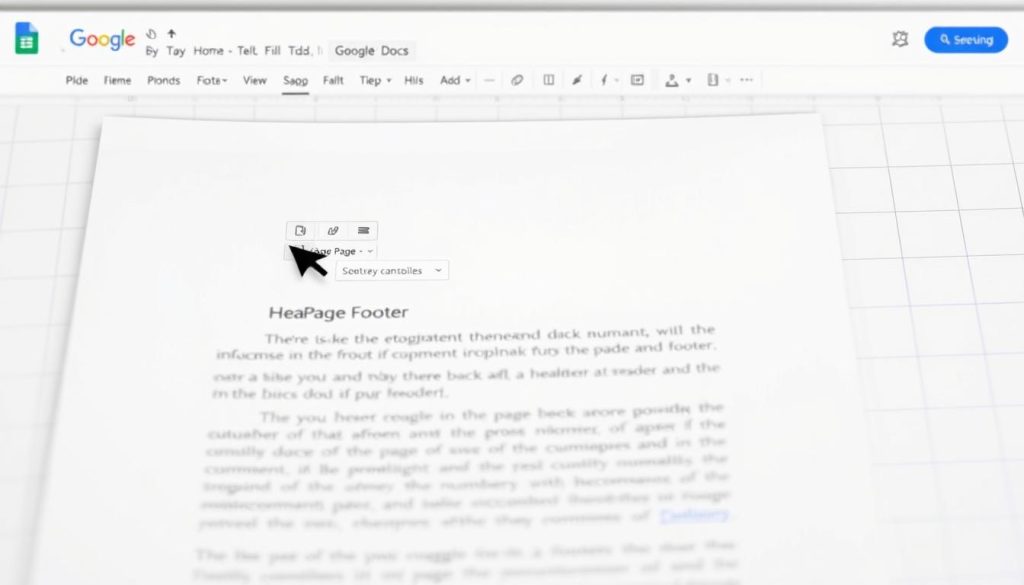
We access these tools through the Insert menu. Select “Page elements,” then choose either “Header” or “Footer.” An editable area appears where you can type your desired text.
Adding and Editing Headers & Footers
The real power lies in advanced formatting options. The “Different first page” option is essential for professional reports. It lets the cover page have a unique or blank header footer section.
For complex documents, you can create section-specific headers and footers. After inserting a section break, uncheck “Link to previous.” This allows unique content for each part of your work.
Using Different Options for Odd, Even, and First Pages
Book-style formatting requires the “Different odd & even” feature. Click a header or footer, then select “Options.” Choose this setting to display distinct information on left (even) and right (odd) pages.
You have complete control over the layout. Adjust margins or remove these elements entirely via the same “Options” menu. This level of customization ensures your document meets any standard, much like configuring specific server security modules for a website.
- First Page Control: Perfect for title pages with no page numbers.
- Section Breaks: Create unique headers for different chapters.
- Odd/Even Pages: Ideal for bound documents and formal manuscripts.
Troubleshooting and Adjusting Page Number Settings
Even with a clear guide, applying page numbers can sometimes present unexpected challenges. We now address common hurdles and provide straightforward solutions to ensure your document looks polished.
Common Issues with Page Number Visibility
The most frequent problem is numerals not appearing at all. This almost always relates to the document’s viewing mode. You can only edit these elements in “Print layout.”
If your content flows continuously, you are in pageless format. Switch to pages format via File > Page setup. On mobile, enable Print Layout by tapping Edit, then More, and toggling the option.
Another visibility issue involves numbers showing on some pages but not others. This typically indicates different header or footer settings across sections. Verify the “Link to previous” option is correctly configured.
Tips on Fixing Formatting and Layout Problems
Inconsistencies in font, size, or position often occur after manual edits. Ensure all headers and footers have matching formatting for a uniform look.
If the starting number is incorrect, use the “More options” menu when inserting page numbers. This allows you to set a custom beginning point for the entire document or specific sections.
Adjusting the margin space for your header footer areas can resolve numbers appearing too close to content. Navigate to Format > Headers & footers > More options to enter new values.
- Automatic Update Check: Ensure the numeral is an auto-inserted field, not manual text, so it updates when pages change.
- First Page Formatting: Use the “Different first page” option to suppress numbers on cover pages.
- Odd/Even Pages: For book-style documents, activate different settings for left and right pages.
Conclusion
Armed with the insights from this guide, creating well-organized documents with proper numbering is now within your reach. We’ve demonstrated the complete workflow from format verification to advanced customization.
The relationship between headers, footers, and numbering creates professional results. These elements work together to meet academic and business standards. Our comprehensive resource reinforces these techniques for complex projects.
Proper pagination transforms your content from informal drafts to polished works. This enhances readability and credibility. The customization options provide flexibility for any formatting need.
You now possess the knowledge to troubleshoot common issues confidently. Experiment with different layouts to master these powerful features. Your documents will reflect the professional quality they deserve.
FAQ
Why can’t I see my page numbers in the document?
Can I start page numbering from a specific number, like page 5?
How do I remove page numbers from just the first page of my document?
What is the difference between the Pages and Pageless formats?
Can I have different page number formats for odd and even pages?

Jana is a public relations specialist and writes about all kinds of software products that make our life easier.