Have you ever considered that the way your applications appear and behave on screen is controlled by a dedicated, powerful piece of software running behind the scenes? This essential component is the window manager. It operates quietly in the background of your operating system, handling the look and arrangement of all your open programs. It decides where windows go, how they can be moved, and even their borders and controls. One of the most powerful aspects of this environment is the incredible amount of choice available to users. This extends to every user-facing piece of software, including your desktop interface and, crucially, the window manager itself. You are not stuck with a single way of working.
We will explore the various categories of these systems, from traditional floating window setups to modern tiling configurations that automatically organize screen space. This guide is designed for everyone, from newcomers seeking to understand the basics to experienced users looking to optimize their computing environment.
Key Takeaways
- Window managers are core system components that control the appearance and placement of application windows.
- They work in the background to manage how programs are displayed on your desktop.
- The Linux ecosystem offers an unprecedented level of choice for selecting a window manager.
- Different categories exist, such as floating and tiling managers, each with unique behaviors.
- Understanding these options allows for significant customization based on individual workflow needs.
- This guide will cover popular types, their characteristics, and practical considerations for selection.
Introduction to Linux Window Managers
At the core of every graphical user interface lies a fundamental component that dictates the organization and behavior of your open programs. This software layer is responsible for the precise placement, visual styling, and interactive controls of every application on your screen.
What Are Linux Window Managers?
We define these systems as the essential software that controls how application windows appear and interact. They handle critical functions like window placement, decorations such as title bars and borders, and managing which program has focus.
This component is distinct from a full desktop environment. Environments like GNOME or KDE include their own integrated manager as part of a larger suite of applications. Standalone options, however, offer greater flexibility and resource efficiency, making them attractive for customization.
The Role They Play in Desktop Environments
The manager’s core duties include controlling the window stacking order and processing input for moving or resizing. It works with display servers like X11 or Wayland to render the graphical output.
Different types cater to various user preferences. Some favor mouse-driven workflows, while others are designed for keyboard-centric efficiency. Understanding this role is the first step toward customizing your experience. For instance, learning to use a web-based control panel can simplify system administration tasks.
This foundational knowledge empowers you to make informed choices that truly match your workflow requirements.
Exploring Tiling Window Managers and Their Benefits
The evolution of desktop management has led to innovative approaches that prioritize productivity through intelligent window arrangement. These systems represent a significant departure from traditional methods, offering automated organization that transforms how we work with multiple applications.
Understanding Tiling vs. Floating Windows
We distinguish tiling systems from floating managers by their automatic arrangement approach. Instead of allowing windows to overlap freely, tiling managers position each new window in a non-overlapping layout. This creates a puzzle-like organization that maximizes visible screen real estate.
The fundamental difference lies in manual versus automatic control. Floating environments require constant repositioning and resizing, while tiling systems handle this automatically. This eliminates the time spent dragging and adjusting windows to achieve optimal layouts.
Boosting Productivity Through Efficient Workflow
Tiling window managers excel at maintaining workflow efficiency through keyboard-centric design. They prioritize shortcuts over mouse interaction, reducing the need to switch between input methods. This keeps your fingers on the keyboard where productivity happens.
The automatic space utilization ensures every inch of display area serves a purpose. With no hidden content and constant visibility of all active applications, users experience seamless multitasking. While there’s an initial learning curve for keyboard commands, the long-term productivity gains are substantial.
Different tiling algorithms accommodate various preferences, including horizontal splits, vertical arrangements, and master-stack layouts. This flexibility makes tiling systems ideal for users who value efficient screen space utilization and simultaneous application management.
Popular linux window managers: A Detailed Look
Among the many choices for desktop organization, three systems consistently rise to the top for their distinctive features and capabilities. Each represents a different approach to managing your workspace efficiently.
i3 – The Highly Configurable Tiling Manager
i3 stands out for its straightforward configuration system. Users edit a plain text file to customize every aspect of their workflow. This includes keyboard shortcuts, window behaviors, and workspace management.
The system uses a tree-based layout structure that offers exceptional flexibility. Unlike some alternatives, i3 doesn’t require knowledge of programming languages like Haskell or Lua. This makes it accessible for users who want powerful customization without complex coding.
Awesome WM – Customization and Lua Configuration
Awesome WM provides a more comprehensive out-of-the-box experience. It comes with built-in panels and task bars, making transition from traditional desktop environments smoother. The system is entirely configured using Lua scripting.
This approach offers powerful customization capabilities for users comfortable with programming concepts. Awesome handles workspaces distinctively by displaying all spaces regardless of active content. This provides consistent navigation and better workspace awareness.
Hyprland – Modern Dynamic Tiling on Wayland
Hyprland represents the next generation of window management as a Wayland compositor. It combines dynamic tiling capabilities with advanced graphical features and smooth animations. The system delivers visual appeal without sacrificing performance.
For those seeking more detailed comparisons, we recommend checking out my top 3 tiling window managers for practical insights. Each option suits different preferences regarding configuration complexity and visual requirements.
Other Noteworthy Window Managers and Honorable Mentions
For users seeking alternatives to conventional window managers, the ecosystem offers sophisticated tools with distinct design philosophies. These specialized solutions provide unique approaches that may better suit specific workflow requirements.
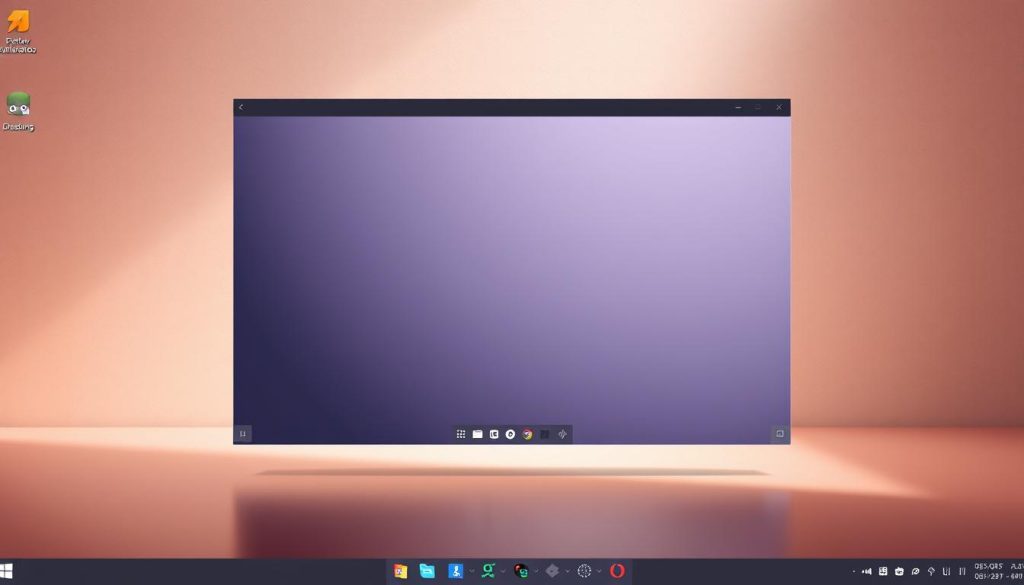
Exploring bspwm, xmonad, and Qtile
We find bspwm particularly interesting for its minimalist design. This tiling window manager follows the Unix philosophy of doing one thing well. It uses binary space partitioning to organize windows as leaves in a complete binary tree structure.
The separation of key binding functionality to sxhkd provides flexibility but increases initial setup complexity. Users typically need additional components like polybar for a complete desktop environment.
xmonad offers exceptional stability and extensibility through Haskell configuration. While the learning curve can be steep for those unfamiliar with functional programming, the results are robust. This manager automates window organization with precision.
For Python enthusiasts, Qtile provides a full-featured alternative. Its Python-based configuration makes customization accessible. Users can write custom layouts and widgets with relative ease.
Each option requires significant time investment for optimal configuration. The choice depends on your technical comfort and workflow needs. Understanding these alternatives helps when considering virtualization solutions that might benefit from specialized window management.
Configurations, Shortcuts, and Customizations
The true power of desktop customization emerges when you learn to control how programs are arranged and accessed. We will explore practical ways to enhance your workflow through targeted adjustments.
Mastering Keyboard Shortcuts and Command Sets
Efficient navigation begins with keyboard shortcuts that eliminate mouse dependency. Common patterns include Mod key combinations for window focus and movement.
Essential commands cover workspace switching, application launching, and window resizing. Customizing these shortcuts in your configuration file tailors the system to your habits.
Integrating Window Managers with Desktop Environments
Combining standalone systems with lightweight desktop environment components creates hybrid setups. This approach maintains familiar panels while adding tiling efficiency.
Editing dconf files allows replacement of default components. This configuration preserves system controls like volume and screen locking.
Some integrations may require additional dependencies for full functionality. Always backup your file settings before making changes.
Choosing the Right Window Manager for Your Workflow
Finding the perfect match for your desktop management needs means considering how different systems integrate with your daily computing tasks. The ideal choice balances technical capabilities with your personal work patterns.
Factors to Consider: Compatibility, Ease of Use, and Flexibility
We recommend starting with compatibility checks. Ensure your chosen system works with your distribution and display server. Some options require X11, while newer ones support Wayland.
Ease of use varies significantly between systems. Beginners might prefer options with graphical configuration tools. Advanced users often choose text-based configuration for greater control.
Flexibility is crucial for long-term satisfaction. Consider how easily you can customize keyboard shortcuts, layouts, and appearance. Systems like those in the GNOME environment offer different approaches to customization.
Distribution-specific features can simplify your decision. Pop!_OS includes built-in tiling functionality that users can toggle as needed. This provides an excellent introduction to tiling workflows without full commitment.
Screen real estate management is another key factor. Evaluate how different systems handle multiple monitors and various display resolutions. Your choice should enhance, not hinder, your productivity.
Conclusion
Mastering your digital workspace begins with understanding the tools that shape how you interact with applications. We’ve explored how these essential system components provide unprecedented control over your desktop environment. The choice between tiling and floating approaches represents a fundamental decision in workflow optimization.
The extensive list of window managers for Linux offers solutions for every skill level and preference. From traditional X11 systems to modern Wayland compositors, the evolution continues toward more efficient screen space utilization. Most options install easily across major distributions through standard package managers.
We encourage experimentation to find the system that best matches your workflow. The initial investment in learning keyboard shortcuts and command-line interface configurations pays substantial long-term productivity dividends. Your ideal setup should enhance, not hinder, your computing experience.
FAQ
What is the main difference between a tiling and a floating window manager?
Is a tiling window manager difficult to learn for a beginner?
Can I use a window manager alongside a full desktop environment like GNOME or KDE?
Which tiling window manager is the most beginner-friendly?
What are dynamic and manual tiling managers?
Do I need to use the terminal to configure my window manager?
What is Wayland, and how does it relate to window managers like Hyprland?