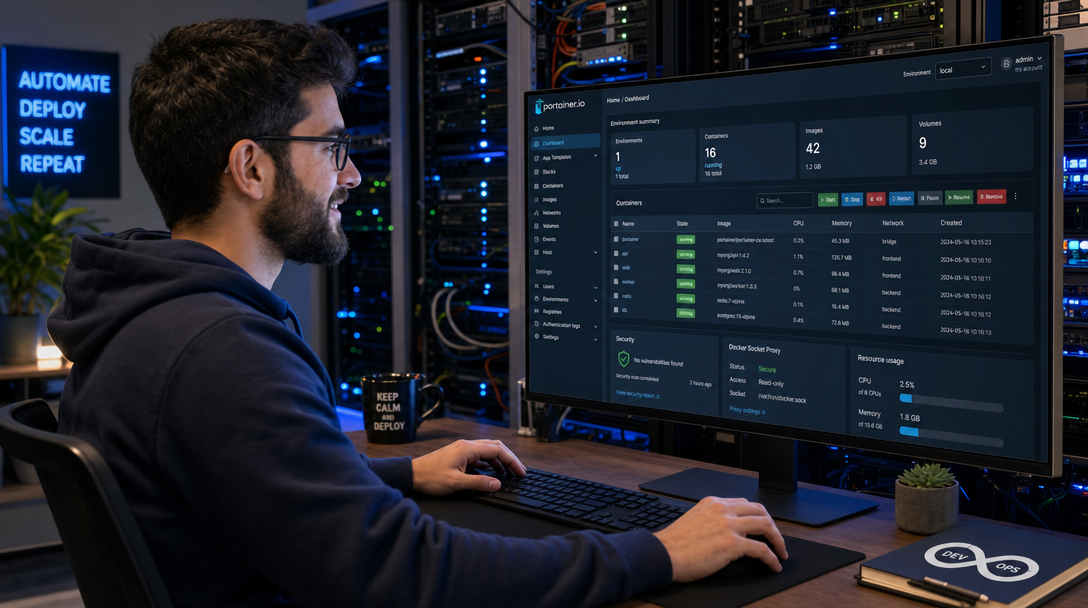
Portainer Community Edition is arguably the most popular graphical management dashboard for standalone Docker engines, Docker Swarm clusters, and Kubernetes nodes. Its intuitive web interface simplifies inspecting container logs, monitoring real-time resource utilization, managing volumes, and deploying multi-service stacks. However, the standard deployment instructions for Portainer carry an immense security risk: they instruct administrators to bind-mount the host’s raw Docker daemon socket directly into the container using -v /var/run/docker.sock:/var/run/docker.sock.
In the Linux security model, access to /var/run/docker.sock is functionally equivalent to root access on the host operating system. Any user, container process, or malicious actor capable of communicating with the Docker socket can instantiate privileged containers, mount the host’s root filesystem (/), manipulate iptables firewall rules, and completely compromise the host server. Exposing this raw UNIX socket directly to an internet-facing or LAN-accessible web application creates a single point of catastrophic failure. The solution is the Docker Socket Proxy architectural pattern: interposing a hardened, minimalist reverse proxy between Portainer and the Docker daemon to enforce granular endpoint filtering and deny high-risk API operations.
Why Exposing /var/run/docker.sock Directly is Dangerous
The Docker engine daemon operates as an unauthenticated HTTP/REST API over a local UNIX socket. When a container mounts this socket, it inherits unrestricted administrative control over the Docker runtime. Consider the following attack vectors inherent to standard Portainer deployments:
- Host Filesystem Takeover: An attacker who exploits a web application vulnerability or bypasses authentication in Portainer can trigger an API call to run a new container with
-v /:/host -privileged. From there, modifying/host/etc/shadowor injecting SSH public keys into/host/root/.ssh/authorized_keystakes seconds. - Kernel Namespace Escapes: Access to the raw Docker API allows creating containers with
--pid=host,--net=host, or custom Linux capabilities such asCAP_SYS_ADMINandCAP_SYS_PTRACE, effectively bypassing container isolation. - Credential & Secret Exfiltration: Standard Docker sockets permit querying build caches, inspecting environment variables of sibling containers containing database passwords or API keys, and dumping private container registries.
By placing Tecnativa’s HAProxy-based Docker Socket Proxy in front of the daemon, we introduce a strict firewall layer. Only the specific API routes required for day-to-day container and image management are exposed over a private internal network, while dangerous management endpoints (such as Swarm administration, build systems, or arbitrary security overrides) are blocked at the proxy layer.
+-----------------------------------------------------------------------+
|                          ADMINISTRATOR BROWSER                        |
|            HTTPS Access to Portainer Dashboard (Port 443)             |
+-----------------------------------------------------------------------+
                                    |
                          TLS 1.3 Encrypted Traffic
                                    v
+-----------------------------------------------------------------------+
|                     EDGE REVERSE PROXY (Caddy)                        |
|             Automatic Let's Encrypt SSL & Security Headers            |
+-----------------------------------------------------------------------+
                                    |
                           Internal Bridge Network
                                    v
+-----------------------------------------------------------------------+
|                 PORTAINER CE CONTAINER (Port 9000)                    |
|      - Web GUI, Stack Manager, Container Status, Metrics              |
|      - NO DIRECT /var/run/docker.sock BIND MOUNT!                     |
|      - Configured Docker Endpoint: tcp://socket-proxy:2375            |
+-----------------------------------------------------------------------+
                                    |
                         Restricted HTTP API (TCP)
                                    v
+-----------------------------------------------------------------------+
|                   DOCKER SOCKET PROXY (HAProxy)                       |
|      - Environment-Driven API Whitelisting (GET/POST Rules)           |
|      - Denies Swarm, Secrets, and Destructive Administrative Calls    |
+-----------------------------------------------------------------------+
                                    |
                        Local UNIX Socket Mount
                                    v
+-----------------------------------------------------------------------+
|                        HOST DOCKER ENGINE                             |
|                     /var/run/docker.sock                              |
+-----------------------------------------------------------------------+
Prerequisites & Server Preparation
Before proceeding with the deployment, ensure your target host meets the following technical baseline:
- A dedicated virtual server or bare-metal host running Ubuntu 24.04 LTS, Debian 12, or Rocky Linux 9.
- Docker Engine version 26+ and Docker Compose v2 installed and active.
- A valid Fully Qualified Domain Name (FQDN) such as
portainer.yourdomain.compointed to your server’s public IP address. - Inbound firewall ports 80 and 443 open for automatic TLS certificate negotiation.
Create a dedicated directory structure for the Portainer stack and persistent volume storage:
sudo mkdir -p /opt/portainer-secure/{data,caddy_data,caddy_config}
cd /opt/portainer-secure
Understanding Docker Socket Proxy Configuration Variables
The Tecnativa Docker Socket Proxy exposes granular environment variables that map directly to the Docker Engine API specifications. Setting a variable to 1 permits the corresponding route; setting it to 0 (or omitting it) returns an immediate HTTP 403 Forbidden.
CONTAINERS=1: Allows listing, inspecting, creating, and restarting containers.IMAGES=1: Enables pulling, tagging, and listing container images.NETWORKS=1: Grants access to Docker networks required when provisioning multi-container stacks.VOLUMES=1: Enables managing named Docker volumes.INFO=1: Allows Portainer to query the host OS version, CPU cores, and memory capacity for the dashboard summary.POST=1: Permits POST requests on enabled endpoints (mandatory for starting, stopping, and deploying containers).AUTH=0,BUILD=0,SECRETS=0,SWARM=0: Explicitly denied to prevent untrusted image building, credential interception, or Swarm configuration tampering.
Production Docker Compose Configuration
Create the /opt/portainer-secure/docker-compose.yml file. Notice that only the socket-proxy container has access to /var/run/docker.sock, and it does not publish any host ports—it communicates with Portainer solely through an isolated internal Docker bridge network:
services:
  socket-proxy:
    image: tecnativa/docker-socket-proxy:latest
    container_name: docker-socket-proxy
    restart: unless-stopped
    read_only: true
    tmpfs:
      - /run
    security_opt:
      - no-new-privileges:true
    volumes:
      - /var/run/docker.sock:/var/run/docker.sock:ro
    environment:
      # General Engine Information
      - INFO=1
      - VERSION=1
      - PING=1
      # Core Workload Management
      - CONTAINERS=1
      - IMAGES=1
      - NETWORKS=1
      - VOLUMES=1
      - EXEC=1
      # Method Permissions
      - POST=1
      - DELETE=1
      # Explicit Denials for High-Risk Subsystems
      - AUTH=0
      - BUILD=0
      - COMMIT=0
      - CONFIGS=0
      - DISTRIBUTION=0
      - EVENTS=1
      - GRPC=0
      - NODES=0
      - PLUGINS=0
      - SECRETS=0
      - SERVICES=0
      - SESSION=0
      - SWARM=0
      - SYSTEM=0
      - TASKS=0
    networks:
      - socket-net

  portainer:
    image: portainer/portainer-ce:2.21.5-alpine
    container_name: portainer-app
    restart: unless-stopped
    command: -H tcp://socket-proxy:2375
    security_opt:
      - no-new-privileges:true
    volumes:
      - ./data:/data
    networks:
      - socket-net
      - public-net
    depends_on:
      - socket-proxy

  caddy:
    image: caddy:2.8-alpine
    container_name: portainer-caddy
    restart: unless-stopped
    ports:
      - "80:80"
      - "443:443"
    environment:
      - DOMAIN_NAME=portainer.yourdomain.com
    volumes:
      - ./Caddyfile:/etc/caddy/Caddyfile:ro
      - ./caddy_data:/data
      - ./caddy_config:/config
    networks:
      - public-net
    depends_on:
      - portainer

networks:
  socket-net:
    name: portainer-socket-net
    internal: true
  public-net:
    name: portainer-public-net
    driver: bridge
Key security architectural details implemented in this Compose configuration:
- Internal Network Isolation (
internal: true): Thesocket-netnetwork has no default gateway to the internet and cannot route traffic outside the Docker bridge. Even if a container onsocket-netwere hijacked, it cannot communicate with external command-and-control servers. - Read-Only Root Filesystem (
read_only: true): The socket proxy container runs with a read-only root filesystem and memory-backedtmpfsfor temporary state, preventing file-based persistence or rootkit installations. - Read-Only Socket Mount (
:ro): While the Docker daemon API processes write calls via HTTP POST requests, the UNIX socket itself is mounted read-only, preventing socket file replacement attacks.
Configuring the Edge Reverse Proxy (Caddyfile)
Create the /opt/portainer-secure/Caddyfile. Portainer CE communicates over internal HTTP on port 9000. Caddy terminates TLS, enforces modern TLS 1.3 cipher suites, and injects strict HTTP security headers:
portainer.yourdomain.com {
    encode gzip zstd

    header {
        Strict-Transport-Security "max-age=31536000; includeSubDomains; preload"
        X-Content-Type-Options "nosniff"
        X-Frame-Options "DENY"
        Referrer-Policy "strict-origin-when-cross-origin"
        Permissions-Policy "camera=(), microphone=(), geolocation=()"
    }

    reverse_proxy portainer:9000 {
        header_up Host {host}
        header_up X-Real-IP {remote_host}
        header_up X-Forwarded-For {remote_host}
        header_up X-Forwarded-Proto {scheme}
    }
}
Deployment & Initial Administration Walkthrough
Deploy the stack using Docker Compose in detached mode and verify that the containers initialize in healthy states:
docker compose up -d
docker compose ps
Verify that Portainer successfully connects to the proxy daemon by inspecting the application logs:
docker compose logs -f portainerYou should see confirmation that the background database initialized and the endpoint connection to tcp://socket-proxy:2375 was established without errors.
- Complete the Admin Account Setup: Navigate to
https://portainer.yourdomain.comin your browser. Note: Portainer enforces a security timeout—if the initial administrator password is not set within 5 minutes of container startup, the setup wizard locks and requires a container restart (docker compose restart portainer). - Verify Endpoint Status: Upon logging in, Portainer will automatically show your primary environment labeled as primary or local. Click into the environment to view running containers, CPU/RAM utilization, and Docker volumes.
- Audit Forbidden API Calls: Open a separate terminal and follow the socket proxy logs while navigating Portainer:
Notice the HAProxy access log entries confirming alloweddocker compose logs -f socket-proxyGET /v1.45/containers/jsonandGET /v1.45/inforequests, while any forbidden administrative probes return clean HTTP 403 status codes.
Production Hardening & Operational Best Practices
To maintain an enterprise-grade security posture over your container infrastructure, apply the following operational controls:
- Enforce Multi-Factor Authentication (MFA) & SSO: In Portainer CE, navigate to Settings > Authentication. If operating in a team environment, integrate an OpenID Connect (OIDC) identity provider such as Authentik or Keycloak to mandate Single Sign-On and hardware-backed WebAuthn/TOTP 2FA.
- Implement Portainer Edge Agent for Remote Hosts: If you manage multiple physical servers or remote homelab nodes, never expose port 2375 over the public internet. Instead, deploy the Portainer Edge Agent on remote nodes. The Edge Agent establishes an outbound-only, mTLS-encrypted reverse tunnel back to your central Portainer instance, completely eliminating inbound port exposure.
- Restrict Container Host Bind Mounts: Educate team members to utilize Docker named volumes (e.g.,
./dataor named volumes managed by storage drivers) rather than direct root filesystem path mounts. - Automated Stack Backups: The Portainer configuration state and environment metadata are stored in
/opt/portainer-secure/data. Include this directory in your automated backup pipeline using tools like Restic or Borgmatic.
Troubleshooting Common Deployment Issues
Below are three frequently encountered issues when using Docker Socket Proxy with Portainer, along with their diagnostic resolutions:
1. Portainer Displays “Environment Unreachable” or 403 Forbidden Errors
Symptom: Portainer displays a red indicator next to the local endpoint stating “Unable to connect to the Docker daemon”, or container deployment operations fail with an HTTP 403 error.
Root Cause: Portainer attempted an API operation that is disabled in the socket-proxy environment variables. For example, deploying stacks via the web editor requires POST=1 and NETWORKS=1. If either is set to 0, the proxy rejects the request.
Resolution: Check the socket proxy logs to identify the exact HTTP path that was blocked:
docker compose logs socket-proxy | grep "403"If the blocked route is a legitimate requirement for your workflow (such as EXEC=1 for opening in-browser container console shells), update the corresponding variable in docker-compose.yml and run docker compose up -d socket-proxy.
2. Initial Setup Lockout (“Setup Time Elapsed”)
Symptom: When opening the Portainer web URL for the first time, you are greeted with the message: “Your Portainer instance timed out for security purposes. To re-enable your Portainer instance, you will need to restart Portainer.”
Root Cause: Portainer Community Edition includes a built-in security defense that disables the setup wizard if an administrator account is not registered within 5 minutes of container initialization, preventing attackers from claiming unattended instances.
Resolution: Restart the Portainer container to reset the 5-minute timer:
docker compose restart portainerRefresh your browser immediately and complete the administrative password creation.
3. Inability to Pull Images from Private Docker Registries
Symptom: Attempting to deploy containers from private registries (like Harbor or private Docker Hub repositories) results in authentication failures or denied: requested access to the resource is denied errors.
Root Cause: Authenticating against private container registries requires sending credential payloads to the /auth endpoint. In ultra-strict proxy configurations, AUTH=0 blocks this exchange.
Resolution: If your environment utilizes private image registries, enable registry authentication by updating the socket proxy configuration:
    environment:
      - AUTH=1
Summary & Key Takeaways
Deploying Portainer Community Edition with a dedicated Docker Socket Proxy eliminates the single greatest security vulnerability in standard container management stacks. By decoupling Portainer from direct access to /var/run/docker.sock, you eliminate the risk of privilege escalation, unauthorized root filesystem mounts, and host takeover. With granular API endpoint filtering, internal network isolation, and automated Caddy TLS termination, your homelab or production VPS achieves an enterprise-grade defense-in-depth posture while preserving the convenience of modern graphical container orchestration.

Hi, I’m Mark, the author of Clever IT Solutions: Mastering Technology for Success. I am passionate about empowering individuals to navigate the ever-changing world of information technology. With years of experience in the industry, I have honed my skills and knowledge to share with you. At Clever IT Solutions, we are dedicated to teaching you how to tackle any IT challenge, helping you stay ahead in today’s digital world. From troubleshooting common issues to mastering complex technologies, I am here to guide you every step of the way. Join me on this journey as we unlock the secrets to IT success.