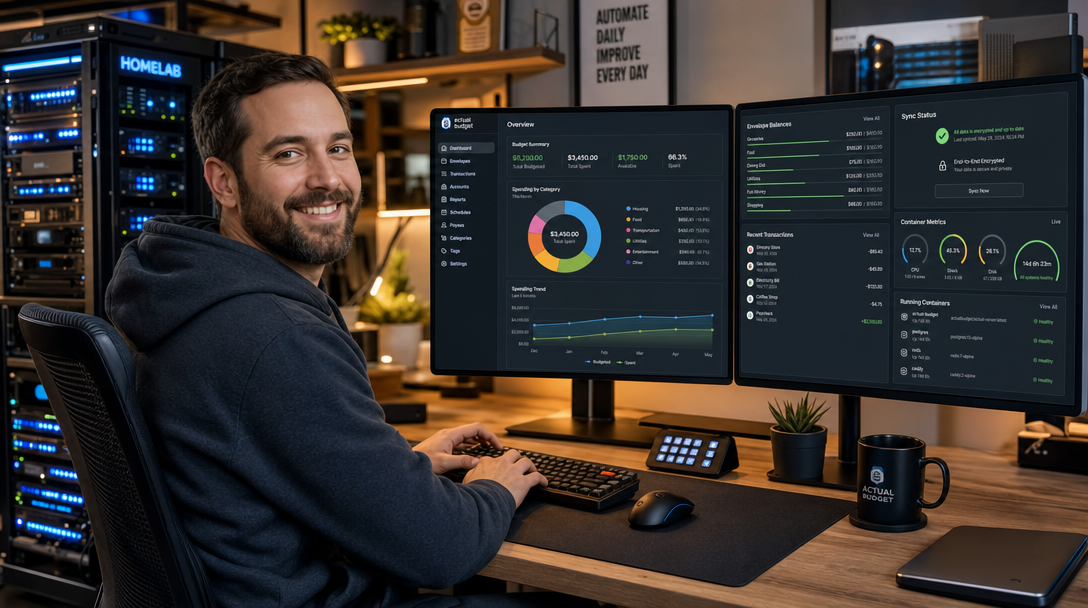
Commercial financial apps and cloud budgeting platforms frequently change pricing models, harvest sensitive transaction logs, or lock your financial history behind proprietary subscription tiers. For privacy-conscious engineers, homelab operators, and financial independence advocates, relying on third-party SaaS providers to track bank accounts and monthly cash flows introduces unacceptable data exposure risks. Actual Budget is a high-performance, 100% open-source, local-first personal finance platform built around the zero-based envelope budgeting philosophy. When paired with its lightweight synchronization server, Actual Budget provides client-side end-to-end encryption (E2EE), cross-device multi-client synchronization, automated bank transaction imports, and offline durability without exposing unencrypted financial data to the host server or network.
Architecture & Synchronization Mechanics
Unlike conventional web applications that rely on standard client-server request-response models with server-side database storage, Actual Budget operates on a local-first paradigm powered by SQLite and Conflict-Free Replicated Data Types (CRDTs) using Hybrid Logical Clocks (HLC). Your budget data lives primarily in the local storage or IndexedDB of your web browser or desktop/mobile client. When changes occur—such as categorizing an expense or balancing an account—the client generates cryptographically signed atomic sync messages.
The self-hosted Actual Server container functions as an authenticated synchronization hub and backup repository. It receives encrypted sync payloads, verifies authentication tokens, manages encrypted file blobs, and distributes updates to connected clients. If end-to-end encryption is enabled, the server cannot read your account balances, payees, or budget allocations.
+-----------------------------------------------------------------------+
|                           CLIENT LAYER                                |
|  Desktop App / Mobile App / PWA Browser (IndexedDB + SQLite Engine)   |
|         [Client-Side E2EE Encryption / Decryption via PBKDF2]          |
+-----------------------------------------------------------------------+
                                    |
                       HTTPS (TLS 1.3 Encrypted Sync)
                                    v
+-----------------------------------------------------------------------+
|                    REVERSE PROXY (Caddy / Traefik)                   |
|                   Automatic SSL & Security Headers                     |
+-----------------------------------------------------------------------+
                                    |
                           Internal Docker Bridge
                                    v
+-----------------------------------------------------------------------+
|                        ACTUAL SERVER CONTAINER                       |
|               actualbudget/actual-server:latest-alpine                |
|       - Internal Port: 5006                                           |
|       - Node.js Sync Engine + File Manager                            |
|       - User Auth & Password Token Validation                         |
+-----------------------------------------------------------------------+
                                    |
                       Bind Mount (/data/actual)
                                    v
+-----------------------------------------------------------------------+
|                      PERSISTENT HOST STORAGE                          |
|  /opt/actual-budget/data (Encrypted SQLite DBs, User Files, Backups)  |
+-----------------------------------------------------------------------+
Prerequisites & Environment Preparation
Before deploying Actual Budget, ensure your target host system meets the following prerequisites:
- A Linux server (Debian 12, Ubuntu 24.04 LTS, or Rocky Linux 9) with Docker Engine 26+ and Docker Compose v2 installed.
- A registered domain name or internal DNS record (e.g.,
budget.yourdomain.com) pointed to your server IP address. - A reverse proxy such as Caddy, Traefik, or Nginx with valid TLS certificates. HTTPS is strictly required by modern browsers to enable Service Workers, Web Crypto APIs, and IndexedDB operations used by the Actual web client.
- Dedicated non-root system user permissions for directory management.
Create a dedicated deployment directory on the host server and establish the required file ownership permissions:
sudo mkdir -p /opt/actual-budget/data
sudo chown -R 1000:1000 /opt/actual-budget
cd /opt/actual-budget
Production Docker Compose Configuration
Actual Budget distributes official images optimized for both x86_64 and ARM64 architectures. The actualbudget/actual-server image is maintained actively and features built-in support for bank synchronization bridges, account management, and automated database compaction. Below is the production-ready docker-compose.yml file configured with an integrated Caddy reverse proxy for automated Let’s Encrypt TLS generation:
services:
  actual-server:
    image: actualbudget/actual-server:latest-alpine
    container_name: actual-server
    restart: unless-stopped
    environment:
      - PORT=5006
      - ACTUAL_UPLOAD_FILE_SYNC_SIZE_LIMIT_MB=20
      - ACTUAL_UPLOAD_SYNC_ENCRYPTED_FILE_SYNC_SIZE_LIMIT_MB=50
      - ACTUAL_UPLOAD_FILE_SIZE_LIMIT_MB=20
    volumes:
      - ./data:/data
    networks:
      - budget-network
    security_opt:
      - no-new-privileges:true
    healthcheck:
      test: ["CMD-SHELL", "node -e \"require('http').get('http://127.0.0.1:5006/health', (r) => {process.exit(r.statusCode === 200 ? 0 : 1)})\""]
      interval: 30s
      timeout: 5s
      retries: 3
      start_period: 15s

  caddy:
    image: caddy:2.8-alpine
    container_name: actual-caddy
    restart: unless-stopped
    ports:
      - "80:80"
      - "443:443"
    environment:
      - DOMAIN_NAME=budget.yourdomain.com
    volumes:
      - ./Caddyfile:/etc/caddy/Caddyfile:ro
      - ./caddy_data:/data
      - ./caddy_config:/config
    networks:
      - budget-network
    depends_on:
      actual-server:
        condition: service_healthy

networks:
  budget-network:
    name: budget-network
    driver: bridge
Configuring the Caddy Reverse Proxy
Create the Caddyfile inside /opt/actual-budget/. Caddy automatically provisions and renews Let’s Encrypt or ZeroSSL certificates while injecting necessary HTTP security headers and enabling gzip/zstd compression for fast asset transfers:
budget.yourdomain.com {
    encode gzip zstd

    header {
        Strict-Transport-Security "max-age=31536000; includeSubDomains; preload"
        X-Content-Type-Options "nosniff"
        X-Frame-Options "SAMEORIGIN"
        Referrer-Policy "strict-origin-when-cross-origin"
        Permissions-Policy "camera=(), microphone=(), geolocation=()"
    }

    reverse_proxy actual-server:5006 {
        header_up Host {host}
        header_up X-Real-IP {remote_host}
        header_up X-Forwarded-For {remote_host}
        header_up X-Forwarded-Proto {scheme}
    }
}
Launch the stack using Docker Compose in detached mode and verify the startup sequence:
docker compose up -d
docker compose ps
docker compose logs -f actual-server
Initial Initialization & End-to-End Encryption Setup
Once the containers are running and Caddy has completed TLS certificate validation, open https://budget.yourdomain.com in your browser. Complete the following mandatory steps to secure your server:
- Server Master Password: On the initial setup screen, configure a strong master password for the Actual Server instance. This password controls access to the sync backend and prevents unauthorized accounts from initializing databases on your instance.
- Create or Import a Budget: Select Create new file to initialize a blank envelope budget, or select Import if migrating existing data from YNAB4, nYNAB, or a standard CSV format.
- Enable End-to-End Encryption (E2EE): In the Actual Budget interface, navigate to Settings > Encryption. Click Enable Encryption and provide a dedicated, high-entropy encryption passphrase.
- Key Derivation: Actual Budget derives an AES-GCM-256 encryption key locally in your browser using PBKDF2 with 100,000 iterations and a unique salt. The derived key encrypts the SQLite database before syncing. Store this passphrase in a secure password manager like Vaultwarden; if lost, encrypted sync data cannot be decrypted on new devices.
Automated Bank Sync: SimpleFIN & GoCardless Integration
For users who prefer automated bank transaction feeds over manual CSV/OFX imports, Actual Server features built-in API integration for two privacy-focused aggregation bridges:
- SimpleFIN Bridge (North America): An open, read-only bridge for US and Canadian financial institutions. SimpleFIN provides an authorization token that can be added directly into Actual Budget under Settings > Bank Sync > SimpleFIN.
- GoCardless / Nordigen (UK & European Union): Actual Budget supports the EU PSD2 Open Banking regulations through GoCardless (formerly Nordigen). You can register for a free developer account at GoCardless, retrieve your
Secret IDandSecret Key, and add them to your Actual container environment or the web settings interface.
To pass bank synchronization credentials securely via environment variables, update the environment: block of your actual-server service:
    environment:
      - PORT=5006
      - ACTUAL_UPLOAD_FILE_SYNC_SIZE_LIMIT_MB=20
      - ACTUAL_UPLOAD_SYNC_ENCRYPTED_FILE_SYNC_SIZE_LIMIT_MB=50
      - ACTUAL_UPLOAD_FILE_SIZE_LIMIT_MB=20
      # Optional: GoCardless EU Open Banking credentials
      - GOCARDLESS_SECRET_ID=your_gocardless_secret_id
      - GOCARDLESS_SECRET_KEY=your_gocardless_secret_key
Automated Host Backups with Bash & Restic
While Actual Budget stores client data locally on your devices, ensuring consistent, versioned backups of the server-side sync state protects against host drive failure or filesystem corruption. Because Actual Server writes to SQLite database files, taking naive hot filesystem copies can occasionally catch SQLite mid-transaction. Create a robust, atomic backup script utilizing Docker pausing or SQLite backup hooks:
cat << 'EOF' | sudo tee /usr/local/bin/backup-actual-budget.sh
#!/usr/bin/env bash
set -euo pipefail

BACKUP_DIR="/var/backups/actual-budget"
SOURCE_DIR="/opt/actual-budget/data"
TIMESTAMP=$(date +"%Y%m%d_%H%M%S")
ARCHIVE_NAME="actual_backup_${TIMESTAMP}.tar.gz"

mkdir -p "${BACKUP_DIR}"

echo "[INFO] Freezing container filesystem state..."
docker compose -f /opt/actual-budget/docker-compose.yml pause actual-server

echo "[INFO] Archiving data directory..."
tar -czf "${BACKUP_DIR}/${ARCHIVE_NAME}" -C "${SOURCE_DIR}" .

echo "[INFO] Unfreezing container..."
docker compose -f /opt/actual-budget/docker-compose.yml unpause actual-server

# Retain backups for 14 days
find "${BACKUP_DIR}" -type f -name "actual_backup_*.tar.gz" -mtime +14 -delete

echo "[SUCCESS] Backup completed: ${BACKUP_DIR}/${ARCHIVE_NAME}"
EOF

sudo chmod +x /usr/local/bin/backup-actual-budget.sh
Schedule the backup script to execute automatically every night at 03:00 UTC via system cron:
(sudo crontab -l 2>/dev/null; echo "0 3 * * * /usr/local/bin/backup-actual-budget.sh >> /var/log/actual-backup.log 2>&1") | sudo crontab -Production Hardening & Best Practices
Adhere to the following operational best practices to maintain a rock-solid, hardened deployment:
- Enforce Strict E2EE: Always activate End-to-End Encryption in the client settings before loading real bank accounts. Without E2EE, transactions are stored in unencrypted SQLite files within the
data/volume. - Implement Rate Limiting via Reverse Proxy: Protect the
/account/needs-bootstrapand login endpoints from credential stuffing by configuring rate-limiting directives in Caddy or placing the instance behind Cloudflare Zero Trust Access. - Limit Memory & Process Resources: In dense homelabs, add resource constraints to
docker-compose.ymlto prevent unexpected Node.js memory leaks from starving other containers:deploy: resources: limits: cpus: '1.0' memory: 512M - Regular Container Pruning: Pin the base image to stable tags or automated weekly updates via Watchtower to ensure you receive upstream security patches and database compaction improvements.
Troubleshooting Common Deployment Issues
Below are three frequently encountered issues when self-hosting Actual Budget and the exact diagnostic commands to resolve them:
1. “Failed to Connect: HTTPS Required” or Web Crypto API Errors
Symptom: Accessing Actual Budget via raw HTTP or direct IP results in blank screens or errors stating crypto.subtle is undefined during encryption key derivation.
Root Cause: Modern browsers restrict the Web Cryptography API and Service Workers exclusively to secure origins (https:// or localhost). If you access the server over plain HTTP on a local LAN IP (e.g., http://192.168.1.100:5006), the cryptographic primitives required for E2EE fail to load.
Resolution: Always route requests through your TLS reverse proxy with a valid domain name, or generate a trusted local certificate using mkcert or Caddy internal CA (tls internal).
2. File Permission Denied on /data Mount
Symptom: The container crashes immediately upon startup with Error: EACCES: permission denied, mkdir '/data/user-files' in docker compose logs.
Root Cause: The Alpine Linux container user runs with UID 1000 or node, but the host directory /opt/actual-budget/data was created by the root user without read/write permissions for unprivileged IDs.
Resolution: Recursively adjust the host folder permissions to match the container’s operational UID/GID:
sudo chown -R 1000:1000 /opt/actual-budget/data
sudo chmod -R 775 /opt/actual-budget/data
docker compose restart actual-server
3. Sync Payload Size Exceeded Errors (HTTP 413)
Symptom: Large bank transaction imports or multi-year budget migrations fail with an HTTP 413 Payload Too Large error during background synchronization.
Root Cause: The default file sync payload limits in older Actual Server builds cap single sync requests at 20MB, and default reverse proxy body limits (e.g., in Nginx client_max_body_size) reject the transfer.
Resolution: Ensure the environment variables ACTUAL_UPLOAD_FILE_SYNC_SIZE_LIMIT_MB=50 and ACTUAL_UPLOAD_SYNC_ENCRYPTED_FILE_SYNC_SIZE_LIMIT_MB=50 are declared in your Compose file, and ensure your reverse proxy allows request bodies of at least 50MB.
Summary & Key Takeaways
By self-hosting Actual Budget with Docker Compose, you regain complete sovereignty over your financial data without sacrificing modern conveniences like multi-device synchronization, bank transaction feeds, or zero-based envelope budgeting. The local-first architectural model ensures instantaneous UI responsiveness and offline capability, while client-side end-to-end encryption guarantees that your financial history remains impenetrable—even if the underlying server infrastructure is compromised. Combined with automated container health checks and periodic volume backups, you have a private, resilient, and enterprise-grade personal finance system designed to endure for decades.

Hi, I’m Mark, the author of Clever IT Solutions: Mastering Technology for Success. I am passionate about empowering individuals to navigate the ever-changing world of information technology. With years of experience in the industry, I have honed my skills and knowledge to share with you. At Clever IT Solutions, we are dedicated to teaching you how to tackle any IT challenge, helping you stay ahead in today’s digital world. From troubleshooting common issues to mastering complex technologies, I am here to guide you every step of the way. Join me on this journey as we unlock the secrets to IT success.