What if that aging computer gathering dust in your closet could run as smoothly as it did the day you bought it? Many of us have hardware that seems past its prime, but the right software can perform wonders. We believe no device should be considered obsolete without a second chance. Modern operating systems often demand more resources than older machines can provide. This is where a strategic change can make all the difference. A lightweight alternative can breathe new life into your hardware, giving it a purpose for years to come.
The challenge lies in the abundance of choices. With numerous distributions, or “distros,” available, selecting the right one is crucial. Your intended use and your machine’s specifications are the most important factors to consider. We took on this challenge personally. Instead of theoretical advice, we installed and tested six different desktop environments on various aging machines. Our goal was to provide you with forward, practical knowledge. You can even try a distro risk-free from a USB stick before any commitment, using simple tools.
This guide shares our hands-on experience to help you make an informed decision. We simplify the process of choosing a new desktop system that fits your needs and hardware perfectly.
Key Takeaways
- Installing a lightweight operating system can significantly extend the functional life of aging hardware.
- The right software choice depends heavily on your specific tasks and your machine’s capabilities.
- Testing a distribution from a USB drive allows for a risk-free trial before permanent installation.
- Numerous free and open-source options provide powerful alternatives to resource-heavy systems.
- Our testing provides real-world insights into performance across different hardware configurations.
- A strategic software change can transform an underperforming device into a capable machine.
- Simple tools make the process of creating a bootable USB drive accessible to most users.
Understanding the Need for Lightweight Linux Distros
Resource-intensive applications often leave capable hardware behind, creating unnecessary electronic waste. Many devices with aging components still possess significant potential when paired with the right software solution.
Benefits of a Lean Operating System
A lean operating system delivers faster performance by eliminating unnecessary background processes. These streamlined systems require minimal memory and CPU resources. Users experience quicker boot times and smoother operation.
The environmental benefits are substantial. Reviving hardware reduces electronic waste significantly. According to Lubuntu specifications, some distributions operate efficiently with as little as 256 MB of RAM.
Hardware Limitations and Opportunities
Older machines often have single-core processors and limited memory capacity. These constraints actually create opportunities for specialized distributions. Systems designed for low specifications can transform seemingly obsolete hardware into functional workstations.
Users can perform everyday tasks like web browsing and document editing. The right system requirements matching your hardware specifications ensure optimal performance without overwhelming limited resources.
Product Roundup: Top Distros to Revive Old Devices
Selecting from six carefully evaluated options, we simplify the choice for your specific needs. Our hands-on testing provides genuine performance data from real hardware configurations.
Overview of Tested Distros Like Ubuntu and MX Linux
Ubuntu serves as an excellent starting point for newcomers. This Debian-based distro uses the Gnome desktop environment and offers extensive software choices. The Snap package system provides convenient application installation.
MX Linux stands out for truly limited hardware. Its Debian Bookworm foundation supports both 32-bit and 64-bit architectures. Multiple desktop environment versions include the ultra-lightweight Fluxbox option.
Differentiating Features of Raspberry Pi Desktop, Fedora, Linux Mint, and Manjaro
Raspberry Pi Desktop brings familiar Raspberry Pi OS experience to x86 hardware. It runs smoothly on Core2Duo era machines with minimal RAM requirements.
Fedora 41 surprised us with its polished Gnome interface. It uses the dnf package manager instead of the more common APT system. This distro offers a professional feel with multiple desktop environment spins.
Linux Mint provides an ideal transition for Windows users. Its familiar interface layout and Ubuntu LTS foundation ensure stability. The APT package manager offers extensive software availability.
Manjaro serves advanced users with Arch Linux foundations. It features rolling releases and the efficient pacman package manager. Multiple desktop environments include community-maintained options for power users.
Each distribution differentiates through default applications and interface philosophy. Understanding these differences helps match technical skill levels with usage patterns. For beginners, we recommend starting with lightweight Linux distributions that balance performance and usability.
linux for old laptop: Key Features to Consider
When evaluating different operating systems for aging hardware, certain key characteristics separate the truly practical options from the merely adequate. We focus on features that ensure long-term usability and stability.
Essential Software and Hardware Support
Everyday functionality depends on having the right software available. Essential applications include a modern web browser, office suite, media player, and file manager. These tools handle most daily computing needs.
Hardware compatibility is equally important. We verify that Wi-Fi adapters, graphics cards, and Bluetooth modules work correctly. Proper driver support ensures all components function as intended.
Advantages of Based Debian and Arch-Based Options
Debian-based distributions offer exceptional stability through their mature package management system. The APT tool provides access to thousands of pre-compiled applications. This approach minimizes technical issues.
Arch-based systems use the pacman package manager for cutting-edge software. Rolling releases mean users get the latest features and security updates. This choice suits those comfortable with occasional troubleshooting.
Both options provide strong community support and extensive documentation. Your final selection should match your technical comfort and performance requirements.
Exploring Unique Desktop Environments
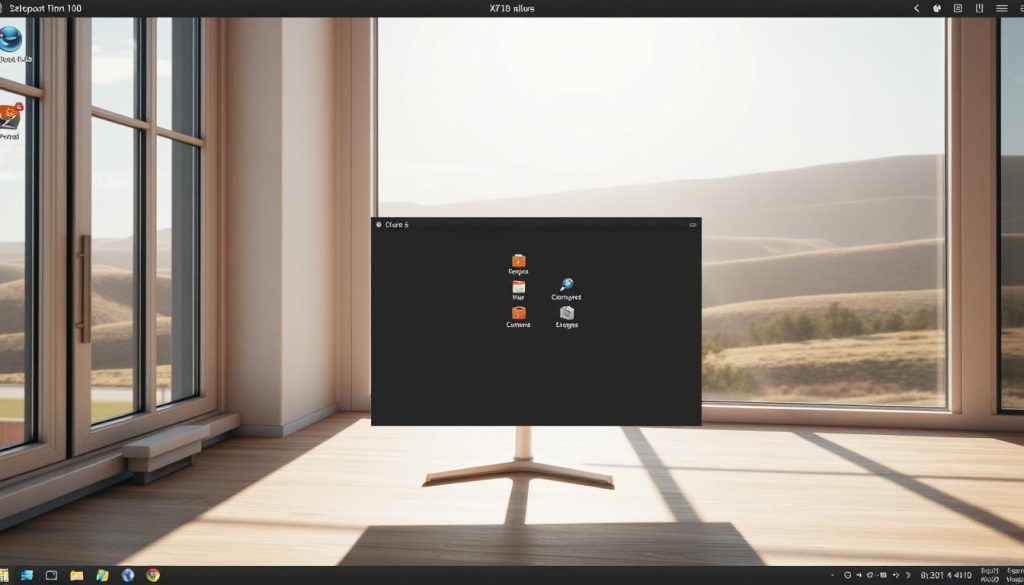
Desktop environments serve as the bridge between users and their computing experience, shaping both functionality and performance. The choice of interface directly impacts system resource consumption and daily usability on hardware with limited capabilities.
Comparing XFCE, Gnome, and Other Desktop Interfaces
The XFCE desktop environment has become the gold standard for lightweight computing. This traditional interface features a familiar taskbar and start menu layout. Distributions like MX Linux and Xubuntu leverage this environment for minimal memory footprint.
In contrast, GNOME offers a modern, feature-rich desktop environment. While requiring more system resources, it provides innovative features like activity overview and integrated search. This environment suits relatively capable machines with adequate RAM.
Other significant options include KDE Plasma’s extensive customization and LXQt’s ultra-lightweight design. Each environment presents different approaches to the user interface and system management.
User Experience and Customization Options
Traditional layouts with start menu and taskbar feel familiar to Windows users. Modern approaches like GNOME’s activity-based interface offer different workflow philosophies. The right choice depends on user preferences and muscle memory.
Customization options vary across different desktop environments. Users can modify themes, relocate panels, and adjust window behavior. These personalization features help create an optimal working environment without sacrificing performance.
The desktop environment selection affects practical considerations like menu navigation efficiency. It also influences the learning curve for users transitioning from other operating systems. Matching the interface to hardware capabilities ensures smooth operation.
Installation Tips and Essential Tools
Creating installation media is the crucial first step that enables risk-free evaluation of different operating systems. We guide you through this process to ensure a smooth transition without compromising your existing data.
This approach allows you to test distributions thoroughly before making permanent changes to your hardware configuration.
Creating Bootable USBs Using Tools Like Rufus and Raspberry Pi Imager
You’ll need a USB drive with at least 8GB capacity and the correct ISO image file from the distribution’s official website. We recommend using tools like Rufus for Windows systems or Raspberry Pi Imager for cross-platform compatibility.
These applications simplify the process of writing the operating system image to your USB drive. The created media becomes bootable, allowing you to test the system directly from the drive.
This live environment lets you verify hardware compatibility and performance without altering your current setup. Most distributions offer straightforward graphical installers that guide you through partitioning, timezone selection, and user account creation.
The entire installation process typically takes 15-30 minutes depending on your hardware speed. Some specialized systems can even run entirely from USB or RAM, offering portable solutions without hard drive installation.
We emphasize backing up important data before proceeding with any permanent installation. Understanding system images and their proper handling ensures successful deployment of your chosen operating system.
Comparing Distribution Performance on Legacy Hardware
Our hands-on testing reveals significant performance differences across various distributions when deployed on legacy equipment. We categorized systems by their actual memory and CPU requirements rather than relying solely on theoretical specifications.
Benchmarking Performance on Devices with Low Memory and CPU
Ultra-lightweight distributions like antiX and Puppy Linux operate efficiently with as little as 256MB RAM. These systems achieve minimal requirements through stripped-down interfaces and efficient resource management.
Lightweight options in the 1GB-2GB RAM category strike an optimal balance between functionality and performance. MX Linux demonstrated smooth operation on low-powered Intel Atom netbooks during our testing.
Midweight distributions require 2GB-4GB RAM but offer more polished interfaces. Full-featured systems demand 4GB or more RAM and perform best on hardware from the last 5-8 years.
We observed that insufficient memory forces heavy reliance on swap space, causing severe performance degradation. Meeting or exceeding system requirements ensures responsive multitasking. Understanding these performance characteristics helps match software to specific hardware capabilities, similar to how Proxmox virtualization platforms optimize resource allocation.
Repurposing and Upgrading Your Hardware
The transformation of aging hardware extends far beyond software selection into strategic hardware improvements. We focus on practical approaches that combine physical upgrades with intelligent configuration choices.
Simple hardware enhancements can dramatically extend your machine’s functional life. Adding RAM modules when expansion slots exist provides immediate performance gains. Replacing mechanical hard drives with solid-state drives offers transformative speed improvements for boot times and file access.
Strategies to Extend the Life of Aging Laptops
Regular maintenance plays a crucial role in hardware longevity. Cleaning dust from cooling vents prevents overheating issues. Replacing degraded thermal paste on the CPU ensures efficient heat transfer.
These physical improvements work alongside your operating system choice to maximize performance. The combination addresses both hardware limitations and software efficiency.
Practical Tips for Customizing and Optimizing Your System
Software optimization begins with selecting lightweight applications. Choose alternatives like AbiWord for basic word processing instead of heavier office suites. Your file manager selection significantly impacts system responsiveness.
Web browsing optimization is critical since browsers consume substantial resources. Configure Firefox with efficiency extensions or consider lighter alternatives. Disable unnecessary visual effects and startup applications to preserve memory.
Manage background services and configure swap space properly to prevent performance issues. Regular updates maintain security while avoiding feature bloat from unnecessary software installation.
Conclusion
We have explored the remarkable potential of giving aging hardware a new purpose. The right software choice can completely transform the user experience on a machine that seemed destined for retirement. Each distribution offers a unique path to this goal.
From ultra-lightweight systems to more feature-rich options, these operating systems share a core mission. They deliver a fast, stable, and modern desktop environment without unnecessary bloat. This approach significantly extends the functional life of your hardware.
The best part is the risk-free experimentation. You can test different distros from a USB drive before any installation. This process, as detailed in our guide on how to bring a laptop back from the, lets you find the perfect match for your needs and specifications.
We encourage you to download an ISO image and start your journey. Discover how the right software can make your machine feel new again. This is a powerful way to reduce waste and unlock hidden value in your technology.
FAQ
What is the best operating system for an old laptop with limited memory?
How do I choose between a Debian-based or Arch-based distro for my old machine?
Can I still use a modern web browser on an old laptop with a lightweight Linux distro?
What are the minimum hardware requirements for installing a lightweight Linux distribution?
What tools do I need to create a bootable USB drive for installation?
How does the user experience differ between XFCE and GNOME desktop environments on old hardware?
Are there specific strategies to extend the functional life of my aging laptop after installing Linux?

Hi, I’m Mark, the author of Clever IT Solutions: Mastering Technology for Success. I am passionate about empowering individuals to navigate the ever-changing world of information technology. With years of experience in the industry, I have honed my skills and knowledge to share with you. At Clever IT Solutions, we are dedicated to teaching you how to tackle any IT challenge, helping you stay ahead in today’s digital world. From troubleshooting common issues to mastering complex technologies, I am here to guide you every step of the way. Join me on this journey as we unlock the secrets to IT success.