In modern homelabs, staging clusters, and internal enterprise architectures, running services over unencrypted HTTP is an unacceptable security hazard. However, securing private internal hostnames (such as *.internal, *.lan, or non-public subdomains) with public certificate authorities like Let’s Encrypt presents formidable challenges: public validation via HTTP-01 or TLS-ALPN-01 challenges fails when ports 80 and 443 are closed to the public internet, and automating DNS-01 challenges requires sharing high-privilege DNS API tokens across internal servers.
The industry-standard solution is running a private, automated Public Key Infrastructure (PKI) powered by smallstep step-ca. By embedding an Automated Certificate Management Environment (ACME) server inside your local infrastructure, your reverse proxies (Caddy, Traefik, Nginx) and server daemons can request and renew TLS certificates completely automatically—exactly like Let’s Encrypt, but entirely private, offline, and instant.
Architecture & Protocol Flow
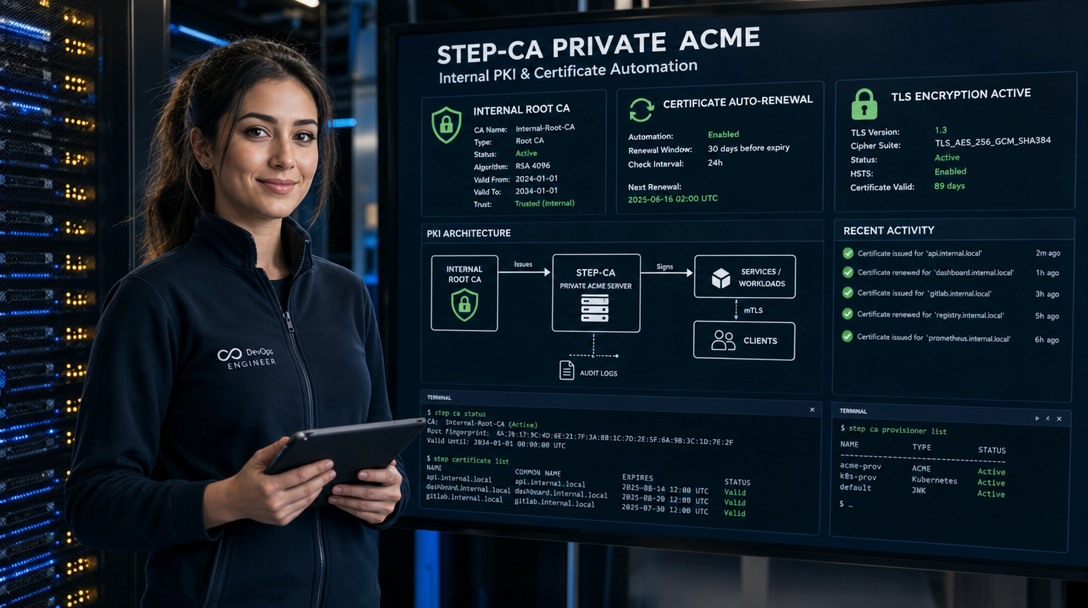
The smallstep step-ca service acts as your local Certificate Authority. It maintains an offline Root CA (or long-lived root key) and issues end-entity certificates through an active Intermediate CA. By enabling the ACME provisioner, any client software supporting the RFC 8555 standard can authenticate and fetch certificates autonomously.
+-----------------------------------------------------------------------+
|                       LOCAL NETWORK / HOMELAB                         |
|                                                                       |
|  +-------------------------+            +--------------------------+  |
|  |   Client Reverse Proxy  |            |     step-ca Container    |  |
|  |  (Caddy / Traefik / etc)|            |      (Port 9000/TCP)     |  |
|  +-------------------------+            +--------------------------+  |
|               |                                      |                |
|               |  1. ACME Directory Query             |                |
|               |------------------------------------->|                |
|               |                                      |                |
|               |  2. New Account & Order Created      |                |
|               |<-------------------------------------|                |
|               |                                      |                |
|               |  3. Local HTTP-01 / TLS-ALPN Valid.  |                |
|               |<====================================>|                |
|               |                                      |                |
|               |  4. Certificate Signing Request (CSR)|                |
|               |------------------------------------->|                |
|               |                                      |                |
|               |  5. Signed X.509 TLS Cert Issued     |                |
|               |<-------------------------------------|                |
+-----------------------------------------------------------------------+
Step 1: Prerequisites & Directory Preparation
Before launching the container, prepare a dedicated host directory with strict POSIX permissions. Because step-ca runs under an unprivileged user inside the container (UID 1000, GID 1000), file ownership must be configured explicitly.
# Create host directories for step-ca configuration and keys
sudo mkdir -p /opt/step-ca/data
sudo mkdir -p /opt/step-ca/secrets

# Set ownership to UID 1000 (smallstep container default)
sudo chown -R 1000:1000 /opt/step-ca
sudo chmod 700 /opt/step-ca/secrets /opt/step-ca/data
Next, generate a strong random password file that will encrypt the intermediate private key:
# Generate a 32-character random passphrase for the CA database and keys
openssl rand -base64 24 | sudo tee /opt/step-ca/secrets/password.txt > /dev/null
sudo chown 1000:1000 /opt/step-ca/secrets/password.txt
sudo chmod 600 /opt/step-ca/secrets/password.txt
Step 2: Initializing the Root & Intermediate CA
Instead of manually crafting OpenSSL configuration files, use the official smallstep/step-cli container to initialize your PKI hierarchy cleanly in one reproducible command:
docker run --rm -it \
  -v /opt/step-ca/data:/home/step \
  -v /opt/step-ca/secrets:/run/secrets \
  smallstep/step-cli step ca init \
    --name="Homelab Private Authority" \
    --dns="ca.internal,192.168.1.10,localhost" \
    --address=":9000" \
    --provisioner="admin@internal" \
    --password-file=/run/secrets/password.txt
This command creates the following essential files inside /opt/step-ca/data:
certs/root_ca.crt: The public Root Certificate Authority certificate.certs/intermediate_ca.crt: The intermediate signing certificate.secrets/root_ca_key: The encrypted private key of the Root CA.secrets/intermediate_ca_key: The encrypted private key used for automated certificate issuance.config/ca.json: Main operational configuration of the step-ca daemon.
Step 3: Enabling the ACME Provisioner
By default, step-ca uses token-based JWK provisioners. To enable seamless, zero-touch certificate issuance for standard ACME clients like Caddy, certbot, and Traefik, add the ACME provisioner:
docker run --rm -it \
  -v /opt/step-ca/data:/home/step \
  -v /opt/step-ca/secrets:/run/secrets \
  smallstep/step-cli step ca provisioner add acme --type ACME
Verify that /opt/step-ca/data/config/ca.json contains the new provisioner entry:
{
  "type": "ACME",
  "name": "acme",
  "claims": {
    "minTLSCertDuration": "5m",
    "maxTLSCertDuration": "2160h",
    "defaultTLSCertDuration": "24h"
  }
}
Notice the defaultTLSCertDuration of 24 hours. A key advantage of automated internal PKI is short certificate lifespans: because renewal is completely automated, short-lived certificates drastically reduce the blast radius if an individual service key is ever compromised.
Step 4: Production-Grade Docker Compose Stack
Now construct the persistent docker-compose.yml file located in /opt/step-ca/docker-compose.yml:
services:
  step-ca:
    image: smallstep/step-ca:0.28.1
    container_name: step-ca
    restart: unless-stopped
    ports:
      - "9000:9000"
    environment:
      - DOCKER_STEPCA_INIT_PASSWORD_FILE=/run/secrets/password.txt
      - STEPPATH=/home/step
    volumes:
      - /opt/step-ca/data:/home/step
      - /opt/step-ca/secrets/password.txt:/run/secrets/password.txt:ro
    networks:
      - pki-network
    healthcheck:
      test: ["CMD", "step", "ca", "health", "--ca-url", "https://localhost:9000", "--root", "/home/step/certs/root_ca.crt"]
      interval: 30s
      timeout: 5s
      retries: 3
      start_period: 10s
    security_opt:
      - no-new-privileges:true
    cap_drop:
      - ALL

networks:
  pki-network:
    name: pki-network
    driver: bridge
Launch the service and inspect the startup logs to ensure the ACME server is active:
cd /opt/step-ca
docker compose up -d

# Verify startup logs
docker compose logs -f step-ca
You should see confirmation that the server is listening on :9000 and the acme provisioner is ready to handle directory requests at https://ca.internal:9000/acme/acme/directory.
Step 5: Trusting the Root Certificate on Client Machines
For your browsers, operating systems, and automated tools (curl, git, Docker daemons) to trust certificates issued by step-ca, install the public Root CA certificate onto your client machines. You only ever need to install the Root CA once.
On Debian / Ubuntu Clients:
# Fetch the root certificate from the step-ca host
sudo curl -s https://ca.internal:9000/roots.pem -o /usr/local/share/ca-certificates/homelab-root-ca.crt

# Update the OS trust store
sudo update-ca-certificates
On RHEL / Fedora / AlmaLinux Clients:
sudo curl -s https://ca.internal:9000/roots.pem -o /etc/pki/ca-trust/source/anchors/homelab-root-ca.crt
sudo update-ca-trust
Step 6: Configuring Reverse Proxies to Use step-ca ACME
With the private ACME server operational and the Root CA trusted, integrating reverse proxies takes only a few lines of configuration.
Integrating Caddy Server
Caddy is the premier choice for homelabs and microservices because it has native, first-class ACME support. In your service's Caddyfile, specify your step-ca ACME directory:
{
    # Point global ACME to the local step-ca instance
    acme_ca https://ca.internal:9000/acme/acme/directory
    acme_ca_root /etc/ssl/certs/homelab-root-ca.crt
}

vault.internal {
    reverse_proxy vaultwarden:80
}

dash.internal {
    reverse_proxy homepage:3000
}
When Caddy boots, it automatically negotiates certificate issuance with step-ca via TLS-ALPN-01 or HTTP-01 challenges, signs private certificates, and silently renews them every 12 to 16 hours without requiring any manual intervention.
Integrating Certbot for Standalone Linux Services
For standard Nginx or Apache servers, Certbot can request certificates directly from your local ACME endpoint:
sudo certbot certonly \
  --standalone \
  --server https://ca.internal:9000/acme/acme/directory \
  -d git.internal \
  --register-unsafely-without-email
Security Hardening & Production Best Practices
- Offline Root CA Archival: In enterprise production environments, the
root_ca_keyshould be moved off the operational server to secure offline cold storage (such as an encrypted USB drive or HSM).step-caonly requires theintermediate_ca_keyto issue operational certificates. - Automated Backup of the Database:
step-castores certificate serial numbers and revocation state in a Badger key-value database inside/opt/step-ca/data/db. Back up this directory along with your encrypted keys daily using Restic or BorgBackup. - DNS Horizon Alignment: Ensure your internal DNS server (such as AdGuard Home, Pi-hole, or CoreDNS) maps
ca.internalto the container host's private IP address so all internal hosts resolve the CA endpoint reliably. - Enforce Short Lifetimes: Maintain certificate durations between 24 hours and 7 days. This practice builds operational confidence in automatic renewal routines and eliminates the headache of expired 1-year or 2-year manual certificates.
Troubleshooting Common Issues
1. x509: Certificate Signed by Unknown Authority
Cause: The client application or reverse proxy does not have the root_ca.crt installed in its trust bundle, or does not recognize custom local authorities.
Solution: Ensure update-ca-certificates was executed on the host. If running Caddy or Traefik inside Docker containers, mount the host's CA certificate volume into the container (e.g. -v /usr/local/share/ca-certificates/homelab-root-ca.crt:/etc/ssl/certs/root.crt:ro) and specify the trust path in the reverse proxy configuration.
2. ACME Challenge Failed: Unauthorized / Connection Refused
Cause: When step-ca attempts to validate an HTTP-01 challenge against your reverse proxy, it cannot reach port 80 on the target hostname due to DNS resolution failure or firewall blocking.
Solution: Verify that the step-ca container can resolve and ping the client hostname (e.g., docker exec -it step-ca step ca health). In internal Docker bridge networks, ensure both the CA container and the reverse proxy container share a unified Docker network so inter-container traffic is directly routable.
3. Container Crash Loop: "Error Opening Key: Bad Password"
Cause: File permission restrictions or line-ending mismatches (e.g., CRLF characters from Windows) in password.txt prevent the daemon from decrypting the intermediate signing key.
Solution: Check that password.txt is cleanly formatted without trailing carriage returns. Ensure the file has UID 1000 permissions: sudo chown 1000:1000 /opt/step-ca/secrets/password.txt && sudo chmod 600 /opt/step-ca/secrets/password.txt.
Conclusion
Deploying smallstep step-ca with Docker Compose transforms internal security management. By bringing the simplicity and power of the ACME protocol behind your firewall, you eliminate tedious manual certificate generation, avoid insecure self-signed browser warnings, and enforce end-to-end TLS encryption across all homelab and internal services automatically.

Hi, I’m Mark, the author of Clever IT Solutions: Mastering Technology for Success. I am passionate about empowering individuals to navigate the ever-changing world of information technology. With years of experience in the industry, I have honed my skills and knowledge to share with you. At Clever IT Solutions, we are dedicated to teaching you how to tackle any IT challenge, helping you stay ahead in today’s digital world. From troubleshooting common issues to mastering complex technologies, I am here to guide you every step of the way. Join me on this journey as we unlock the secrets to IT success.