Modern self-hosted infrastructure relies heavily on S3-compatible object storage. From backing up PostgreSQL databases and Docker volume snapshots to powering media streaming servers and private cloud sync tools like Immich or Nextcloud, standard POSIX filesystems often fail to scale across multiple physical machines or geographic regions. While MinIO has long been the default choice for local S3 storage, its shift toward aggressive commercial licensing, high base memory consumption, and rigid erasure-coding topology makes it challenging to operate across heterogeneous servers or low-bandwidth links. On the other end of the spectrum, Ceph provides enterprise-grade clustering but demands heavy operational overhead, dedicated 10GbE networking, and significant system resources.
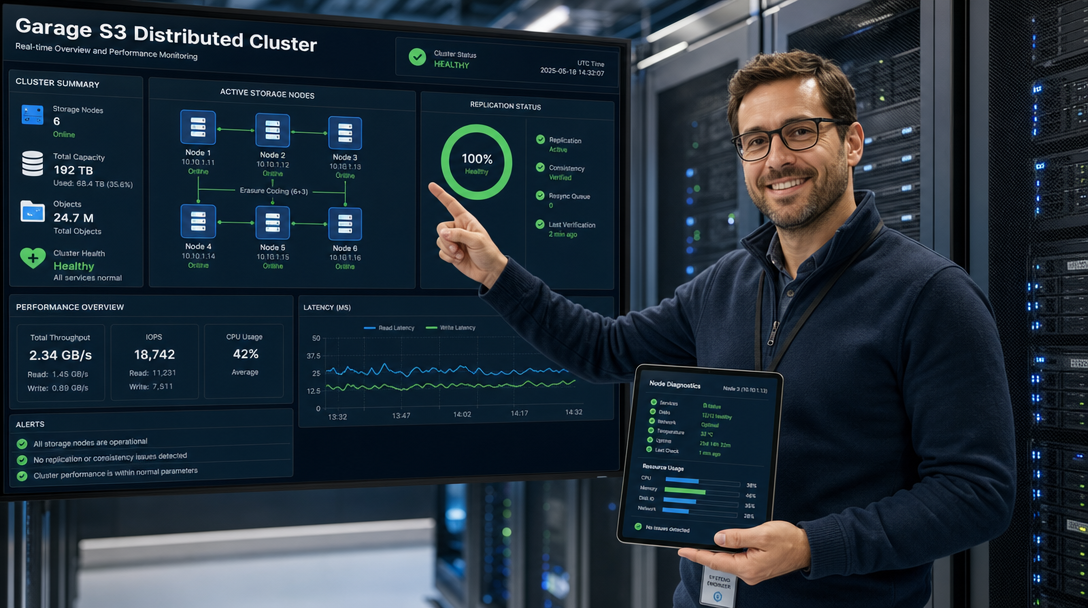
Garage S3 is an open-source, distributed object storage service written in Rust that bridges this gap. Specifically engineered for self-hosted homelabs, edge nodes, and multi-datacenter environments, Garage embraces eventual consistency and handles variable network latency gracefully. It allows you to build a resilient, multi-node S3 cluster across different locations—such as your home server, a cloud VPS, and an offsite backup rig—using commodity hardware and consuming less than 100MB of RAM per node. In this comprehensive guide, we will step through deploying a production-ready, multi-node Garage S3 storage cluster using Docker Compose, configuring network peering, managing storage layouts, issuing S3 credentials, and applying security hardening.
Architecture & Cluster Communication Overview
Garage splits its operational engine into two decoupled subsystems: a low-latency metadata engine and a chunk-based block storage engine. Metadata (bucket manifests, object names, block locations, and version vectors) is indexed using an embedded database—specifically LMDB or SQLite. Object payloads, conversely, are sliced into variable-sized cryptographic chunks and distributed across storage nodes according to an explicit ring topology managed through CRDTs (Conflict-free Replicated Data Types).
Nodes communicate with one another over an internal, mutual-TLS encrypted RPC channel on TCP port 3901. The public S3 API endpoint listens on port 3900, while an optional administrative web interface and K2 coordinator operate on designated ports. Because Garage is built to tolerate network partitions and variable inter-node ping times, nodes across different regions continuously synchronize state without deadlocking or dropping client writes.
+---------------------------------------------------------------------------------+
|                                 CLIENT TRAFFIC                                  |
|   (Restic / AWS CLI / Immich / MinIO Client / Nextcloud / Docker Registry)     |
+---------------------------------------------------------------------------------+
                                       |
                                       | HTTPS (Port 443 / 3900)
                                       v
                     +-----------------------------------+
                     | Reverse Proxy / TLS (Caddy/Traefik)|
                     +-----------------------------------+
                                       |
                   +-------------------+-------------------+
                   |                                       |
                   v                                       v
      +-------------------------+             +-------------------------+
      |  Garage Node 1 (DC-A)   |             |  Garage Node 2 (DC-B)   |
      |-------------------------|             |-------------------------|
      | S3 API:      Port 3900  | <-- mTLS -> | S3 API:      Port 3900  |
      | RPC Cluster: Port 3901  |  RPC Gossip | RPC Cluster: Port 3901  |
      | Metadata:    /opt/meta  |  Port 3901  | Metadata:    /opt/meta  |
      | Data Chunks: /opt/data  |             | Data Chunks: /opt/data  |
      +-------------------------+             +-------------------------+
                   ^                                       ^
                   |               mTLS RPC 3901           |
                   +-------------------+-------------------+
                                       |
                                       v
                          +-------------------------+
                          |  Garage Node 3 (DC-C)   |
                          |-------------------------|
                          | S3 API:      Port 3900  |
                          | RPC Cluster: Port 3901  |
                          | Metadata:    /opt/meta  |
                          | Data Chunks: /opt/data  |
                          +-------------------------+
              Replication Factor = 3 (Full Byzantine Fault Tolerance)
Prerequisites & Host Directory Preparation
Before launching the containers, ensure your Linux hosts meet the following baseline requirements:
- Operating System: Ubuntu 24.04 LTS, Debian 12, or AlmaLinux 9 with an active Linux kernel 6.x.
- Container Engine: Docker Engine 26.x or newer with Docker Compose Plugin (v2.27+).
- Hardware Footprint: At least 1 CPU core, 512MB RAM, and dedicated SSD/NVMe storage for metadata to maximize LMDB IOPS performance. Bulk HDD or SSD capacity can be used for the object data directory.
- Network Access: TCP port
3901must be reachable between all participating Garage nodes (ideally routed through WireGuard, Tailscale, or a dedicated private VPC). TCP port3900should be exposed to your local network or reverse proxy for client requests.
Run the following shell commands on each host to create the standardized directory structure and generate the shared cluster RPC authentication secret:
sudo mkdir -p /opt/garage/{config,meta,data}
sudo chown -R 1000:1000 /opt/garage
sudo chmod 700 /opt/garage/meta /opt/garage/data

# Generate a high-entropy 32-byte hexadecimal RPC secret
# Note: Keep this key identical across EVERY node in the cluster
openssl rand -hex 32
Configuring Garage: The garage.toml Specification
Garage reads its core behavior from a TOML configuration file located inside the container at /etc/garage.toml. Create the configuration file on your first node at /opt/garage/config/garage.toml:
# /opt/garage/config/garage.toml
metadata_dir = "/var/lib/garage/meta"
data_dir = "/var/lib/garage/data"
db_engine = "sqlite"

# Replication settings
replication_factor = 3

# Cluster RPC configuration
# Replace with the node's routable IP or hostname
rpc_bind_addr = "[::]:3901"
rpc_public_addr = "10.10.0.11:3901"

# Shared cluster secret generated earlier via openssl
rpc_secret = "4f2a89cb1e670d9a3b8e7c5411df8326e0b741c8d5e9f2a1b73e6a8d94c10f82"

[s3_api]
api_bind_addr = "[::]:3900"
s3_region = "garage-cluster-eu"
root_domain = ".s3.homelab.internal"

[s3_web]
bind_addr = "[::]:3902"
root_domain = ".web.homelab.internal"
index = "index.html"

[admin]
api_bind_addr = "[::]:3903"
admin_token = "SUPER_SECRET_ADMIN_TOKEN_HERE_2026"
metrics_token = "METRICS_PROMETHEUS_TOKEN_HERE_2026"
Key configuration directives to understand:
db_engine = "sqlite": Recommended for modern Garage v1.x deployments due to robust concurrency, corruption resilience, and automatic WAL compaction.rpc_public_addr: Must specify the exact IP or DNS name that other nodes will use to reach this specific instance. For multi-datacenter setups, use the private WireGuard/Tailscale VPN address (e.g.,10.10.0.11:3901).replication_factor = 3: Ensures that any stored object has 3 copies distributed across different failure domains. In a 3-node cluster, this guarantees 100% data survivability even if two nodes fail simultaneously.root_domain: Enables standard S3 virtual-host bucket addressing (e.g.,bucket-name.s3.homelab.internal) in addition to path-style addressing (s3.homelab.internal/bucket-name).
Docker Compose Deployment File
Create the docker-compose.yml file in /opt/garage/docker-compose.yml. We use the official, lightweight, multi-arch image provided by the upstream Garage maintainers:
services:
  garage:
    image: dxflrs/garage:v1.1.0
    container_name: garage-storage
    restart: unless-stopped
    network_mode: "host"
    volumes:
      - /opt/garage/config/garage.toml:/etc/garage.toml:ro
      - /opt/garage/meta:/var/lib/garage/meta
      - /opt/garage/data:/var/lib/garage/data
    environment:
      - RUST_LOG=garage=info
    healthcheck:
      test: ["CMD", "/garage", "status"]
      interval: 30s
      timeout: 5s
      retries: 3
      start_period: 10s
    logging:
      driver: "json-file"
      options:
        max-size: "20m"
        max-file: "3"
Notice the use of network_mode: "host". For distributed clustering systems where nodes frequently exchange UDP gossip and direct TCP RPC packets, host networking avoids Docker NAT translation overhead, maintains low latency, and simplifies routable IP binding. If you prefer bridge networking, you must explicitly expose ports 3900, 3901, 3902, and 3903.
Bring up the initial node:
cd /opt/garage
docker compose up -d
docker compose logs -f garage
Initializing the Cluster & Setting the Storage Layout
When Garage starts for the first time, it automatically generates a unique public cryptographic Node ID (a 64-character hex string). Check the status of your initial node:
docker compose exec garage /garage status
The output will display the current node’s public ID, connection state, and version:
=== Garage Node Status ===
Node ID: d8a94b51c8f309a1284d7e9b0e12f45c9a7b3e812d45c678a9012345bcdef123
Hostname: storage-node-01
Status: Running (v1.1.0)
Known nodes: 1 / 1 healthy
Repeat the previous setup steps on your second and third servers (e.g., storage-node-02 with IP 10.10.0.12 and storage-node-03 with IP 10.10.0.13), making sure the rpc_secret in their respective garage.toml files is identical. Then, from storage-node-01, establish peering by executing the connect command:
# From Node 1, connect to Node 2 and Node 3 using their Node IDs and endpoints
docker compose exec garage /garage node connect <NODE_2_ID>@10.10.0.12:3901
docker compose exec garage /garage node connect <NODE_3_ID>@10.10.0.13:3901
Verify that all nodes see each other by running /garage status. You should see 3 nodes listed with green CONNECTED indicators.
Staging and Applying the Storage Ring Layout
Garage does not begin storing data immediately upon connection; it enforces a two-phase staging workflow to prevent accidental rebalancing loops. You must assign each node to a failure zone (datacenter, rack, or physical machine) and assign its storage capacity weight:
# Assign nodes to zones with capacity tags (e.g., 500G or 2T)
docker compose exec garage /garage layout assign -z dc-home -c 500G <NODE_1_ID>
docker compose exec garage /garage layout assign -z dc-cloud -c 500G <NODE_2_ID>
docker compose exec garage /garage layout assign -z dc-offsite -c 500G <NODE_3_ID>

# Inspect the staged layout plan before committing
docker compose exec garage /garage layout show
If the layout summary indicates an optimal partition distribution (100% of partitions covered with the requested replication factor), commit the layout to the cluster:
docker compose exec garage /garage layout apply --version 1
The cluster is now officially live, partitioned, and ready to ingest S3 traffic.
Managing API Keys, Buckets, and Testing S3 Operations
Unlike traditional systems that bind permissions directly to root users, Garage treats access keys and buckets as first-class, independent cluster resources.
1. Create Access Keys
docker compose exec garage /garage key create homelab-app-key
This command prints your Access Key ID (e.g., GK4f019b8...) and Secret Access Key. Store these securely in your password manager or secrets engine.
2. Create a Bucket and Grant Permissions
# Create an S3 bucket named 'homelab-backups'
docker compose exec garage /garage bucket create homelab-backups

# Grant read and write permissions to the created key
docker compose exec garage /garage bucket allow homelab-backups \
  --key homelab-app-key \
  --read \
  --write
3. Validating with the AWS CLI
Test compatibility using standard AWS CLI tools from any machine on your network:
export AWS_ACCESS_KEY_ID="GK4f019b8..."
export AWS_SECRET_ACCESS_KEY="79bc3e81..."
export AWS_DEFAULT_REGION="garage-cluster-eu"

# List buckets
aws --endpoint-url http://10.10.0.11:3900 s3 ls

# Upload a test file
echo "Garage S3 Object Storage Deployment Success" > testfile.txt
aws --endpoint-url http://10.10.0.11:3900 s3 cp testfile.txt s3://homelab-backups/

# Verify file presence
aws --endpoint-url http://10.10.0.11:3900 s3 ls s3://homelab-backups/
Because the cluster has a replication factor of 3, uploading this file immediately synchronizes the chunks across all three physical nodes in the background.
Security Hardening & Production Best Practices
For a production environment, implement these vital security boundaries:
- Isolate RPC Port 3901: Never expose port
3901to the public internet. Use strict Linuxnftablesorufwrules to allow traffic on port3901exclusively from designated cluster node IP addresses. Even though Garage uses mutual TLS and token validation on RPC connections, shielding the port prevents denial-of-service attempts. - Terminate TLS via Caddy Reverse Proxy: Route incoming S3 traffic through Caddy or Traefik to enforce modern TLS 1.3 encryption and handle wildcard certificates (e.g.,
*.s3.yourdomain.com). Below is a battle-tested Caddyfile snippet:
# /etc/caddy/Caddyfile snippet for Garage S3
s3.yourdomain.com, *.s3.yourdomain.com {
    reverse_proxy 127.0.0.1:3900 {
        header_up Host {host}
        header_up X-Real-IP {remote_host}
    }
    tls {
        dns cloudflare {env.CLOUDFLARE_API_TOKEN}
    }
}
- Separate Metadata and Bulk Data Storage: Ensure
metadata_diris placed on high-end NVMe drives. Garage’s SQLite/LMDB engine performs frequent small read/write operations. Placing metadata on rotational HDDs will choke cluster throughput under heavy concurrent loads. - Automated Layout Backups: Periodically export bucket metadata and cluster layout definitions using
garage bucket listandgarage key listvia scheduled cron tasks.
Troubleshooting Common Deployment Issues
Here are three common challenges encountered when orchestrating multi-node Garage clusters, along with actionable remediation steps:
1. Error: “Cluster layout unstaged changes: layout not applied”
Symptom: Clients receive HTTP 503 Service Unavailable or “Cluster layout not configured” errors when performing PUT or GET operations, even though all nodes report CONNECTED.
Root Cause: Nodes were added to the cluster, but the changes were only staged in the draft layout and never committed with layout apply.
Solution: Run docker compose exec garage /garage layout show to check the pending version number. If unstaged changes are visible, commit them immediately using docker compose exec garage /garage layout apply --version <NEXT_VERSION_NUMBER>.
2. Error: “Handshake failed: Invalid RPC secret or network timeout”
Symptom: Running /garage status shows nodes stuck in an UNREACHABLE or CONNECTING loop, with logs displaying handshake errors.
Root Cause: Either the rpc_secret strings differ between host configuration files, or a host firewall is silently dropping TCP packets on port 3901.
Solution: Verify that the rpc_secret in /opt/garage/config/garage.toml matches byte-for-byte across all hosts. Test network connectivity from Node 1 to Node 2 using nc -zv 10.10.0.12 3901. If the connection times out, adjust your host firewall (e.g., sudo ufw allow from 10.10.0.0/24 to any port 3901 proto tcp).
3. Error: “SignatureDoesNotMatch: The request signature does not match”
Symptom: Standard S3 client tools fail to authenticate with 403 Forbidden and report an invalid cryptographic signature.
Root Cause: Two primary causes: either the client machine’s clock has drifted significantly (AWS Signature Version 4 allows a maximum drift of 15 minutes), or the client is sending path-style requests while the reverse proxy strips required S3 HTTP headers.
Solution: Synchronize NTP on all participating systems using sudo chronyd -q 'server pool.ntp.org iburst' or sudo systemctl restart systemd-timesyncd. In client configurations, explicitly configure path-style URL access (e.g., s3_force_path_style = true in Terraform or --s3-force-path-style in Rclone).
Conclusion
Garage S3 represents a massive leap forward for self-hosted data infrastructure. By combining Rust’s memory efficiency, eventual consistency, and a resilient CRDT partition ring, it delivers production-grade object storage that scales effortlessly across disparate home servers and cloud instances without Ceph’s crushing complexity or MinIO’s heavy resource consumption. With this Docker Compose setup, you now possess a resilient storage backbone capable of backing up your homelab workloads, serving media assets, and powering modern cloud-native applications with zero reliance on centralized hyperscalers.

Hi, I’m Mark, the author of Clever IT Solutions: Mastering Technology for Success. I am passionate about empowering individuals to navigate the ever-changing world of information technology. With years of experience in the industry, I have honed my skills and knowledge to share with you. At Clever IT Solutions, we are dedicated to teaching you how to tackle any IT challenge, helping you stay ahead in today’s digital world. From troubleshooting common issues to mastering complex technologies, I am here to guide you every step of the way. Join me on this journey as we unlock the secrets to IT success.