As homelabs and private cloud environments expand, maintaining visibility over dozens of microservices, infrastructure alerts, tech news feeds, and development activity quickly becomes chaotic. Traditional self-hosted dashboards usually fall into two extreme camps: static link aggregators (like Homer or Flame) that merely act as glorified bookmark bars without real-time insights, or heavy, metrics-first monitoring suites (like Grafana) that are overkill for everyday browser startpages. Many alternatives also suffer from bloated JavaScript client bundles, complex multi-file JSON schemas, or fragile database dependencies.
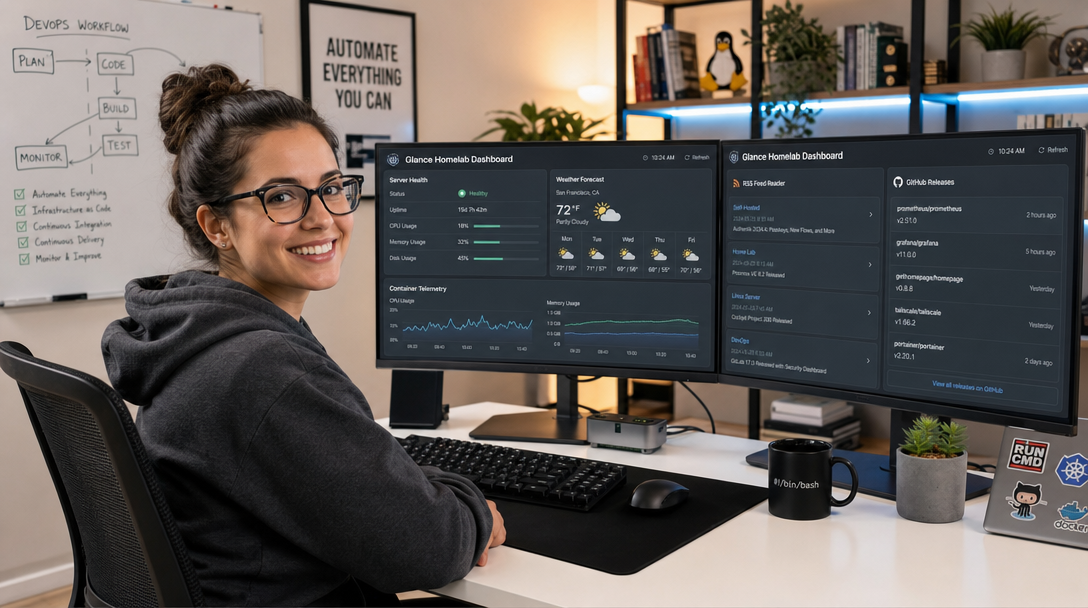
Glance is an open-source, ultra-lightweight dashboard and RSS feed aggregator written in Go that strikes the ideal balance. Designed with a clean, responsive card-based architecture, Glance consolidates homelab container status, server telemetry, GitHub release trackers, Reddit/Hacker News digests, sub-reddit feeds, weather forecasts, and calendar events into a single, cohesive interface. Entirely configured through a single human-readable glance.yml file, Glance compiles into a single binary, consumes under 30MB of RAM, and renders server-side without client-side tracking or telemetry. In this tutorial, we will build a production-grade Glance deployment using Docker Compose, secure Docker daemon access with a socket proxy, write custom widgets, and terminate TLS behind Caddy.
Architecture & Data Aggregation Workflow
Glance operates as an asynchronous polling and rendering engine. When loaded in the browser, the backend Go daemon fetches upstream data sources concurrently according to individual widget refresh intervals, caches the parsed content in-memory, and streams the server-rendered HTML blocks directly to the client. This server-side aggregation architecture ensures that third-party APIs (such as GitHub, Weather services, or external RSS endpoints) never see the client browser’s IP address, preserving privacy and eliminating CORS restrictions.
+-----------------------------------------------------------------------------+
|                                CLIENT BROWSER                               |
|                  (Desktop / Tablet / Mobile Responsive View)                |
+-----------------------------------------------------------------------------+
                                       |
                                       | HTTPS (Port 443)
                                       v
                     +-----------------------------------+
                     |    Caddy Reverse Proxy + Auth     |
                     |  (TLS 1.3 + Optional SSO / Auth)  |
                     +-----------------------------------+
                                       |
                                       | HTTP (Port 8080)
                                       v
+-----------------------------------------------------------------------------+
|                          GLANCE CONTAINER (Go Daemon)                       |
|                                                                             |
|  +--------------------+  +--------------------+  +-----------------------+  |
|  | Server Telemetry   |  | GitHub / Releases  |  | Docker Health Monitor |  |
|  | (CPU, RAM, Disk)   |  | (API Polls)        |  | (via Socket Proxy)    |  |
|  +--------------------+  +--------------------+  +-----------------------+  |
|  +--------------------+  +--------------------+  +-----------------------+  |
|  | RSS / Atom Feeds   |  | Weather & Clock    |  | Web Bookmarks & Links |  |
|  | (Async Caching)    |  | (Location API)     |  | (Categorized Grid)    |  |
|  +--------------------+  +--------------------+  +-----------------------+  |
|                                      |                                      |
|                             Mounted: glance.yml                             |
+-----------------------------------------------------------------------------+
                                       |
                                       | TCP (Port 2375) - Read-Only
                                       v
                     +-----------------------------------+
                     |        Docker Socket Proxy        |
                     |   (Blocks POST / Restricts APIs)  |
                     +-----------------------------------+
                                       |
                                       v
                             /var/run/docker.sock
Prerequisites & Host Directory Preparation
Ensure your host environment meets these basic requirements before proceeding:
- Operating System: Any modern Linux distribution (Debian 12, Ubuntu 24.04 LTS, Rocky Linux 9).
- Container Stack: Docker Engine 25.x+ and Docker Compose Plugin (v2.24+).
- Network Setup: Port
8080available locally (or routed directly through an internal container network to your reverse proxy). - Security Policy: Never bind the raw
/var/run/docker.sockdirectly into a web-facing container. We incorporate an isolated read-only Docker Socket Proxy in the stack.
Create the project workspace on your host filesystem:
sudo mkdir -p /opt/glance/config
sudo chown -R 1000:1000 /opt/glance
cd /opt/glance
Crafting the Glance Configuration: glance.yml
Glance organizes its interface using a flexible column grid. Create the main configuration file at /opt/glance/config/glance.yml. This production configuration includes system telemetry, Docker container health, GitHub releases, tech news feeds, and quick navigation bookmarks:
# /opt/glance/config/glance.yml
theme:
  background-color: 240 20 10
  primary-color: 215 80 60
  contrast-multiplier: 1.1

pages:
  - name: Homelab Overview
    columns:
      # Left Column: Bookmarks & System Health
      - size: small
        widgets:
          - type: calendar
            first-day-of-week: monday

          - type: weather
            location: Frankfurt, Germany
            units: metric
            hour-format: 24h

          - type: bookmarks
            groups:
              - title: Infrastructure
                links:
                  - title: Proxmox VE
                    url: https://pve.homelab.internal:8006
                    icon: si:proxmox
                  - title: TrueNAS SCALE
                    url: https://nas.homelab.internal
                    icon: si:truenas
                  - title: Portainer
                    url: https://portainer.homelab.internal
                    icon: si:portainer
              - title: Network & Security
                links:
                  - title: OPNsense
                    url: https://router.homelab.internal
                    icon: si:opnsense
                  - title: AdGuard Home
                    url: https://dns.homelab.internal
                    icon: si:adguard
                  - title: Vaultwarden
                    url: https://vault.homelab.internal
                    icon: si:bitwarden

      # Center Column: Dynamic Aggregations & Docker Status
      - size: full
        widgets:
          - type: monitor
            title: Core Services Telemetry
            cache: 30s
            sites:
              - title: Internal DNS (AdGuard)
                url: http://10.10.0.1:53
                icon: si:adguard
              - title: Garage S3 Storage
                url: http://10.10.0.11:3900
                icon: si:amazons3
              - title: Immich Media Server
                url: http://10.10.0.15:2283
                icon: si:googlephotos

          - type: docker
            title: Docker Host Workloads
            socket: tcp://docker-proxy:2375
            hide-unhealthy: false
            show-all: true

          - type: releases
            title: Upstream Software Releases
            cache: 2h
            repositories:
              - glanceapp/glance
              - caddyserver/caddy
              - dxflrs/garage
              - louislam/uptime-kuma

      # Right Column: Tech Feeds & News
      - size: small
        widgets:
          - type: rss
            title: Hacker News Top
            url: https://news.ycombinator.com/rss
            limit: 6
            cache: 15m

          - type: rss
            title: Lobsters Tech
            url: https://lobste.rs/rss
            limit: 6
            cache: 15m

          - type: reddit
            subreddit: homelab
            sort: hot
            limit: 5
            cache: 30m
Docker Compose Stack Deployment
Create the docker-compose.yml file in /opt/glance/docker-compose.yml. To protect your host machine, we integrate the tecnativa/docker-socket-proxy container, which exposes only read-only Docker API endpoints (CONTAINERS=1) while denying destructive commands like container deletion, image builds, or volume pruning:
services:
  glance:
    image: glanceapp/glance:latest
    container_name: glance-dashboard
    restart: unless-stopped
    ports:
      - "127.0.0.1:8080:8080"
    volumes:
      - /opt/glance/config/glance.yml:/app/glance.yml:ro
      - /etc/timezone:/etc/timezone:ro
      - /etc/localtime:/etc/localtime:ro
    environment:
      - TZ=Europe/Berlin
    depends_on:
      - docker-proxy
    networks:
      - glance-net
    healthcheck:
      test: ["CMD-SHELL", "wget -q --spider http://127.0.0.1:8080 || exit 1"]
      interval: 30s
      timeout: 5s
      retries: 3
      start_period: 5s

  docker-proxy:
    image: tecnativa/docker-socket-proxy:latest
    container_name: glance-docker-proxy
    restart: unless-stopped
    environment:
      - CONTAINERS=1
      - INFO=1
      - NETWORKS=0
      - VOLUMES=0
      - SERVICES=0
      - POST=0
    volumes:
      - /var/run/docker.sock:/var/run/docker.sock:ro
    networks:
      - glance-net

networks:
  glance-net:
    name: glance-network
    driver: bridge
Launch the stack using Docker Compose:
cd /opt/glance
docker compose up -d
docker compose ps
Verify that both the proxy and the dashboard containers are running healthy. You can inspect the logs to verify configuration parsing:
docker compose logs glance
Reverse Proxy & Authentication with Caddy
Because Glance intentionally omits a built-in user authentication layer to remain minimal and fast, access should be guarded by your edge reverse proxy. Below is an optimal Caddyfile snippet demonstrating automatic Let’s Encrypt TLS termination and HTTP Basic Authentication:
# /etc/caddy/Caddyfile snippet for Glance
glance.yourhomelab.com {
    # Generate hashed password using: caddy hash-password
    basic_auth {
        admin $2a$14$z9v8VzKk7N4d/O4eF...
    }

    reverse_proxy 127.0.0.1:8080 {
        header_up Host {host}
        header_up X-Real-IP {remote_host}
        header_up X-Forwarded-For {remote_host}
        header_up X-Forwarded-Proto {scheme}
    }

    # Security headers
    header {
        X-Frame-Options "SAMEORIGIN"
        X-Content-Type-Options "nosniff"
        Referrer-Policy "strict-origin-when-cross-origin"
    }

    encode zstd gzip
}
If you already use an identity provider like Authentik or Authelia, replace the basic_auth block with forward-authentication headers to enable unified Single Sign-On across your dashboard and all linked services.
Customizing Themes, Custom CSS & Custom Icons
Glance supports extensive aesthetic customizations without requiring custom container builds. You can define custom HSL color palettes or inject bespoke CSS directly in glance.yml:
theme:
  background-color: 220 18 12      # Deep Slate Dark
  primary-color: 160 84 39         # Emerald Green Accent
  positive-color: 142 70 45
  negative-color: 350 80 55
  contrast-multiplier: 1.15
  custom-css: |
    .widget {
      border: 1px solid rgba(255, 255, 255, 0.08);
      border-radius: 12px;
      backdrop-filter: blur(8px);
    }
    .widget-title {
      font-weight: 600;
      letter-spacing: 0.5px;
    }
For icons, Glance has native support for Simple Icons (prefixed with si:) and Lucide Icons (prefixed with lu:). This means you can reference virtually any tech brand (e.g., si:kubernetes, si:grafana, si:nextcloud, si:tailscale) without uploading individual PNG or SVG assets.
Troubleshooting Common Deployment Issues
When deploying and maintaining Glance, you may encounter the following three common configuration errors:
1. Error: “yaml: line X: mapping values are not allowed in this context”
Symptom: The Glance container immediately exits with code 1 upon startup, showing a YAML unmarshal error in docker compose logs.
Root Cause: YAML tab indentation or improper nesting of widgets within columns. Glance enforces strict typing for widget parameters.
Solution: Ensure your editor replaces tabs with exactly two spaces. Validate your file syntax using a CLI linter: python3 -c "import yaml; yaml.safe_load(open('/opt/glance/config/glance.yml'))". Common pitfalls include forgetting the leading hyphen on - type: widget-name or misaligning the widgets: key under columns:.
2. Error: “Docker widget shows ‘Connection refused’ or empty container list”
Symptom: The Docker widget displays an error banner or fails to render active containers while other widgets function normally.
Root Cause: Either Glance cannot reach docker-proxy:2375 on the internal Docker network, or the proxy’s environment variables disallow the CONTAINERS API endpoint.
Solution: Verify that both containers share the exact same user-defined bridge network (glance-net). Confirm that socket: tcp://docker-proxy:2375 is configured in glance.yml (rather than trying to mount the socket directly). In your docker-compose.yml, ensure CONTAINERS=1 and INFO=1 are set under the docker-proxy service.
3. Error: “RSS / Subreddit widget times out or displays stale content”
Symptom: News widgets show spinning loaders or content that has not updated in hours.
Root Cause: Upstream rate-limiting (frequent with Reddit or GitHub when unauthenticated) or DNS resolution failures inside the Docker container bridge.
Solution: Increase the widget cache: interval (e.g., from 5m to 30m) to avoid hitting public API rate caps. To verify container DNS resolution, run: docker compose exec glance wget -qO- https://news.ycombinator.com/rss. If resolution fails, explicitly specify reliable DNS servers (e.g., dns: [1.1.1.1, 9.9.9.9]) in your docker-compose.yml.
Conclusion
Glance breathes fresh life into self-hosted dashboards by abandoning heavy client-side JavaScript frameworks in favor of clean Go concurrency and server-side rendering. By pairing real-time service telemetry and container monitoring with live RSS digests and categorized application bookmarks, Glance serves as an exceptionally fast, practical, and privacy-respecting homepage for any modern homelab or engineering workflow. With the Docker Compose and Docker Socket Proxy architecture detailed above, your new dashboard remains secure, isolated, and effortless to maintain.

Hi, I’m Mark, the author of Clever IT Solutions: Mastering Technology for Success. I am passionate about empowering individuals to navigate the ever-changing world of information technology. With years of experience in the industry, I have honed my skills and knowledge to share with you. At Clever IT Solutions, we are dedicated to teaching you how to tackle any IT challenge, helping you stay ahead in today’s digital world. From troubleshooting common issues to mastering complex technologies, I am here to guide you every step of the way. Join me on this journey as we unlock the secrets to IT success.