Is your computer truly obsolete, or is it just being held back by restrictive software rules? Many users face a frustrating reality as Windows 10 nears its end of life. Their perfectly functional machines are deemed “incompatible” with the latest Windows operating system. This comprehensive guide addresses that very challenge. We explore a powerful method to bring Windows 11 to a wider range of hardware. The process bypasses many of Microsoft’s strict hardware requirements.
We provide clear, step-by-step instructions. Our goal is to make this technical procedure accessible for users at all skill levels. You will learn the preparation needed and the complete setup process.
Understanding this method is becoming increasingly important. With official support for Windows 10 ending in October 2025, finding a viable path forward is crucial. This guide serves as that essential resource.
Key Takeaways
- This guide provides a method to overcome Microsoft’s hardware restrictions for Windows 11.
- Rufus is a powerful utility that creates bootable USB drives for operating system installation.
- The process is designed to be accessible for users with varying levels of technical experience.
- Preparing your system correctly is a critical first step for a successful installation.
- This knowledge is vital as Windows 10 support approaches its end-of-life date.
- We explain the entire procedure from preparation to completion.
- Alternative methods will also be briefly discussed for comparison.
Introduction to Rufus and Windows 11
Microsoft’s strict upgrade requirements for Windows 11 have left many functional computers behind. These hardware restrictions create unnecessary barriers for users wanting to experience the latest operating system. We explore how alternative tools can overcome these limitations.
Understanding Rufus as an Installation Tool
Rufus serves as a powerful utility software designed specifically for creating bootable USB drives. This free tool simplifies the process of preparing installation media from ISO files. It supports various operating systems including different Windows versions.
The software differs significantly from Microsoft’s official installation methods. Rufus allows users to bypass certain restrictions during the Windows installation process. This flexibility makes it invaluable for overcoming hardware compatibility issues.
The Need for Upgrading to Windows 11
Upgrading becomes urgent as Windows 10 approaches its end-of-support date in October 2025. After this point, users will no longer receive critical security updates. Maintaining an unsupported operating system poses significant risks.
Microsoft’s requirements for this Windows version include specific processor generations and TPM security chips. These specifications automatically disqualify many perfectly functional machines. Understanding alternative installation methods becomes essential for hardware longevity.
Rufus provides a practical solution for those wanting to install Windows on existing systems. It represents a smart approach to extending computer life without unnecessary hardware purchases.
Preparing for Installation: Requirements and Tools
Proper preparation is the foundation of any successful technical procedure, and creating installation media is no exception. We outline the essential components needed before beginning the process. Having the right tools ready streamlines the entire experience.
Gathering Your USB Drive and Other Equipment
The primary hardware requirement is a suitable USB drive. We recommend selecting a device with at least 8GB of storage capacity. A 16GB or larger drive provides ample space for the installation file and additional data.
Ensure the USB device is completely empty before starting. The creation process will erase all existing information on the drive. Back up any important files from the device beforehand.
Check the file system format of your drive. FAT32 or exFAT formats offer the best compatibility. Formatting the drive to the correct specification prevents potential issues.
Downloading the Latest Windows ISO File
Obtaining the correct Windows ISO file is crucial for a successful installation. We strongly recommend downloading directly from Microsoft’s official website. This guarantees an authentic, uncorrupted file.
Select the appropriate version during the download process. Choose between Home and Pro editions based on your needs. Ensure you pick the correct language and architecture for your system.
A stable internet connection is essential for the large file download. Keep the downloaded file in an accessible location on your computer. This simplifies locating the file during the media creation process.
how to use rufus to install windows 11: Step-by-Step Process
Moving forward with the setup involves a systematic approach to media creation and configuration. We guide you through each phase to ensure a smooth transition.
Creating a Bootable USB Drive with Rufus
Begin by launching the Rufus application on your computer. The interface displays connected USB devices in the device selection dropdown.
Click the “Select” button to browse for your downloaded Windows ISO file. This critical step loads the installation image into the utility.
Configuring Rufus Settings for a Standard Windows Installation
Navigate to the Image Option setting and select “Standard Windows Installation” from the dropdown menu. This ensures conventional installation procedures.
Choose GPT partition scheme for modern UEFI systems. Customize the volume label with a descriptive name for easy identification.
Review all settings carefully before proceeding. Verify the correct USB drive selection to prevent data loss from the wrong device.
Initiating the Installation Process
Click the Start button to begin creating your bootable media. A warning message appears confirming all data on the USB will be erased.
Monitor the status bar for progress updates. The creation process typically takes 10-20 minutes depending on your USB drive speed.
When complete, the status shows “READY” at 100%. Your bootable drive is now prepared for the Windows installation process.
Bypassing Hardware and Account Restrictions
While Microsoft’s hardware requirements create significant barriers, Rufus provides practical solutions for both system compatibility and account preferences. This section explores how the tool overcomes these limitations.
Overcoming Windows 11’s Hardware Requirements
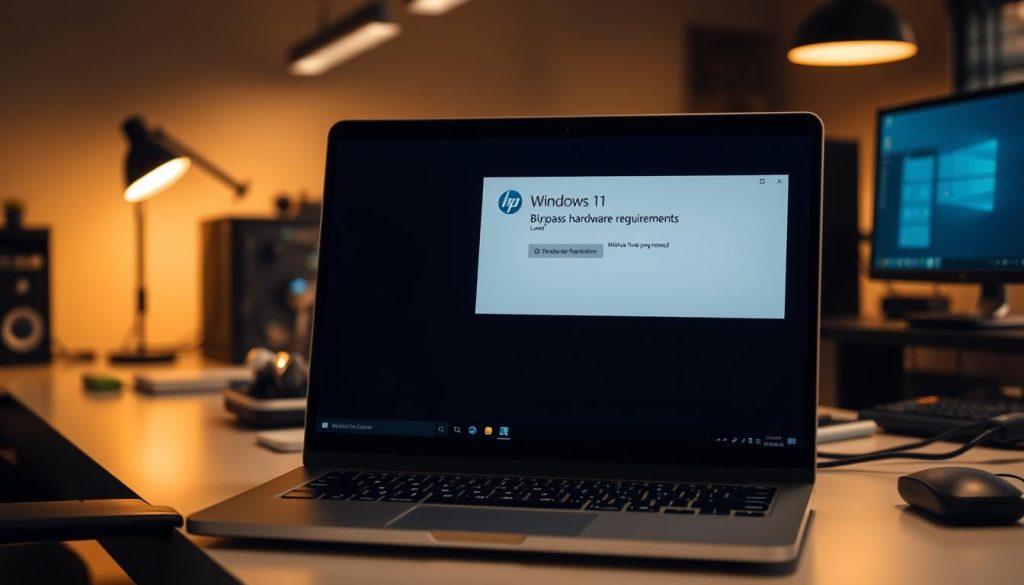
Rufus enables users to bypass strict hardware checks during the Windows installation process. The utility includes specific options to remove TPM 2.0, secure boot, and CPU generation requirements.
These features allow installation on older systems that Microsoft officially excludes. The process maintains full functionality for most daily computing tasks.
Setting Up a Local Account vs. a Microsoft Account
Many users prefer local accounts for privacy reasons and offline accessibility. Rufus provides an option to create local account during setup, bypassing Microsoft’s push for online integration.
This approach prevents automatic data synchronization with cloud servers. The tool lets you pre-configure your preferred account name before beginning the installation.
For those installing on unsupported hardware, this account flexibility represents a significant advantage. It maintains user control over personal information and system access.
The choice between account types depends on your specific needs and privacy preferences. Understanding these options helps users make informed decisions about their system configuration.
Additional Insights and Comparisons
While Rufus offers a powerful solution, understanding the broader context of installation methods and potential challenges provides valuable perspective. We examine both the realistic limitations of unofficial installations and how this utility compares to alternative media creation software.
Potential Pitfalls When Installing on Unsupported Hardware
Installing this operating system on older machines carries certain risks. Driver conflicts represent the most common issue, where older components lack proper support.
Performance may also be affected on systems with limited RAM or traditional hard drives. Microsoft officially states they won’t provide technical support for these installations.
However, most users report receiving regular security updates despite the warnings. Understanding these limitations helps set realistic expectations for your system’s performance.
Comparing Rufus to Other Bootable USB Creation Tools
Several utilities exist for creating bootable media, each serving different purposes. Rufus excels when working with ISO files for a clean installation.
Tools like EaseUS OS2Go take a different approach by cloning existing operating systems. This makes them better suited for creating portable Windows environments rather than fresh installations.
Microsoft’s Media Creation Tool offers simplicity but lacks Rufus’s flexibility for bypassing restrictions. Ventoy allows multiple ISO files on one drive, while WinToUSB focuses on creating portable workspaces.
Your choice depends on specific needs. Rufus remains the superior option for most installation scenarios, offering greater control over parameters and excellent bootloader configuration compatibility.
Conclusion
Extending your computer’s lifespan with the latest operating system is now achievable through alternative installation methods. This guide has demonstrated how Rufus provides a reliable solution for systems that don’t meet Microsoft’s official hardware requirements.
We’ve covered the essential preparation steps, including downloading the Windows ISO file and preparing your USB drive. The process of creating bootable media involves critical settings like selecting the standard Windows installation option.
Remember to back up important files before beginning, as the installation process affects your system configuration. While Microsoft may not officially support these installations, most users successfully receive regular updates.
For successful completion, verify your computer’s boot settings and ensure the USB device is set as the primary boot option. This comprehensive approach to system configuration, including proper network setup, ensures a smooth transition to the new operating system version.
You now possess the knowledge to navigate this installation process confidently, extending your hardware’s usefulness with the latest Windows version.
FAQ
Can I use Rufus to install Windows 11 on a computer that doesn’t meet the official system requirements?
What size USB drive do I need to create a bootable Windows 11 installer?
Is it possible to set up a local user account instead of a Microsoft account during installation?
Where can I safely download the official Windows 11 ISO file?
How does Rufus compare to the Windows Media Creation Tool for creating installation media?
Will all my files and data be erased from the USB drive when I use Rufus?
What should I do if my computer doesn’t boot from the USB drive I created?

Jana is a public relations specialist and writes about all kinds of software products that make our life easier.