Maintaining a multi-container Docker infrastructure requires constant vigilance. As upstream open-source maintainers release critical security patches, bug fixes, and performance improvements, keeping your container fleet updated is essential for defending against known vulnerabilities (CVEs). However, manually executing docker compose pull && docker compose up -d across dozens of services is tedious, error-prone, and unsustainable.
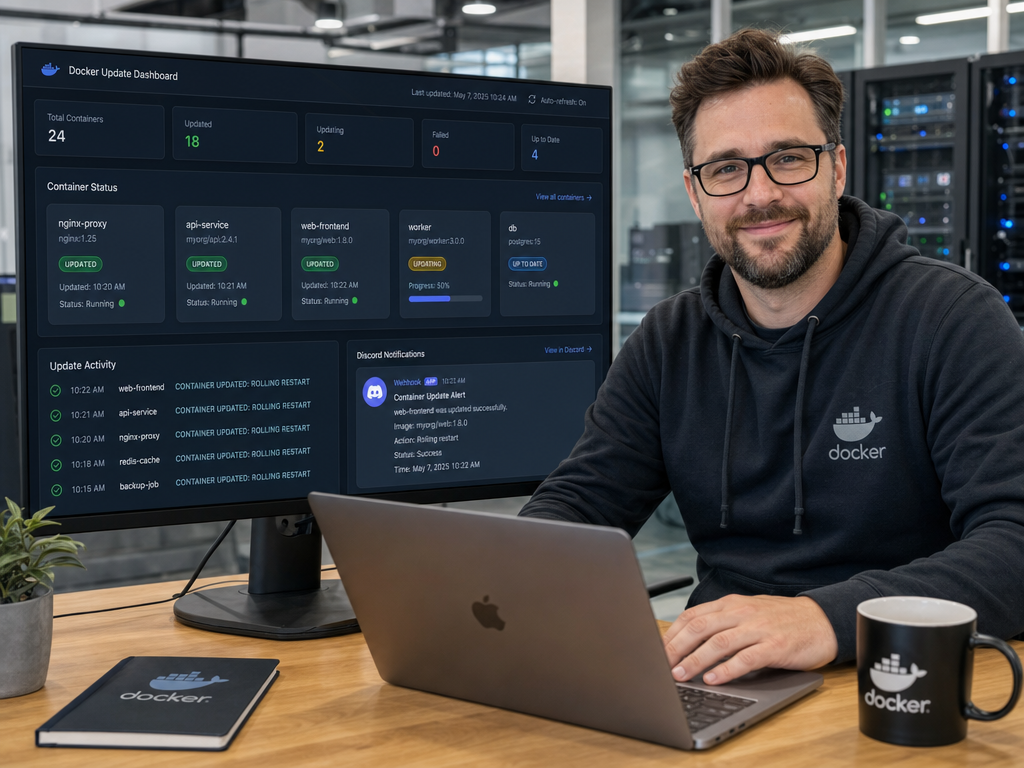
At the same time, blind and uncontrolled automated updates can be catastrophic. If an upstream release introduces breaking schema changes to a PostgreSQL database or a breaking API rewrite in a reverse proxy, unmonitored updates can bring your entire production or homelab environment to its knees without warning.
To strike the ideal balance between proactive security and operational stability, the open-source community relies on Watchtower. In this step-by-step tutorial, you will learn how to deploy Watchtower via Docker Compose, configure automated image pruning and rolling restarts, receive real-time webhook notifications in Discord or Slack, and isolate mission-critical containers using selective opt-in labels.
How Watchtower Works Under the Hood
According to the Official Watchtower Documentation, Watchtower is itself packaged as a lightweight container that communicates directly with your host’s Docker daemon via the standard Unix socket at /var/run/docker.sock. Its lifecycle follows a disciplined verification loop:
- Registry Inspection: At scheduled intervals, Watchtower queries your container image registries (Docker Hub, GitHub Container Registry, or private registries) to determine whether newer image digests are available for your running tags.
- Graceful Shutdown: When a newer digest is detected, Watchtower sends a standard
SIGTERMsignal to the running container, respecting its configuredstop_grace_periodto allow in-flight connections to terminate cleanly. - Recreation with Identical Parameters: Watchtower downloads the new image layer and restarts the container using the exact runtime flags, environment variables, port bindings, networks, and volume attachments defined during its original creation.
- Automated Housekeeping: When configured with
WATCHTOWER_CLEANUP=true, Watchtower immediately deletes the superseded dangling image layers from local host storage, preventing disk saturation.
Prerequisites
Before launching Watchtower, verify the following prerequisites:
- Docker Engine & Compose: Docker Engine v24+ and Docker Compose v2+ installed on Ubuntu, Debian, or any standard Linux distribution.
- Discord Webhook URL: A dedicated Discord channel with an active Webhook integration URL (or Slack/Telegram equivalent).
- Docker Socket Access: Sufficient permissions to bind mount
/var/run/docker.sock.
Step 1: Creating a Dedicated Discord Webhook
To receive instant alerts whenever containers update or encounter errors, create a Discord incoming webhook:
- In your Discord server, navigate to Server Settings > Integrations > Webhooks.
- Click New Webhook, assign a recognizable name (such as
Watchtower Alerts), and select your desired notification channel. - Click Copy Webhook URL and save it temporarily. The URL structure resembles:
https://discord.com/api/webhooks/123456789012345678/abcdefghijklmnopqrstuvwxyz_EXAMPLE_TOKEN
Step 2: Deploying Watchtower with Docker Compose
Create a dedicated directory on your server to house your Watchtower stack:
mkdir -p ~/docker/watchtower
cd ~/docker/watchtower
nano docker-compose.yml
Paste the following production-hardened Compose configuration:
services:
  watchtower:
    image: containrrr/watchtower:latest
    container_name: watchtower
    restart: unless-stopped
    volumes:
      - /var/run/docker.sock:/var/run/docker.sock
      - /etc/localtime:/etc/localtime:ro
    environment:
      # Poll Schedule: Check every night at 03:30 AM server time
      - WATCHTOWER_SCHEDULE=0 30 3 * * *

      # Housekeeping: Delete old dangling image layers
      - WATCHTOWER_CLEANUP=true

      # Health Check: Automatically restart containers in original order
      - WATCHTOWER_ROLLING_RESTART=true

      # Label Filtering: Only update containers that explicitly opt-in
      - WATCHTOWER_LABEL_ENABLE=true

      # Notification Settings
      - WATCHTOWER_NOTIFICATIONS=shoutrrr
      - WATCHTOWER_NOTIFICATION_URL=discord://abcdefghijklmnopqrstuvwxyz_EXAMPLE_TOKEN@123456789012345678
      - WATCHTOWER_NOTIFICATION_TEMPLATE={{range .}}{{.Time.Format "2006-01-02 15:04:05"}} [{{.Level}}]: {{.Message}}{{println}}{{end}}
      - WATCHTOWER_NOTIFICATIONS_LEVEL=info
      - WATCHTOWER_NOTIFICATION_REPORT=true
Important URL Formatting for Shoutrrr: Watchtower utilizes the Shoutrrr notification library. When converting your Discord webhook URL into Shoutrrr syntax, split the URL after /webhooks/ into two parts:
Standard Discord URL: https://discord.com/api/webhooks/{WEBHOOK_ID}/{WEBHOOK_TOKEN}
Shoutrrr Format:      discord://{WEBHOOK_TOKEN}@{WEBHOOK_ID}
Understanding Key Configuration Variables
| Environment Variable | Operational Function |
|---|---|
| WATCHTOWER_SCHEDULE | 6-field cron syntax (seconds, minutes, hours, day of month, month, day of week). Preferable over simple poll intervals. |
| WATCHTOWER_CLEANUP | Automatically invokes Docker image prune on the host after upgrading, reclaiming disk space instantly. |
| WATCHTOWER_LABEL_ENABLE | When set to true, Watchtower ignores all containers unless they possess the label com.centurylinklabs.watchtower.enable=true. |
| WATCHTOWER_ROLLING_RESTART | Restarts updated containers one at a time rather than simultaneously, preserving high availability across service stacks. |
Step 3: Controlling Updates with Container Labels
By enabling WATCHTOWER_LABEL_ENABLE=true, you eliminate the single greatest hazard of container automation: unexpected upgrades to delicate stateful databases (PostgreSQL, MariaDB, OpenSearch).
To designate an application for automated updates, simply append the enable label to its Compose definition:
# Example Application: Caddy Reverse Proxy (Safe for Auto-Updates)
services:
  caddy:
    image: caddy:2-alpine
    container_name: caddy-proxy
    restart: unless-stopped
    ports:
      - "80:80"
      - "443:443"
    labels:
      - "com.centurylinklabs.watchtower.enable=true"
    volumes:
      - ./Caddyfile:/etc/caddy/Caddyfile
      - ./data:/data
      - ./config:/config
Conversely, for database containers or services requiring strict schema migration reviews, omit the label or explicitly set it to false:
# Example Stateful Database: Explicitly Excluded from Auto-Updates
services:
  postgres:
    image: postgres:16-alpine
    container_name: production-db
    restart: unless-stopped
    labels:
      - "com.centurylinklabs.watchtower.enable=false"
    environment:
      POSTGRES_DB: app_production
      POSTGRES_PASSWORD: SecretPasswordHere
    volumes:
      - pgdata:/var/lib/postgresql/data
Step 4: Executing a Dry-Run Test
Before leaving Watchtower on an unattended schedule, execute a single-run test in Monitor-Only Mode using the --run-once and --monitor-only flags. This tells Watchtower to check for newer images and send a notification report without actually terminating or recreating any containers:
# Execute an immediate dry-run check
docker run --rm \
  -v /var/run/docker.sock:/var/run/docker.sock \
  -e WATCHTOWER_RUN_ONCE=true \
  -e WATCHTOWER_MONITOR_ONLY=true \
  -e WATCHTOWER_NOTIFICATIONS=shoutrrr \
  -e WATCHTOWER_NOTIFICATION_URL="discord://abcdefghijklmnopqrstuvwxyz_EXAMPLE_TOKEN@123456789012345678" \
  containrrr/watchtower
Check your Discord channel. Within seconds, you should receive a clean notification message listing the evaluation results:
2026-10-01 10:15:30 [INFO]: Watchtower 1.7.1
2026-10-01 10:15:30 [INFO]: Checking all containers (except disabled)
2026-10-01 10:15:32 [INFO]: Found new containrrr/watchtower:latest image (5f12a3bc)
2026-10-01 10:15:32 [INFO]: Found new caddy:2-alpine image (8a91bc3d)
2026-10-01 10:15:32 [INFO]: Session done. Updated: 0, Failed: 0, Scanned: 4
Once you have confirmed that your webhook credentials and permissions are valid, start your permanent Watchtower service:
# Start permanent Watchtower daemon
cd ~/docker/watchtower
docker compose up -d
Advanced: Pre- and Post-Update Lifecycle Hooks
In accordance with Docker Engine Lifecycle Specifications, certain applications require flushing caches or taking temporary locks before a restart. Watchtower supports container-specific lifecycle hooks defined as labels:
labels:
  - "com.centurylinklabs.watchtower.enable=true"
  # Run a command inside the container before it is stopped
  - "com.centurylinklabs.watchtower.lifecycle.pre-update=/usr/local/bin/flush-cache.sh"
  # Run a command inside the newly created container after restart
  - "com.centurylinklabs.watchtower.lifecycle.post-update=/usr/local/bin/healthcheck.sh"
  # Timeout in seconds to wait for hooks to finish
  - "com.centurylinklabs.watchtower.lifecycle.pre-update-timeout=60"
Summary & Best Practices
Automating Docker container updates with Watchtower delivers continuous security hygiene while avoiding unexpected downtime. To ensure optimal operational stability across your fleet, adhere to these core rules:
- Always enable label filtering: Set
WATCHTOWER_LABEL_ENABLE=trueso updates occur by deliberate choice rather than dangerous default. - Always pin major versions: In your application Compose files, target specific major or minor release tags (e.g.,
redis:7-alpinerather thanredis:latest) to prevent accidental breaking version leaps. - Schedule during off-peak hours: Set
WATCHTOWER_SCHEDULEto early morning maintenance windows (e.g. 03:00 AM) to minimize potential user interruption. - Pair with volume backups: Automated container updates are no substitute for automated state backups. Always combine Watchtower with scheduled volume snapshots like our Restic S3 backup automation.
Looking to streamline your container infrastructure, implement robust GitOps pipelines, or harden your Linux servers? Contact our team of DevOps and IT infrastructure consultants for expert assistance.

Hi, I’m Mark, the author of Clever IT Solutions: Mastering Technology for Success. I am passionate about empowering individuals to navigate the ever-changing world of information technology. With years of experience in the industry, I have honed my skills and knowledge to share with you. At Clever IT Solutions, we are dedicated to teaching you how to tackle any IT challenge, helping you stay ahead in today’s digital world. From troubleshooting common issues to mastering complex technologies, I am here to guide you every step of the way. Join me on this journey as we unlock the secrets to IT success.