Deploying microservices inside a Kubernetes cluster is only half the battle; routing inbound external traffic seamlessly and securing it with automatic SSL/TLS encryption is what transforms a local test cluster into a production-grade platform. When running K3s on bare metal or in a homelab, Rancher provides a major advantage out of the box: Traefik is pre-installed as the default Ingress Controller.
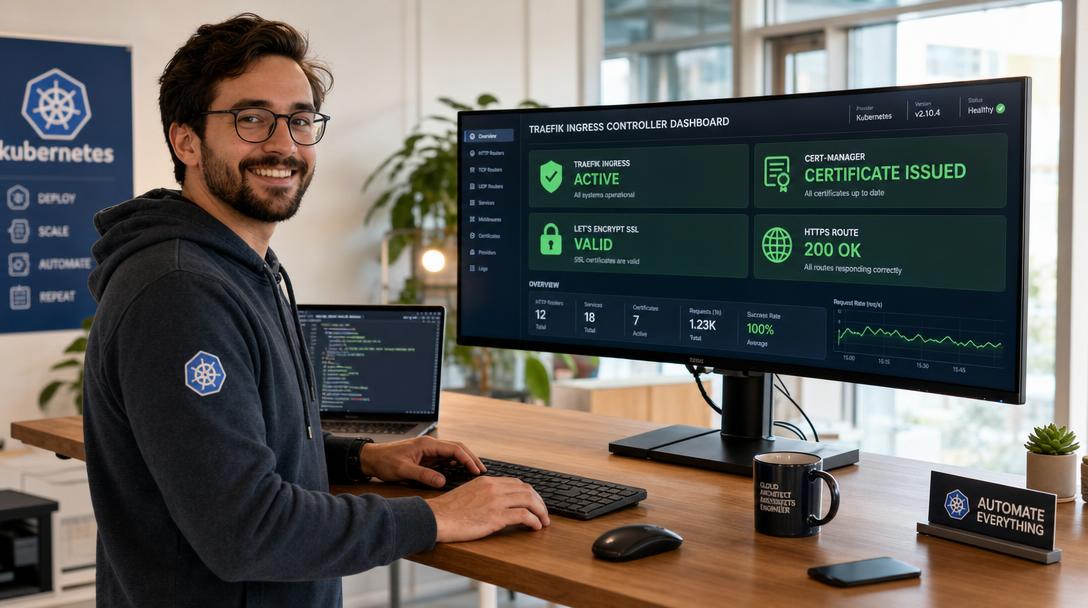
However, many administrators struggle with automated certificate management. In a standard Docker Compose setup, tools like Caddy handle Let’s Encrypt natively. In Kubernetes, the cloud-native standard for managing certificates across dozens of independent services, namespaces, and subdomains is cert-manager.
By pairing K3s’s built-in Traefik controller with cert-manager, you unlock zero-touch SSL automation. When you deploy a new web application and declare an Ingress manifest, cert-manager automatically performs the ACME HTTP-01 challenge, acquires a signed certificate from Let’s Encrypt, creates a Kubernetes Secret, and instructs Traefik to terminate TLS with zero downtime.
In this comprehensive, production-tested guide, you will learn step-by-step how to deploy and configure cert-manager on K3s, establish a ClusterIssuer for Let’s Encrypt (staging and production), configure Traefik Ingress routes, and enforce permanent HTTP-to-HTTPS redirects.
Understanding the Architecture: Traefik + cert-manager
To operate this pipeline effectively, it helps to understand the responsibilities of each component as defined in the K3s Ingress Controller Guide and the cert-manager ACME Documentation:
- Traefik Ingress Controller: Listens on ports 80 and 443 of your K3s cluster nodes (or MetalLB virtual IP). Traefik reads Kubernetes
Ingressobjects, matches incoming HTTPHostheaders, and routes traffic to the appropriate backendServicepods. - cert-manager: An open-source Kubernetes controller that watches for
Certificateresources or annotations onIngressobjects. When an ingress requests TLS, cert-manager coordinates with Let’s Encrypt, spins up a temporary challenge pod to solve the HTTP-01 verification challenge, and stores the resulting TLS keypair in a Kubernetes Secret. - Traefik Dynamic TLS: Traefik watches the secret generated by cert-manager and mounts it dynamically without restarting the ingress controller.
Technical Prerequisites
Ensure your environment satisfies the following conditions before proceeding:
- K3s Cluster: An operational K3s cluster (v1.28+) with Traefik enabled (the K3s default).
- kubectl Access: Working command-line access via
kubectl. - Public Domain & DNS: A public domain (e.g.,
app.yourdomain.com) with a DNS A record pointing directly to your cluster node’s public IP address (or port-forwarded router IP). - Open Firewall Ports: Inbound TCP ports 80 and 443 must reach your K3s cluster. Let’s Encrypt requires port 80 to complete the HTTP-01 challenge.
Step 1: Installing cert-manager on K3s
The cleanest way to deploy cert-manager is using its official Kubernetes release manifest, which installs the cert-manager controller, webhook, CA injector, and required Custom Resource Definitions (CRDs) in a dedicated namespace:
kubectl apply -f https://github.com/cert-manager/cert-manager/releases/download/v1.16.2/cert-manager.yamlWait a few moments for the pods to initialize, then verify that all three cert-manager components are in Running status:
kubectl get pods -n cert-managerYou should see cert-manager, cert-manager-cainjector, and cert-manager-webhook all reporting 1/1 Running.
Step 2: Creating Let’s Encrypt ClusterIssuers
A ClusterIssuer is a cluster-wide resource that defines which certificate authority to use. We will create two ClusterIssuers:
- Staging Issuer: Uses Let’s Encrypt’s staging API. Crucial for testing new configurations without burning through Let’s Encrypt’s strict production rate limits (5 failed orders per hour per domain).
- Production Issuer: Issues genuine, globally trusted SSL certificates once routing is validated.
Create a manifest named cluster-issuers.yaml. Make sure to replace admin@yourdomain.com with your actual email address:
apiVersion: cert-manager.io/v1
kind: ClusterIssuer
metadata:
  name: letsencrypt-staging
spec:
  acme:
    server: https://acme-staging-v02.api.letsencrypt.org/directory
    email: admin@yourdomain.com
    privateKeySecretRef:
      name: letsencrypt-staging-account-key
    solvers:
      - http01:
          ingress:
            class: traefik
---
apiVersion: cert-manager.io/v1
kind: ClusterIssuer
metadata:
  name: letsencrypt-prod
spec:
  acme:
    server: https://acme-v02.api.letsencrypt.org/directory
    email: admin@yourdomain.com
    privateKeySecretRef:
      name: letsencrypt-prod-account-key
    solvers:
      - http01:
          ingress:
            class: traefik
Apply the manifest:
kubectl apply -f cluster-issuers.yamlVerify that both issuers successfully registered their ACME accounts:
kubectl get clusterissuers -o wideThe READY column must display True for both issuers.
Step 3: Deploying a Test Application
Deploy a sample web application (the popular podinfo diagnostic service or a simple Nginx container) and expose it via a standard ClusterIP service:
cat << 'EOF' | kubectl apply -f -
apiVersion: apps/v1
kind: Deployment
metadata:
  name: demo-webapp
  namespace: default
spec:
  replicas: 2
  selector:
    matchLabels:
      app: demo-webapp
  template:
    metadata:
      labels:
        app: demo-webapp
    spec:
      containers:
        - name: webapp
          image: nginxdemos/hello:plain-text
          ports:
            - containerPort: 80
---
apiVersion: v1
kind: Service
metadata:
  name: demo-webapp-svc
  namespace: default
spec:
  type: ClusterIP
  selector:
    app: demo-webapp
  ports:
    - port: 80
      targetPort: 80
EOF
Step 4: Creating the Ingress Resource with Automatic TLS
Now, create the Kubernetes Ingress manifest. Notice the two critical annotations:
cert-manager.io/cluster-issuer: letsencrypt-prod: Tells cert-manager to provision a production certificate for the hosts declared intls.traefik.ingress.kubernetes.io/router.entrypoints: web,websecure: Explicitly routes both HTTP and HTTPS entrypoints in Traefik.
Create ingress.yaml. Replace app.yourdomain.com with your actual public subdomain:
apiVersion: networking.k8s.io/v1
kind: Ingress
metadata:
  name: demo-webapp-ingress
  namespace: default
  annotations:
    cert-manager.io/cluster-issuer: letsencrypt-prod
    traefik.ingress.kubernetes.io/router.entrypoints: web,websecure
spec:
  ingressClassName: traefik
  tls:
    - hosts:
        - app.yourdomain.com
      secretName: demo-webapp-tls # cert-manager stores the keypair here
  rules:
    - host: app.yourdomain.com
      http:
        paths:
          - path: /
            pathType: Prefix
            backend:
              service:
                name: demo-webapp-svc
                port:
                  number: 80
Apply the ingress manifest:
kubectl apply -f ingress.yamlStep 5: Monitoring the Certificate Issuance Process
Once the ingress is applied, cert-manager automatically creates a CertificateRequest and begins the ACME challenge. You can monitor the lifecycle in real time:
kubectl get certificates -wWithin 30–60 seconds, you will observe the status transition to ready:
NAME              READY   SECRET            AGE
demo-webapp-tls   True    demo-webapp-tls   45s
If the certificate remains in READY: False, inspect the challenge status to debug DNS or routing errors:
kubectl describe challengesStep 6: Enforcing HTTP-to-HTTPS Redirection
In production, you want all plaintext HTTP traffic on port 80 to automatically redirect to encrypted HTTPS on port 443. In Traefik on K3s, this is achieved cleanly using a Traefik Middleware resource.
Create a global redirect middleware:
cat << 'EOF' | kubectl apply -f -
apiVersion: traefik.io/v1alpha1
kind: Middleware
metadata:
  name: redirect-to-https
  namespace: default
spec:
  redirectScheme:
    scheme: https
    permanent: true
EOF
Now, attach the middleware to your ingress by adding the middleware annotation to your ingress.yaml:
metadata:
  annotations:
    traefik.ingress.kubernetes.io/router.middlewares: default-redirect-to-https@kubernetescrd
Re-apply your ingress with kubectl apply -f ingress.yaml. Now, any visitor accessing http://app.yourdomain.com will immediately receive a permanent 301/308 redirect to https://app.yourdomain.com.
Troubleshooting Common K3s Ingress & SSL Errors
1. ACME HTTP-01 Challenge Times Out
- Cause: Inbound port 80 is blocked by your ISP, firewall router, or cloud security group. Let’s Encrypt cannot validate domain ownership over port 443 alone; port 80 is mandatory for the HTTP-01 solver.
- Fix: Verify port 80 is open with
curl -I http://app.yourdomain.com/.well-known/acme-challenge/testfrom an external network.
2. Fake/Untrusted Certificate Warning
- Cause: You left the ingress annotated with
letsencrypt-staginginstead ofletsencrypt-prod. Staging certificates are cryptographically valid but issued by the *Fake LE Root X1* authority. - Fix: Update the annotation to
letsencrypt-prod, delete the existing secret withkubectl delete secret demo-webapp-tls, and cert-manager will immediately request a clean production certificate.
Conclusion & Next Steps
By integrating cert-manager with K3s’s built-in Traefik Ingress Controller, you have eliminated the manual overhead of managing SSL certificates on your Kubernetes cluster. New services can now be published with zero friction, receiving automated Let’s Encrypt certificates and seamless HTTPS redirection.
Now that external ingress routing is secure, your next step is unlocking hardware compute power. In our next guide, we will explore how to configure NVIDIA GPU passthrough on K3s to run local LLMs with Ollama in Kubernetes.

Hi, I’m Mark, the author of Clever IT Solutions: Mastering Technology for Success. I am passionate about empowering individuals to navigate the ever-changing world of information technology. With years of experience in the industry, I have honed my skills and knowledge to share with you. At Clever IT Solutions, we are dedicated to teaching you how to tackle any IT challenge, helping you stay ahead in today’s digital world. From troubleshooting common issues to mastering complex technologies, I am here to guide you every step of the way. Join me on this journey as we unlock the secrets to IT success.