Running local AI models with Ollama has transformed private AI inference. In our earlier guide, we explored how to run Ollama with NVIDIA GPU acceleration in Docker Compose. However, as teams transition their homelabs and edge servers toward declarative Kubernetes architectures using K3s, orchestrating AI workloads requires moving from single-host container files to cloud-native Kubernetes manifests.
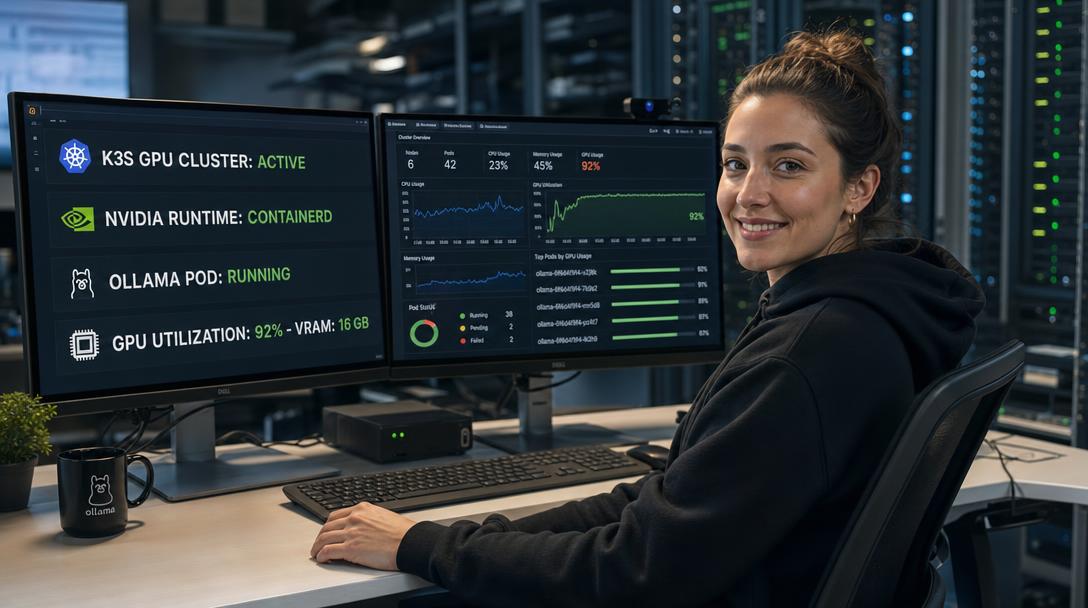
Running graphics-intensive workloads like Llama 3, Mistral, or DeepSeek inside Kubernetes is fundamentally different from standard web microservices. Pods cannot access GPU hardware by default; Kubernetes treats GPUs as extended resources that require specialized kernel drivers, container runtime hooks, and a cluster device plugin.
Furthermore, because large language model weights range from 4 GB to over 40 GB, model files cannot be discarded when a pod restarts. A production K3s AI deployment demands Persistent Volume Claims (PVCs) backed by storage classes like K3s’s native local-path provisioner to retain model weights indefinitely.
In this comprehensive tutorial, you will learn step-by-step how to configure K3s with NVIDIA GPU passthrough using containerd runtime hooks, deploy the NVIDIA Kubernetes Device Plugin, provision persistent storage, and launch a production-ready Ollama StatefulSet / Deployment accessible across your cluster network.
Why Run Ollama on K3s Instead of Standalone Docker?
Deploying Ollama on Kubernetes provides tangible infrastructure benefits over standalone Docker:
- Automated Self-Healing: If an out-of-memory (OOM) event occurs while loading an oversized model context window, Kubernetes instantly restarts the pod and reattaches the GPU.
- Declarative Ingress & Routing: Combine your Ollama service seamlessly with our K3s Traefik Ingress and cert-manager SSL setup to expose private OpenAI-compatible endpoints secured with HTTPS.
- Resource Isolation & Quotas: Explicitly allocate GPU cores and VRAM slices (e.g.,
nvidia.com/gpu: 1) to prevent rogue developer workloads from starving mission-critical services. - Shared AI Backends: Multiple internal applications (such as AnythingLLM, Open-WebUI, or custom autonomous agents) can query a single shared Ollama Kubernetes service over cluster-internal DNS (
http://ollama.ai.svc.cluster.local:11434).
Technical Prerequisites
Before beginning, ensure your host machine satisfies these hardware and software specifications:
- Server: Ubuntu 22.04 LTS or 24.04 LTS server with an active K3s cluster.
- NVIDIA Hardware & Drivers: An NVIDIA GPU (RTX 3000/4000 series, RTX 5000/6000, or A-series datacenter GPUs) with proprietary NVIDIA drivers (v535+) installed on the host. Verify with:
nvidia-smi - NVIDIA Container Toolkit: Installed on the host following the NVIDIA Container Toolkit Documentation.
- Storage: At least 40 GB of free NVMe storage on the K3s host for model weights.
Step 1: Configuring K3s Containerd for NVIDIA Runtime
K3s uses an embedded containerd instance as its container runtime. For pods to access NVIDIA GPUs, K3s’s containerd daemon must be configured to use the nvidia-container-runtime binary as its default CRI runtime.
K3s allows template overrides by placing a configuration file in /etc/rancher/k3s/config.toml.tmpl. First, configure the NVIDIA container runtime globally on the host:
sudo nvidia-ctk runtime configure --runtime=containerdNow, generate the K3s-specific containerd template:
# Create the template directory
sudo mkdir -p /var/lib/rancher/k3s/agent/etc/containerd/

# Copy the generated containerd configuration to K3s template
sudo cp /etc/containerd/config.toml /var/lib/rancher/k3s/agent/etc/containerd/config.toml.tmpl

# Restart K3s to apply the runtime
sudo systemctl restart k3s
Verify that K3s restarted cleanly and is in Ready state:
kubectl get nodesStep 2: Deploying the NVIDIA Kubernetes Device Plugin
As detailed in the Kubernetes Official GPU Scheduling Guide, Kubernetes requires a DaemonSet device plugin to discover GPU hardware, expose the nvidia.com/gpu resource to the kubelet, and manage device scheduling.
Deploy the official NVIDIA Device Plugin using kubectl:
kubectl apply -f https://raw.githubusercontent.com/NVIDIA/k8s-device-plugin/v0.16.2/deployments/static/gpu-operator-daemonset.yamlWait for the daemonset pod to enter Running state:
kubectl get pods -n kube-system -l name=nvidia-device-plugin-dsNow, inspect your node to verify that Kubernetes successfully recognized your GPU:
kubectl get node -o json | jq '.items[0].status.allocatable["nvidia.com/gpu"]'The command must output "1" (or the number of physical GPUs installed on your node). If it outputs null or 0, check kubectl logs -n kube-system -l name=nvidia-device-plugin-ds.
Step 3: Creating a Dedicated Namespace and Persistent Storage
We will organize our AI stack inside a dedicated ai-workloads namespace and create a PersistentVolumeClaim (PVC) using K3s’s built-in local-path storage class:
cat << 'EOF' | kubectl apply -f -
apiVersion: v1
kind: Namespace
metadata:
  name: ai-workloads
---
apiVersion: v1
kind: PersistentVolumeClaim
metadata:
  name: ollama-models-pvc
  namespace: ai-workloads
spec:
  accessModes:
    - ReadWriteOnce
  storageClassName: local-path
  resources:
    requests:
      storage: 50Gi
EOF
Confirm the PVC was created:
kubectl get pvc -n ai-workloadsStep 4: Deploying Ollama with GPU Resource Limits
Now, craft the deployment manifest for Ollama. Notice the critical specifications:
resources.limits.nvidia.com/gpu: 1: Requests exclusive access to one host GPU. Kubernetes will bind the NVIDIA container runtime devices to this pod.volumeMounts: Mounts ourollama-models-pvcinto/root/.ollamaso downloaded models persist across pod upgrades.OLLAMA_KEEP_ALIVE=24h: Prevents Ollama from evicting weights from VRAM after idle periods.Service: Exposes port 11434 inside the cluster for internal consumers.
cat << 'EOF' | kubectl apply -f -
apiVersion: apps/v1
kind: Deployment
metadata:
  name: ollama
  namespace: ai-workloads
spec:
  replicas: 1
  selector:
    matchLabels:
      app: ollama
  template:
    metadata:
      labels:
        app: ollama
    spec:
      containers:
        - name: ollama
          image: ollama/ollama:latest
          ports:
            - containerPort: 11434
              name: http
          env:
            - name: OLLAMA_KEEP_ALIVE
              value: "24h"
            - name: OLLAMA_NUM_PARALLEL
              value: "4"
            - name: OLLAMA_ORIGINS
              value: "*"
          resources:
            limits:
              nvidia.com/gpu: 1
            requests:
              memory: "4Gi"
              cpu: "2"
          volumeMounts:
            - name: model-storage
              mountPath: /root/.ollama
      volumes:
        - name: model-storage
          persistentVolumeClaim:
            claimName: ollama-models-pvc
---
apiVersion: v1
kind: Service
metadata:
  name: ollama-svc
  namespace: ai-workloads
spec:
  type: ClusterIP
  selector:
    app: ollama
  ports:
    - name: http
      port: 11434
      targetPort: 11434
EOF
Step 5: Verifying Pod GPU Initialization
Check the pod startup logs to confirm that Ollama detected the NVIDIA GPU inside the Kubernetes container:
kubectl logs -n ai-workloads -l app=ollama -fYou should see log entries identifying the compute backend:
msg="Nvidia GPU detected"
msg="CUDA compute capability 8.9"
msg="total VRAM: 16376 MiB, available: 15890 MiB"
Step 6: Pulling a Model and Benchmarking Inference
Execute an interactive command inside the running pod to pull a model like llama3.1:8b:
kubectl exec -it -n ai-workloads deploy/ollama -- ollama pull llama3.1:8bOnce downloaded, test token generation with a prompt query:
kubectl exec -it -n ai-workloads deploy/ollama -- ollama run llama3.1:8b "Explain Kubernetes pods in two sentences."While the model is answering, run watch nvidia-smi on your host. You will observe the ollama_llama_server process actively consuming dedicated GPU VRAM and pushing GPU utilization to 70%–95%.
Connecting Cluster Frontends (Open-WebUI / AnythingLLM)
Because we exposed Ollama as a standard Kubernetes service named ollama-svc in the ai-workloads namespace, any other pod in your cluster can communicate with Ollama using standard cluster DNS:
http://ollama-svc.ai-workloads.svc.cluster.local:11434When you deploy Open-WebUI or AnythingLLM in your K3s cluster, set OLLAMA_BASE_URL to this internal DNS address. All user queries will be routed seamlessly to your GPU-accelerated Ollama backend.
Troubleshooting Common K3s GPU Issues
1. Pod Stuck in Pending (0/1 nodes available: Insufficient nvidia.com/gpu)
- Cause: The NVIDIA device plugin is not running or could not detect the GPU on the host.
- Fix: Inspect the device plugin daemonset:
kubectl describe pod -n kube-system -l name=nvidia-device-plugin-ds. Ensure host drivers are loaded andnvidia-smifunctions on the bare-metal OS.
2. Error: unknown runtime “nvidia”
- Cause: K3s’s containerd configuration template was not populated with the NVIDIA runtime hooks.
- Fix: Re-run
sudo nvidia-ctk runtime configure --runtime=containerd, copy the generated config to/var/lib/rancher/k3s/agent/etc/containerd/config.toml.tmpl, and restart K3s withsudo systemctl restart k3s.
Conclusion
By uniting K3s, NVIDIA GPU passthrough, and persistent storage, you have graduated from simple standalone containers to a scalable, cloud-native AI platform. Your local models run with maximum GPU acceleration, maintain state across container lifecycles, and remain accessible to all services within your private Kubernetes cluster.

Hi, I’m Mark, the author of Clever IT Solutions: Mastering Technology for Success. I am passionate about empowering individuals to navigate the ever-changing world of information technology. With years of experience in the industry, I have honed my skills and knowledge to share with you. At Clever IT Solutions, we are dedicated to teaching you how to tackle any IT challenge, helping you stay ahead in today’s digital world. From troubleshooting common issues to mastering complex technologies, I am here to guide you every step of the way. Join me on this journey as we unlock the secrets to IT success.