
What if you could upgrade to the latest operating system, even if your computer doesn’t meet the official requirements? Many users face this exact challenge with Windows 11 and its strict hardware checks. This comprehensive guide provides a clear path forward. We explain how a free utility named Rufus offers a powerful solution. It allows you to create a bootable USB drive tailored for a successful setup process.
Our approach breaks down technical steps into manageable actions. We cover everything from initial preparation to final configuration. This method works for both upgrades and fresh installations on various hardware types. You will gain the knowledge to navigate this process with confidence. We focus on practical, tested advice to ensure a smooth outcome. Our goal is to demystify the procedure, making advanced technical tasks accessible to all users.
Key Takeaways
- Rufus is a free tool that creates bootable USB drives for operating system installation.
- This method can help bypass strict hardware requirements for newer software versions.
- The process is suitable for both upgrading an existing system and performing a clean setup.
- Proper preparation, including file downloads, is essential for a smooth experience.
- Advanced configuration options within the tool allow for customization based on specific needs.
- Understanding this process empowers users to manage their own system installations.
- For specific scenarios, such as using Rufus on unsupported hardware, additional considerations may apply.
Introduction
Many computer users encounter barriers when attempting to adopt newer software versions due to restrictive compatibility checks. This comprehensive resource addresses those challenges head-on.
Overview of the Guide
We designed this material to provide complete coverage of the setup procedure. Our approach breaks down complex technical tasks into manageable steps.
The content progresses logically from fundamental concepts to advanced configuration options. Each segment builds upon previous information for cohesive learning.
What You Will Learn
This educational resource delivers practical knowledge for successful system deployment. You’ll gain understanding of preparation requirements and configuration settings.
Key skills include:
- Proper system preparation techniques
- File acquisition and verification methods
- Customization options for specific hardware scenarios
- Troubleshooting common setup challenges
Our methodology emphasizes understanding the reasoning behind each action. This ensures you can adapt the process to various computing environments.
Understanding Rufus and Its Role in Windows Installation
Modern operating system upgrades often come with hardware barriers that leave capable computers behind. This is where specialized tools become essential for a successful setup.
We will explore a key utility that simplifies this process. It provides control and flexibility often missing from standard methods.
What is Rufus?
Rufus is a free and lightweight product designed for one primary task. It creates bootable USB drives from ISO files.
This tool is invaluable for any windows installation project. It transforms a standard USB stick into powerful installation media.
When you want to use a USB drive to install windows, this program handles the technical details. It ensures the drive is formatted and configured correctly for your computer’s BIOS or UEFI system.
Benefits of Using Rufus
The main advantage is bypassing strict system requirements. Rufus offers a way to circumvent checks for TPM 2.0, Secure Boot, and specific CPUs.
This makes newer versions of windows accessible on older hardware. You gain the freedom to use rufus for upgrades on unsupported machines.
Another significant benefit is customization. The tool allows you to pre-configure settings, like creating a local account instead of requiring a Microsoft account during setup.
This level of control streamlines the entire process. It saves time and reduces potential errors for a smoother experience.
Preparing Your System and Tools
The initial phase of this process involves securing two critical elements: appropriate storage media and the official operating system file. We guide you through selecting the right components for a smooth setup experience.
USB Drive Requirements
Your USB drive selection significantly impacts installation success. The minimum requirements call for an 8GB capacity, but we recommend 16-32GB for optimal performance.
Larger drives provide extra space for additional files and drivers. USB 3.0 flash drive technology dramatically speeds up both media creation and installation times.
We emphasize choosing name-brand products from manufacturers like SanDisk or Kingston. Generic or counterfeit drives often fail during critical boot processes. Always make sure your USB device is either new or completely erasable.
Essential Windows ISO File Information
The Windows ISO file contains the complete operating system installation package. You must obtain this file directly from Microsoft’s official website.
Using the legitimate file protects your system from security risks associated with modified versions. This ensures all necessary components are present for a proper installation.
Before proceeding, verify that your USB drive meets capacity requirements and that you have the correct ISO file. Proper preparation prevents most common installation issues.
Downloading Windows 11 ISO and Rufus
The foundation of any successful operating system deployment begins with acquiring legitimate installation files. We guide you through obtaining the two essential components: the official Windows 11 ISO file and the correct version of the Rufus utility.
Where to Safely Download the Windows 11 ISO
Security is paramount when you download an operating system image. We strongly recommend using only the official Microsoft website for this media creation step.
Visit the Microsoft software download page to get your Windows ISO. This ensures you receive an unmodified, secure file. The process involves selecting your product edition and preferred language before initiating the download.
The ISO file is large, often over 4GB. A stable internet connection is essential. The file will typically save to your default Downloads folder.
Getting the Latest Version of Rufus
Using an outdated Rufus version can cause installation failures. You must download version 3.x or newer from the official Rufus website.
Key considerations include:
- Version 4.x is mandatory for Windows 11 25H2 due to updated security blocks.
- Older versions lack support for critical bypass features needed for modern installations.
- The tool is a portable executable, requiring no installation. Save it to an easily accessible location on your drive.
Proper file acquisition sets the stage for a smooth USB media creation process.
How to Use Rufus to Install Windows 11
The moment has arrived to transform your USB flash drive into powerful installation media. We guide you through each step of this critical process.
Step-by-Step Process Outline
Begin by connecting your USB device to the computer. Launch the Rufus application to start the media creation sequence.
The tool should automatically detect your connected drive. Verify the correct device appears in the selection area at the top of the screen.
Click the SELECT button to browse for your Windows 11 ISO file. Navigate to your Downloads folder or wherever you saved the system image.
After selecting the file, Rufus analyzes its contents. The application then configures appropriate default settings for your bootable USB.
Review the options displayed on your screen. Most users can proceed with standard configurations for a typical installation.
Before clicking START at the bottom, make sure your drive contains no important data. The formatting process will completely erase the device.
Confirm the warning message appears. The entire procedure typically takes 5-20 minutes depending on your hardware.
Progress indicators keep you informed throughout the file transfer. Your installation media will be ready for the next phase.
Configuring Rufus: Options and Settings
The tool’s settings interface provides granular control over your installation parameters. We guide you through understanding when to accept defaults versus when customization becomes necessary.
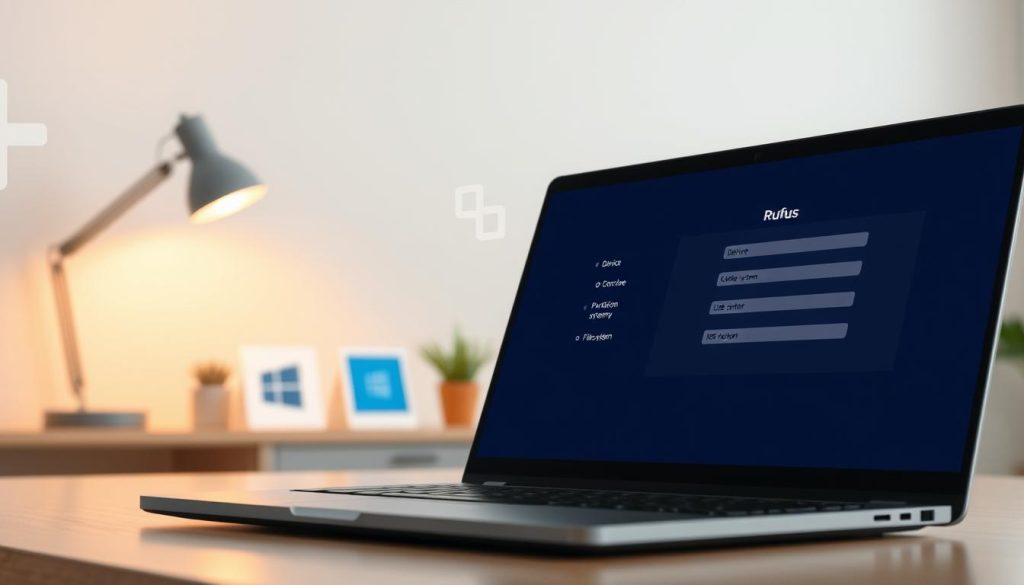
Default Settings vs. Advanced Options
For standard installations on compatible hardware, Rufus automatically selects appropriate default option configurations. These settings work perfectly for most windows deployment scenarios.
The application analyzes your ISO file and suggests optimal parameters. This simplifies the media creation process significantly.
Advanced options become essential when dealing with specific hardware constraints. They allow customization beyond standard setup procedures.
Adjusting Settings for Bypassing Restrictions
When you want to use Rufus to circumvent hardware requirements, the “Image option” dropdown becomes critical. Select “Extended Windows Installation” to remove TPM and Secure Boot checks.
Additional checkboxes appear for disabling specific restrictions. These include removing RAM limitations and online account requirements.
For your device compatibility, choose GPT with UEFI for modern systems. MBR with BIOS suits older hardware. Always make sure settings match your target system.
The tool provides helpful explanations when hovering over each option. This ensures informed decisions during bootable usb preparation.
Bypassing Windows 11 Hardware Requirements
Microsoft’s hardware restrictions for Windows 11 create a significant obstacle for many capable machines. We explain how to navigate these limitations effectively.
This process extends the life of older computers. It provides a practical path forward without requiring new hardware purchases.
Overcoming CPU and TPM Limitations
The strict CPU and TPM 2.0 mandates block installation on older systems. Rufus offers a reliable way to remove these checks during the setup process.
This allows windows unsupported hardware, like 7th-generation Intel or first-generation AMD Ryzen systems, to run the new operating system. The tool modifies the installation media to ignore these specific requirements.
You can successfully bypass Windows 11 TPM requirement and CPU generation checks. This makes the operating system accessible to a wider range of computer configurations.
Installing on Unsupported Hardware
Proceeding with an installation on unsupported hardware requires understanding the potential trade-offs. Your system may not receive all updates automatically.
We want to use this guide to ensure you make sure you are aware of the risks. Driver conflicts or reduced performance are possible on very old machines.
However, for borderline unsupported hardware, the experience is often stable. Many users report success with this method, finding it a cost-effective solution.
Booting from Your USB Drive
Manufacturer-specific key combinations unlock the pathway to booting from your external drive. This step temporarily changes your system’s startup sequence to prioritize the installation media.
You must press the correct key immediately after powering on your computer. Timing is critical—press too late and the system boots normally from the internal drive.
Accessing the BIOS Boot Menu
Every computer brand uses different keys for boot menu access. We provide common examples, but recommend verifying your specific model.
Common manufacturer keys include:
- HP systems typically use the ESC key for both commercial and consumer models
- Dell computers generally utilize the F12 key for direct boot menu access
- Lenovo ThinkPads vary by series—older models use the ThinkVantage button, newer ones use Enter then F12
Other brands like MSI, ASUS, and Acer may use F2, F8, F10, DEL, or other keys. Search online for your exact model before starting.
Once the boot menu screen appears, select your USB drive from the device list. It may appear as the manufacturer name or “USB Storage Device.”
After selection, your computer will boot from the bootable USB. The Windows setup screen will appear, indicating successful media recognition.
Troubleshooting Installation Pitfalls
Even with careful preparation, some users may still encounter unexpected challenges during the final installation phase. We address the most common issues that can disrupt your setup process.
Quick identification and resolution keep your project on track. Understanding these pitfalls saves significant time and frustration.
Identifying Common Errors
File-related errors often indicate problems with your installation media. A corrupted ISO file or faulty USB drive typically causes missing file messages.
We recommend verifying your original download and trying a different flash drive. Connectivity issues can also trigger errors—switching USB ports sometimes resolves them.
Some users report specific failures with newer hardware configurations. The Framework community documented one such Windows 11 installation failure with new Gen hardware.
Driver Conflicts and Remedies
Driver issues represent frequent challenges, especially on unsupported hardware. Windows may attempt to install generic drivers that conflict with your components.
We strongly advise disabling automatic updates during the initial installation. This prevents incompatible driver installations that can cause system instability.
After setup completes, visit your manufacturer’s support website for specific drivers. Proper driver installation ensures all hardware functions correctly.
Always backup important data before troubleshooting. Some solutions require restarting the entire installation process from the beginning.
Post-Installation Steps and System Setup
After successfully booting into your new operating environment, several critical configuration steps await to optimize your computing experience. We guide you through essential procedures that secure your system and personalize it for daily use.
Setting Up a Local Account
The initial setup screens prompt for basic preferences like language and region settings. If you performed a fresh installation with Rufus, you can create a local account without Microsoft requirements.
This approach provides significant privacy advantages. Your personal data remains stored locally on your drive instead of syncing to cloud services. For users upgrading from Windows 10, your previous account type is preserved during the transition.
Updating Windows and Drivers
Immediately check for available updates through Settings > Windows Update. These patches address security vulnerabilities and improve system stability since your ISO file version was created.
The update process may require some time and multiple restarts. After completing Windows updates, visit your manufacturer’s support website for latest drivers. Critical updates include:
- Graphics drivers for optimal display performance
- Network adapters for reliable connectivity
- Chipset drivers for hardware compatibility
With Windows 10 support ending soon, maintaining current updates ensures continued security protection. We recommend creating a system restore point after completing all configurations.
Conclusion
The knowledge gained from this technical walkthrough extends far beyond a single operating system upgrade. We have equipped you with comprehensive skills for managing your computing environment effectively.
This guide demonstrates a practical way to overcome restrictive hardware requirements. The process saves both time and resources while maintaining system control.
Your successful installation using a bootable USB drive represents a significant technical achievement. These skills apply to various scenarios, including advanced deployment methods like container orchestration systems.
We emphasize the importance of careful preparation throughout each step. Proper tool selection and configuration ensure reliable results for your specific hardware.
The techniques covered here provide lasting value for future computer maintenance tasks. You now possess the confidence to tackle similar technical challenges independently.
FAQ
What is the main advantage of using Rufus instead of the official Media Creation Tool?
Can I use the same bootable USB drive on different computers?
Will creating a bootable drive with Rufus erase all data on my USB flash drive?
How can I ensure my computer will boot from the USB drive?
What should I do if the Windows 11 installation fails or gets stuck?
Is it safe to bypass Windows 11’s hardware requirements?
Do I need a product key during the installation?

Jana is a public relations specialist and writes about all kinds of software products that make our life easier.


