What if you could transform your ordinary computer into a powerful gaming console that plays thousands of classic titles? Imagine having access to decades of gaming history in one seamless interface. We explore a specialized operating system designed specifically for retro gaming enthusiasts. This solution turns any compatible device into a dedicated gaming machine. It works on everything from desktop computers to compact single-board devices. The system comes with pre-configured emulators for multiple gaming platforms. This eliminates the technical challenges of setting up individual emulation software. Users can enjoy their favorite arcade and console games without complex configurations.
One of the most valuable features is portability. You can install the entire system on removable media like USB sticks or SD cards. This creates a portable gaming solution that doesn’t alter your primary omputer setup. We’ll show you how this comprehensive platform combines simplicity with powerful customization options. It bridges the gap between complex technical systems and user-friendly gaming experiences.
Key Takeaways
- Transform any computer into a dedicated retro gaming machine
- Access thousands of classic games through pre-configured emulators
- Portable installation that preserves your main operating system
- User-friendly interface suitable for all skill levels
- Compatible with various hardware from desktops to compact devices
- Comprehensive solution combining gaming and media center features
Introduction to Batocera Linux and Retro Gaming
The resurgence of interest in classic gaming has led to innovative solutions for playing retro titles. We see growing demand for accessible platforms that preserve gaming history while offering modern convenience.
What is Batocera Linux?
Batocera Linux represents a specialized operating system designed specifically for gaming enthusiasts. This gaming-centric distribution transforms standard hardware into dedicated retro gaming stations.
The system integrates multiple emulation platforms into one cohesive interface. Users can enjoy everything from 8-bit classics to advanced console systems without complex setup.
EmulationStation serves as the central hub for this platform. Its intuitive design allows controller-based navigation through vast game libraries.
The Rise of Retro Gaming
Retro gaming has evolved from niche hobby to mainstream entertainment. Players seek authentic experiences from gaming’s golden eras.
This movement preserves cultural artifacts by keeping classic games playable on modern hardware. Systems like Batocera Linux make thousands of titles accessible to new generations.
The platform’s pre-configured settings eliminate technical barriers. Users can focus on gaming rather than complex configuration files.
Setting Up Your Batocera Linux Hardware
Proper hardware selection forms the foundation of any successful retro gaming installation. We’ll guide you through the essential components needed for optimal performance.
Minimum System Requirements and Compatible Devices
Even modest computer systems can run this gaming platform effectively. The minimum requirement is 1 GB of RAM, though we recommend 4 GB for smoother performance across demanding platforms.
For storage, an 8 GB USB stick works for portable installations. Permanent installations on internal drives should have at least 32 GB for extensive game libraries.
The system supports any 64-bit processor architecture. This includes Intel x86_64, AMD processors, and ARM-based devices like Raspberry Pi.
Graphics requirements are minimal. OpenGL 2.0 compatibility covers most modern and legacy GPU configurations.
Essential Components for a Smooth Setup
Controller options include USB gamepads, Bluetooth controllers, or keyboards. Ensure your device has sufficient USB port connectivity for peripherals.
We recommend considering these storage options:
- USB flash drives for portability
- Internal SSDs for faster loading
- External hard drives for expanded storage
Compatible hardware spans from desktop computers to single-board devices. Supported platforms include:
- Standard PC (x86_64)
- Raspberry Pi models
- ODROID and ROCKPro64
Internet connectivity, while optional, enables updates and theme downloads for enhanced customization.
Downloading and Flashing the Batocera Linux Image
With your hardware ready, the next step is to acquire and prepare the installation media. This process involves downloading the correct system file and transferring it to a USB drive.
Accessing the Official Batocera Website
Always obtain your files from the official source at https://batocera.org. This guarantees you get a clean, unmodified version.
On the website, select your target hardware. Choices include standard PC (x86_64), Raspberry Pi models, and other devices. Downloading the correct file is critical for compatibility.
You can use direct links or torrent files. If the main server is slow, mirror servers are available. For security, verify the SHA256 checksum of your download.
Using Tools Like balenaEtcher for Flashing
We recommend balenaEtcher for flashing the image to your USB stick. It’s a user-friendly tool for Windows, macOS, and Linux.
First, download and install the application from balena.io. Then, launch it. You will select the downloaded .img.gz file.
Next, choose your USB drive. Triple-check that you’ve selected the correct drive to avoid data loss.
Finally, click ‘Flash’. The process typically takes 5 to 10 minutes. Speed depends on your USB drive and computer.
Once complete, you will have a bootable USB stick ready for action.
Booting Batocera Linux from a USB Stick
Successfully launching your retro gaming platform requires navigating the computer’s boot sequence correctly. This process varies across different hardware types but follows consistent principles.
We begin by inserting the prepared USB stick into your computer. Restart the system to initiate the boot process from external media.
Accessing the Boot Menu and BIOS/UEFI Settings
Most computers require accessing a temporary boot menu during startup. Common keys include F10, F11, or F12, though this varies by manufacturer.
For permanent configuration, enter the BIOS/UEFI settings using F2, Delete, or similar keys. Here, you’ll configure fundamental system behavior.
Disable Secure Boot if your system refuses to load the gaming platform. This security feature often blocks unsigned operating system images.
Set the USB device as the first boot priority. This ensures the computer attempts to boot from your stick before the internal drive.
Single-board computers like Raspberry Pi simplify this process. They automatically boot from SD cards when powered on.
Mac users should hold the Option key during startup. This reveals a boot device selection menu for choosing the USB drive.
For detailed guidance, consult the official installation documentation. Understanding these fundamental computing concepts helps with many technical tasks, similar to learning about system administration tools.
After successful configuration, save changes and exit. The system should now boot directly into your gaming environment.
Initial Batocera Linux Configuration and Controller Setup
Configuration begins immediately upon system launch with intelligent storage management features. The first boot experience guides users through essential setup steps that transform the basic installation into a fully functional gaming environment.
Filesystem Expansion and First Boot Procedures
During the initial startup, the platform automatically expands its filesystem to utilize the full capacity of your storage device. This intelligent process resizes partitions without requiring manual intervention.
The system creates necessary directory structures and configuration files during this phase. Users land directly in the EmulationStation interface once the expansion completes.
Configuring Your Gamepad and Controller Settings
Controller setup begins when you connect your first gamepad via USB or Bluetooth. Simply hold any button to initiate the configuration wizard.
The setup process guides you through mapping each controller component in sequence. You’ll configure d-pad directions, face buttons, shoulder triggers, and analog sticks.
Assigning a hotkey button is crucial for accessing the RetroArch menu during gameplay. Typically, users select the Select or Start button for this function.
The platform supports an extensive range of controllers including popular models from 8Bitdo, Xbox, and PlayStation. Multiple controllers can be configured for multiplayer gaming sessions.
After initial setup, you can modify controller settings through the system menu. This allows for sensitivity adjustments and custom button mappings for specific games.
Managing and Organizing Your Retro Game Library
Building your game collection represents the next logical step after system setup. We guide you through efficient methods for transferring and organizing your ROM files.
The platform offers network sharing functionality for seamless file transfers. From any computer on your local network, access the share using \\batocera on Windows or smb://batocera on other systems.
Transferring ROMs via Network or USB
Authentication uses default credentials (user: root, no password). Once connected, simply drag your game files into the appropriate system folders.
For offline transfers, copy ROMs to a USB drive first. Insert the drive into your running system and move files to the correct directories.
Legal ROM sources include archive.org for historical preservation and pdroms.de for freeware titles. Always verify the legality of your game files.
Organizing Game Folders and Using a File Manager
The system expects specific folder structures for different consoles. Place .nes files in the NES directory, .sfc files for Super Nintendo, and .iso files for disc-based systems.
We recommend alphabetical sorting within each system folder. Create subfolders for genres or regions if your collection grows large.
Automated tools like ARRm Scraper enhance organization by downloading metadata and box art. The built-in file manager allows basic operations like moving or deleting games directly from the interface.
For extensive libraries, utilize the search feature to quickly locate specific titles. Proper organization ensures smooth navigation through your growing collection of classic games.
Optimizing Performance and Display Settings
Fine-tuning your gaming experience requires understanding the performance optimization settings available. We explore how to balance visual quality with smooth gameplay across different hardware configurations.
Customizing Emulators and Graphics Options
The settings menu provides extensive control over your gaming experience. You can adjust emulator-specific configurations to match your hardware capabilities.
For different games, selecting the right emulator core is crucial. Press the Select button during gameplay to access alternative cores that may offer better performance or compatibility.
Display customization includes resolution adjustments and aspect ratio corrections. These video settings ensure games appear properly on modern screens while maintaining authentic aesthetics.
On older computers, consider reducing internal resolution and enabling frame skipping. Disabling shader effects can also improve performance significantly.
The system offers various video enhancement options. Shader filters can simulate CRT scanlines or apply smoothing to pixelated graphics.
Timing and synchronization settings affect gameplay responsiveness. Adjust VSync and frame delay options to reduce input lag.
Storage drive speed impacts loading times. Faster drives like SSDs improve performance, especially for disc-based systems with large game files.
Exploring Advanced Theme Customization
Personalizing your gaming interface represents the next level of customization in your retro gaming experience. The platform offers extensive theme capabilities that completely transform visual aesthetics and navigation styles.
We guide users through accessing the theme settings via Main Menu > UI Settings > Theme Set. This menu displays pre-installed themes and provides preview options before selection.
Downloading and Installing New Theme Sets
The Download New Theme Sets button connects to online repositories containing community-created designs. This download process automatically retrieves and installs additional interface options.
Different themes optimize for various screen types. Some work better on large television displays while others suit computer monitors. Consider your viewing distance when selecting themes.
Adjusting UI Settings for a Personalized Experience
Beyond themes, the UI Settings menu offers customization options for transition styles and game list presentations. These settings affect how you navigate through your collection.
More complex themes with animations may impact menu responsiveness on older hardware. Simpler themes ensure smoother navigation on lower-powered systems.
Managing downloaded themes involves quick switching using controller button shortcuts. You can delete unwanted themes to free storage space if needed.
The system’s theme file structure allows advanced customization for users familiar with configuration files. This enables manual adjustments beyond standard interface options.
Troubleshooting Common Issues in Batocera Linux
Even the most carefully configured gaming system can encounter unexpected technical challenges that require specific troubleshooting approaches. We’ll guide you through resolving the most frequent problems users face.
Resolving Missing BIOS and Emulator Errors
One of the most common troubleshooting issues involves missing bios files. Certain emulator platforms require proprietary firmware that cannot be distributed with the system. When games fail to load, check the System Settings menu for the “Missing Bios” option.
This feature displays all required bios files for your installed platforms. It clearly indicates which items are present or absent. You must obtain these bios components legally from original hardware you own.
Transfer the necessary bios components to the dedicated folder using the same network share or usb methods as with roms. For video output issues, try different HDMI ports or hold Escape during boot to access resolution settings.
Optimizing Settings for Older Hardware
Performance issues often stem from hardware limitations. If games run slowly, reduce internal resolution and enable Frame Skipping in RetroArch. Select less demanding emulator cores for better performance.
The system provides specialized images compatible with 32-bit CPUs and low-powered processors. This troubleshooting approach ensures smooth operation on various devices. Understanding these system fundamentals is similar to learning about boot management concepts.
Enhancing Your Batocera Linux Experience
Unlock the full potential of your retro gaming setup with advanced features that transform classic gameplay. We explore powerful extensions that elevate your experience beyond basic emulation.
Installing Additional Emulators and Extensions
The package manager interface lets you expand your gaming options. You can install supplementary emulators beyond the default offerings.
This process gives you access to more gaming platforms. It ensures broader compatibility for various games.
Utilizing RetroAchievements and Netplay Features
Connect your GitHub account to earn badges while playing classic games. The RetroAchievements system adds modern challenges to retro gaming.
Netplay functionality enables online multiplayer battles. You can challenge friends across supported emulators like SNES9x and MAME.
Shader customization through RetroArch’s GLSL menu creates authentic CRT effects. These visual filters add scanlines and color correction.
Save states let you capture perfect gaming moments. Press the designated button combination to create instant snapshots.
Kodi Media Center integration transforms your system into an entertainment hub. Community extensions continuously expand these capabilities over time.
Batocera Linux: Essential Settings and Customizations
Beyond basic gameplay, the system’s extensive customization options enable users to tailor every component from display output to input mappings for optimal performance. The main menu serves as your central control hub for all configuration needs.
Overview of System Options and Configurations
We find the comprehensive settings menu accessible through the main interface. This central hub manages video output, audio configuration, network connectivity, and storage management.
Advanced system configuration becomes available by pressing the select button while highlighting games. This reveals per-game and per-system settings for fine-tuned control.
The pad-to-keyboard configuration option solves compatibility issues. It maps controller inputs to keyboard commands for computer-based games.
Manual controller setup handles non-behaving Bluetooth devices or specialized arcade controls. DIY encoder boards work seamlessly with this flexible system.
Video settings affect all emulators with resolution selection and refresh rate configuration. Display rotation options accommodate different monitor orientations.
Audio configuration includes output device selection and latency adjustments. Network settings manage WiFi connectivity and file sharing capabilities.
Power management features include automatic shutdown timers and update checking. Backup utilities preserve your custom configurations across installations.
Installing Batocera Linux on an Internal Drive
Moving from portable to permanent installation offers significant advantages for dedicated gaming setups. We guide users through transferring the gaming platform to internal solid-state drives or hard drives.
This permanent installation provides faster loading times and greater storage capacity. It transforms your temporary solution into a dedicated entertainment center.
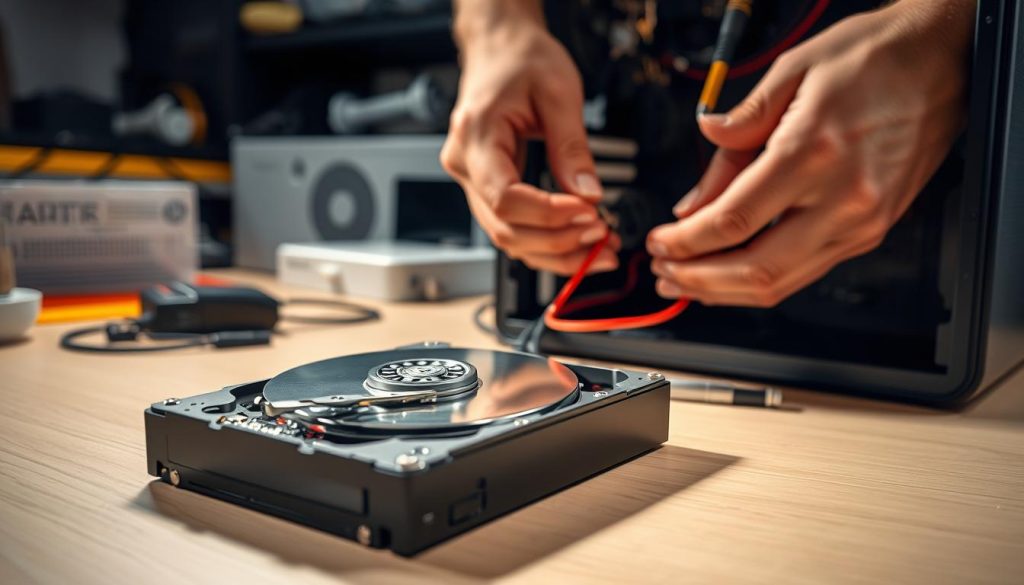
Cloning the OS to SSD/HDD
The cloning process uses the dd command to copy the entire system. You’ll need to identify your USB stick and target internal drive correctly.
Use this command syntax: sudo dd if=/dev/sda of=/dev/sdb bs=4M status=progress sync. The if parameter specifies your source USB device. The of parameter targets your internal drive.
Windows users follow a different approach. They must format the target SSD using Disk Management first. Then flash the system images directly using Balena Etcher.
Important Precautions Before Installation
This process completely erases the target drive. Always backup important data before proceeding. Double-check drive designations to avoid accidental data loss.
Verify drive identities using tools like lsblk or Disk Management. Unplug unnecessary drives to prevent selection mistakes. Confirm storage capacity matches your target device.
After installation, modify your BIOS boot order. Set the internal drive as first priority. The operating system will automatically expand to utilize the full storage capacity.
Conclusion
Our exploration of this comprehensive gaming platform demonstrates how accessible retro gaming has become. We’ve shown how ordinary computers transform into dedicated entertainment systems capable of running thousands of classic games.
The platform’s pre-configured emulators and intuitive interface remove technical barriers that once intimidated casual users. Its non-invasive installation preserves your existing operating system while providing extensive hardware compatibility.
This technology serves as a vital preservation tool, keeping gaming history playable for current and future generations. The time invested in organizing your ROM collection and fine-tuning settings yields a personalized arcade experience that justifies the effort.
We welcome you to the vibrant retro gaming community. Start exploring classic titles through your newly configured system, much like you might explore other specialized privacy-focused operating systems. Rediscover the timeless appeal of vintage gaming today.
FAQ
What are the minimum system requirements for running Batocera?
How do I transfer my game ROMs to the system?
My controller isn’t being recognized. How can I fix this?
Can I install the operating system on my computer’s internal SSD?
I’m getting errors about missing BIOS files. What should I do?
How can I improve performance for more demanding games?
Is it possible to play games with friends online?