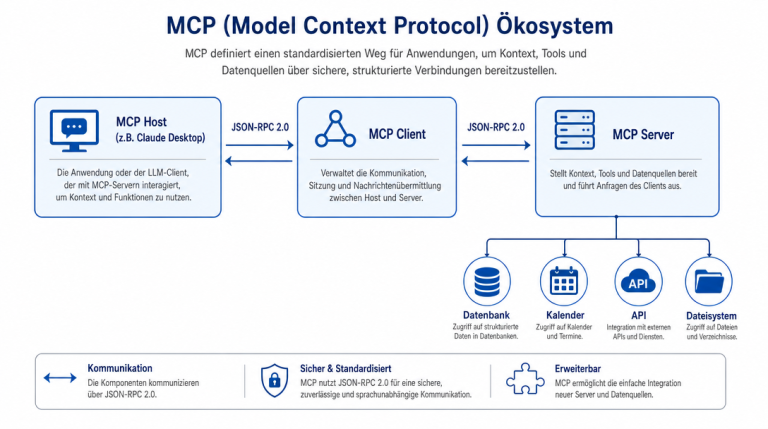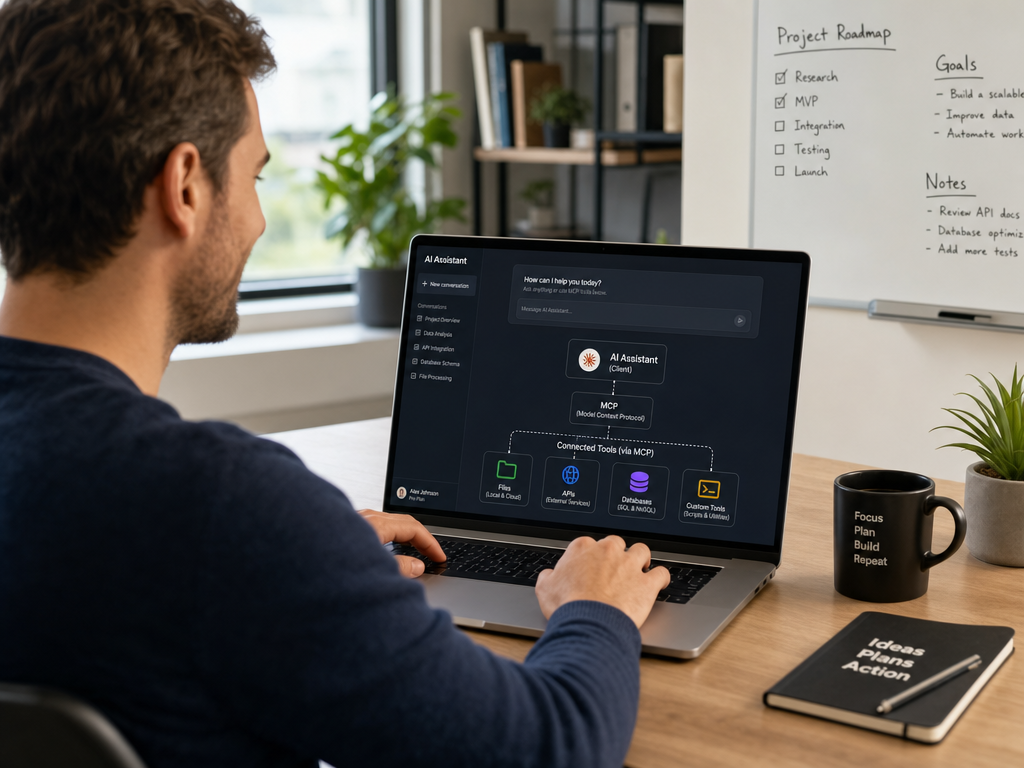
The MCP Client is where the Model Context Protocol comes to life for everyday users. It is the application you actually interact with — whether that’s Claude Desktop on your laptop, Cursor in your code editor, or a custom AI chatbot built into your company’s internal tool. The MCP client is the component that consumes the tools and data exposed by MCP servers, translates user requests into tool calls, and delivers the results back in a human-readable form. If you’re new to the Model Context Protocol, start with our introduction to what an MCP Server is to understand the other half of the architecture.
What Is an MCP Client?
An MCP Client is any AI application or assistant that implements the MCP client-side specification to communicate with MCP servers. The client initiates connections, sends requests, and receives responses — following the standardized MCP protocol so that it can work with any compliant MCP server, regardless of what that server does or where it runs.
The MCP specification defines a clear contract between client and server. This means you can swap out any MCP client for another — as long as both implement the spec correctly — and they’ll work with the same servers. It also means server developers don’t need to write custom integrations for every AI application: they implement the server side once, and any MCP client can connect to it.
Key characteristics of an MCP Client:
- Implements the MCP client-side specification (JSON-RPC over stdio or HTTP/SSE)
- Initiates and maintains connections to one or more MCP servers
- Sends tool call requests following the MCP JSON-RPC protocol
- Receives and processes structured responses from servers
- Presents results to the user in a human-readable way through the AI conversation interface
- Handles server discovery: queries servers for available tools, resources, and prompts at connection time
The MCP Client in the Architecture
Think of the MCP architecture as a layered system:
- At the very top sits the human user — a developer, a customer, an employee — with a goal they want to accomplish.
- Below that is the AI model (Claude, GPT-4, Llama, whatever powers the client) — the reasoning engine that understands the user’s goal and decides which actions to take.
- The MCP Client is the translation layer that sits between the AI model and the MCP network. It converts the AI’s tool call decisions into MCP protocol messages and sends them over the wire.
- Below the client, the MCP network (gateway and servers) handles routing, security, and the actual execution of tools.
The client itself doesn’t “know” what the tools do — it just knows how to send the right structured request to the right server and return the result to the AI model. The AI model provides the intelligence. The MCP network provides the capabilities. The MCP client provides the plumbing.
How Does an MCP Client Work? — Step by Step
The full interaction between a user, an MCP client, and an MCP server follows a precise sequence:
Step 1: Connection Establishment
When the MCP client starts up, it reads its configuration (typically a mcp.json file or environment variables) and connects to the configured MCP servers. The client connects via a transport layer — the two most common options are stdio (standard input/output, used for local subprocess-based servers) and HTTP with Server-Sent Events (SSE) (used for remote servers or gateway-based setups).
Step 2: Server Discovery
Once connected, the client queries each server for its capabilities: what tools does it expose (with schemas for their parameters)? What resources does it offer? What prompts does it provide? The client uses this information to inform the AI model about what is available — so the model can make intelligent decisions about which tools to call for a given user request.
Step 3: User Request
The user types a request — something like “Add a comment on the latest GitHub issue for my project” or “Find all Python files in my current directory that were modified this week.” The AI model receives this request.
Step 4: Tool Selection
The AI model analyzes the request and decides which MCP tools would best satisfy it. It has a list of all available tools (from the server discovery step) and their descriptions. It selects the most appropriate tool or tools based on what the user asked for.
Step 5: Request Execution
The MCP client formats the tool call as a JSON-RPC request — including the tool name, the arguments (validated against the tool’s schema), and a unique request ID — and sends it to the appropriate server over the MCP connection. The server executes the tool and returns a JSON-RPC response with the result or an error.
Step 6: Response Delivery
The MCP client receives the server’s response and passes it back to the AI model. The model now has the raw result (e.g., a list of files, the content of a database row, a Slack message ID) and can incorporate it into a natural-language response for the user. If multiple tools were called, the client handles the sequencing and passes all results to the model.
Steps 3 through 6 repeat for as long as the user engages with the assistant. The client manages the stateful conversation, the tool call ordering, and the recovery from errors (like a server being temporarily unavailable).
Transport Layers: How Clients Connect to Servers
The MCP specification supports two primary transport mechanisms, and the choice affects how clients and servers are deployed:
stdio (Standard Input/Output)
The server runs as a local subprocess of the client. Communication happens over stdin and stdout using JSON-RPC messages. This is the simplest setup — no network configuration required — and is ideal for local development and single-machine deployments. Most of the official MCP reference servers use stdio.
HTTP + Server-Sent Events (SSE)
The server runs as a network service and the client connects to it over HTTP. The client sends POST requests to call tools; the server uses Server-Sent Events to push notifications (like progress updates or streaming results) back to the client. This transport is required for remote servers, multi-tenant setups, and any deployment where the server runs on a different machine than the client.
When you add an MCP Gateway into the mix, the client typically connects to the gateway using HTTP/SSE, and the gateway connects to individual servers using stdio (for local servers) or HTTP (for remote servers). The gateway abstracts this complexity away from the client.
Popular MCP Clients in 2026
The MCP ecosystem has grown rapidly. Here are the most widely used MCP clients, each with different strengths and tradeoffs:
Claude Desktop (Anthropic)
Anthropic’s Claude Desktop application was one of the first AI applications to natively support MCP. Users configure MCP servers in the application’s settings file, and Claude gains instant access to local files, databases, and external APIs — limited only by the servers you’ve configured. For individuals who want to experiment with MCP and see what it feels like to have an AI assistant with real tool access, Claude Desktop is the fastest path to a working setup.
Claude Desktop is particularly well-suited for knowledge workers and developers who want to connect Claude to their local development environment, personal cloud storage, or productivity tools. The tradeoff is that it’s a desktop application — useful for local use, but not designed for team-wide deployments.
Cursor
Cursor is an AI-powered code editor built on top of VS Code. It supports MCP servers natively, making it the go-to choice for developers who want AI assistance that goes beyond code completion. With MCP, a developer can connect Cursor to their company’s internal code repository, documentation system, Jira instance, or CI/CD pipeline — and ask questions or trigger actions directly from the editor.
The advantage of using Cursor with MCP over a general-purpose AI assistant is context: Cursor knows exactly what code you’re working on. When combined with an MCP server that has access to your codebase (via a tool like the Filesystem server or a custom code search server), the AI can provide answers and suggestions that are deeply relevant to your current file, branch, and project state.
VS Code with Extensions
While VS Code doesn’t support MCP natively out of the box, several extensions bring MCP client functionality to the world’s most popular IDE. The most notable are the Continue extension and Cline (formerly Claude Dev). These extensions add an AI assistant sidebar that can be configured with MCP servers, giving developers access to the same capabilities as Cursor — within the familiar VS Code interface they already use every day.
OpenClaw
OpenClaw is an emerging open-source AI agent framework that fully embraces the MCP specification. Unlike the other clients on this list, which are primarily interactive chat interfaces, OpenClaw is designed for autonomous agents that run workflows without continuous human input. It can act as both an MCP client (consuming servers) and an MCP server (exposing its own tools), making it ideal for building complex AI automation pipelines. Learn more about OpenClaw in our dedicated guide.
Custom Applications
Any application can become an MCP client by implementing the MCP client specification. The official MCP SDK provides client libraries for TypeScript/JavaScript and Python. Building a custom MCP client makes sense when you want to embed AI capabilities into your own product — a customer support chatbot, an internal IT helpdesk tool, a content management system with AI assistance. The SDK abstracts the protocol details so you can focus on your application logic.
MCP Client vs. MCP Server — The Core Difference
It’s easy to mix up the two concepts, especially because the same physical application can act as both (like OpenClaw). But in terms of their role in the protocol, the distinction is clear:
| MCP Client | MCP Server | |
|---|---|---|
| Role in protocol | Consumer — requests tools, resources, and prompts from servers | Provider — exposes tools, resources, and prompts to clients |
| Initiates connection | Yes — clients actively connect to servers | No — servers wait for connections from clients |
| Typical examples | Claude Desktop, Cursor, OpenClaw agent, custom chatbot | Filesystem server, GitHub server, PostgreSQL server, Slack server |
| Who typically configures it | End users and developers who want AI assistance | Administrators and DevOps teams who manage capabilities |
| What it provides to users | An AI conversation interface with tool access | Specific capabilities: file access, API calls, database queries |
| Transport | stdio (local) or HTTP/SSE (remote/gateway) | stdio (local) or HTTP (remote) |
How to Configure an MCP Client
The exact configuration steps vary by client, but the general process follows the same pattern across all of them:
- Step 1 — Locate the MCP configuration file: Most MCP clients store server configurations in a
mcp.jsonfile in a standard location (e.g.,~/.config/claude/for Claude Desktop). Some clients use a GUI settings panel instead. - Step 2 — Add server entries: For each MCP server you want to connect, you specify the server name, the command to launch it (for stdio servers) or the URL (for HTTP servers), and any required environment variables (like API keys or database credentials).
- Step 3 — Restart or reload the client: The client reconnects to the server, runs server discovery, and updates the AI model’s list of available tools.
- Step 4 — Test with a targeted request: Ask the AI to use a specific tool from the newly connected server. For example: “List the files in my /projects directory” to test the Filesystem server, or “Show me the latest GitHub issues in my repo” to test the GitHub server.
Here’s a typical mcp.json configuration for Claude Desktop, connecting to both a Filesystem server and the official GitHub server:
{
  "mcpServers": {
    "filesystem": {
      "command": "npx",
      "args": ["-y", "@modelcontextprotocol/server-filesystem", "/Users/hirtenmacher/projects"]
    },
    "github": {
      "command": "npx",
      "args": ["-y", "@modelcontextprotocol/server-github"],
      "env": {
        "GITHUB_PERSONAL_ACCESS_TOKEN": "ghp_your_token_here"
      }
    }
  }
}
What Can an MCP Client Access? — The Full Range of Possibilities
Once connected to MCP servers, an MCP client can offer the AI assistant access to a remarkably wide range of capabilities. The exact scope depends on which servers you configure, but here’s what’s generally possible:
- File system access: Read, write, search, and manage files on the local machine or network drives. Particularly powerful when combined with code-aware servers that understand your project’s structure.
- Web search: Query search engines for up-to-date information, current prices, recent news, or anything that requires fresh data beyond the AI model’s training cutoff.
- Database queries: Run SQL or NoSQL queries against connected databases — read customer records, pull analytics data, check inventory levels. The AI becomes a natural-language SQL interface.
- API integrations: Interact with Slack, GitHub, Notion, Salesforce, Linear, and hundreds of other services — not just to read data but to take actions like sending messages, creating issues, or updating records.
- Custom business logic: Connect to internal tools, proprietary APIs, legacy systems, or custom microservices that are specific to your organization. The AI assistant becomes a unified interface to your entire technical ecosystem.
- Code execution: Run code snippets, execute scripts, trigger CI/CD pipelines, or deploy applications — bringing the AI assistant into your development and deployment workflows.
The key insight is that MCP doesn’t limit what the AI can do — it limits what the AI should do, based on the servers you’ve connected. You have full control over the capability surface exposed through the client.
Security: What the MCP Client Can — and Should Not — Do
This is one of the most important — and most overlooked — aspects of working with MCP clients. The MCP client controls the capability surface available to the AI model. Misconfigured clients can inadvertently give an AI assistant broad access to sensitive systems. Here are the security principles you should apply:
- Principle of least privilege: Only connect to servers that the AI actually needs for its intended purpose. If the AI is a code review assistant, it probably doesn’t need access to your production database or your company’s Slack channel. Each unnecessary connection is a potential attack surface.
- Scoped, read-only credentials: When configuring a server, use tokens and API keys with the minimum permissions required. If a server only needs to read from your GitHub repos, don’t give it a token with write access. If it only needs to read from a database, configure a read-only database user.
- Review server permissions before connecting: Before adding any MCP server to your client configuration, understand exactly what it can access. A poorly designed or malicious server could read files, exfiltrate data, or take actions on your behalf.
- Use a gateway in team environments: In multi-user or enterprise settings, route all connections through an MCP Gateway for centralized security controls, credential management, and audit logging. Without a gateway, each client machine is a separate security perimeter to manage.
- Regular audits: Periodically review which servers are connected to which clients, which credentials are in use, and which tools are being called. Remove unused server configurations and rotate credentials on a schedule.
Choosing the Right MCP Client
Your use case determines which client is the right fit:
| Use Case | Recommended Client | Why |
|---|---|---|
| Personal productivity, experimentation with MCP | Claude Desktop | Fastest setup, no code required, works immediately after configuring servers |
| Software development, code-aware assistance | Cursor or VS Code + Continue extension | Deep code context, integrates with the IDE’s project state, best developer experience |
| Building autonomous AI agents and workflows | OpenClaw | Designed for autonomous operation, supports both client and server modes |
| Embedding AI into a custom product | Custom client with MCP SDK | Full control over UX, integration points, and behavior — SDKs available for Python and TypeScript |
| Enterprise deployment with governance requirements | Custom client + MCP Gateway | Centralized security, auditing, and access control — without the limitations of consumer-grade clients |
Conclusion
The MCP Client is the bridge between users and the Model Context Protocol — and ultimately between users and the capabilities that MCP servers expose. It abstracts away the complexity of protocol communication and gives AI assistants the tools they need to be genuinely useful in real-world workflows.
Understanding clients, servers, and gateways gives you the full picture of how MCP works. Now that you understand all three components, you’re ready for the practical tutorials — starting with how to build your own MCP server and connect it to any of the clients described above. Stay tuned for the next article in this series.

Hi, I’m Mark, the author of Clever IT Solutions: Mastering Technology for Success. I am passionate about empowering individuals to navigate the ever-changing world of information technology. With years of experience in the industry, I have honed my skills and knowledge to share with you. At Clever IT Solutions, we are dedicated to teaching you how to tackle any IT challenge, helping you stay ahead in today’s digital world. From troubleshooting common issues to mastering complex technologies, I am here to guide you every step of the way. Join me on this journey as we unlock the secrets to IT success.