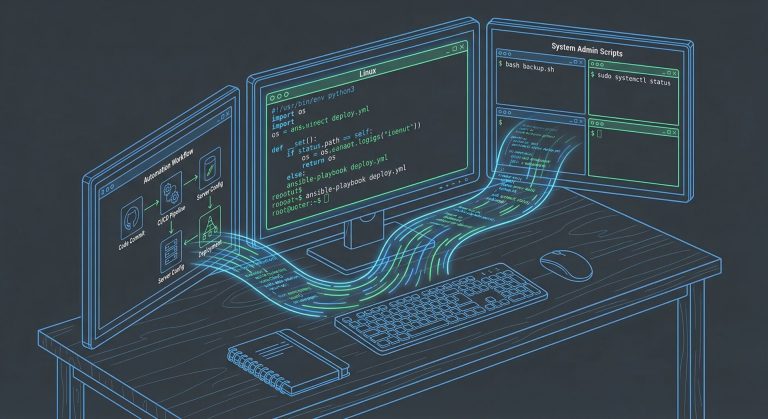
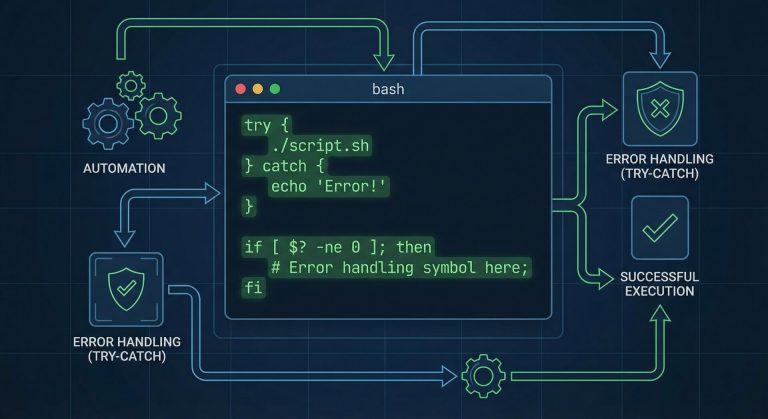
Mastering linux command line productivity tips transforms system administrators and developers from casual terminal users into efficiency experts. In 2026, with Linux powering over 90% of cloud infrastructure, knowing the right shortcuts, tools, and techniques can save hours of daily work. This comprehensive guide covers essential linux command line productivity tips that every power user should master.
The command line remains the most powerful interface for Linux systems, offering speed, automation, and precision that graphical interfaces cannot match. By implementing these linux command line productivity tips, you’ll execute complex tasks in seconds instead of minutes.
Essential Bash Keyboard Shortcuts
The foundation of linux command line productivity tips starts with mastering keyboard shortcuts that eliminate repetitive typing and navigation.
Navigation Shortcuts
These linux command line productivity tips help you move through commands efficiently:
Ctrl+A: Jump to the beginning of the lineCtrl+E: Jump to the end of the lineCtrl+U: Delete from cursor to line startCtrl+K: Delete from cursor to line endCtrl+W: Delete the word before the cursorAlt+B: Move back one wordAlt+F: Move forward one word
These shortcuts are among the most valuable linux command line productivity tips for avoiding excessive arrow key usage and mouse dependency.
Command History Shortcuts
Leverage command history with these critical linux command line productivity tips:
Ctrl+R: Reverse search through command history—type a few letters to find previous commands!!: Repeat the last command (e.g.,sudo !!to re-run with sudo)!$: Use the last argument from the previous command!*: Use all arguments from the previous command!n: Execute command number n from history
The reverse search (Ctrl+R) is consistently ranked among the top linux command line productivity tips by experienced administrators.
Advanced Command Line Tools
Beyond basic shortcuts, installing and configuring the right tools represents crucial linux command line productivity tips for 2026.
fzf: Fuzzy Finder
Install the fuzzy finder for one of the most powerful linux command line productivity tips:
git clone --depth 1 https://github.com/junegunn/fzf.git ~/.fzf
~/.fzf/install
After installation, Ctrl+R becomes supercharged with fuzzy search capabilities—a game-changing entry in our linux command line productivity tips collection.
ripgrep: Fast Search
Replace grep with ripgrep for blazing fast searches—essential linux command line productivity tips:
sudo apt install ripgrepUsage: rg "search term" /path—orders of magnitude faster than traditional grep, especially in large codebases.
exa: Modern ls Replacement
Upgrade ls with color-coded, tree-view capable exa:
sudo apt install exaAlias it for everyday use—one of the simplest linux command line productivity tips:
alias ls='exa --icons'
alias ll='exa -lah --icons'
alias tree='exa --tree'
Shell Aliases and Functions
Custom aliases represent some of the most impactful linux command line productivity tips you can implement immediately.
Essential Aliases
Add these to your ~/.bashrc or ~/.zshrc:
# Navigation
alias ..='cd ..'
alias ...='cd ../..'
alias ....='cd ../../..'

# Safety nets
alias rm='rm -i'
alias cp='cp -i'
alias mv='mv -i'

# System monitoring
alias ports='netstat -tulanp'
alias mem='free -h'
alias cpu='top -o %CPU'

# Git shortcuts
alias gs='git status'
alias ga='git add'
alias gc='git commit'
alias gp='git push'
These represent time-tested linux command line productivity tips used by thousands of system administrators.
Powerful Shell Functions
Functions extend linux command line productivity tips beyond simple aliases:
# Create directory and cd into it
mkcd() {
  mkdir -p "$1" && cd "$1"
}

# Extract any archive type
extract() {
  if [ -f "$1" ]; then
    case "$1" in
      *.tar.gz) tar xzf "$1" ;;
      *.zip) unzip "$1" ;;
      *.rar) unrar x "$1" ;;
      *) echo "Unsupported format" ;;
    esac
  fi
}

# Find and kill process by name
killp() {
  ps aux | grep -i "$1" | grep -v grep | awk '{print $2}' | xargs kill -9
}
For comprehensive shell scripting practices, see our Bash Shell Scripting Automation Tutorial.
File and Directory Navigation
Efficient navigation forms the core of practical linux command line productivity tips.
Autojump / zoxide
Install zoxide for intelligent directory jumping—revolutionary linux command line productivity tips:
curl -sS https://raw.githubusercontent.com/ajeetdsouza/zoxide/main/install.sh | bashAfter using directories, simply type z dirname to jump directly there from anywhere—no more endless cd chains.
Pushd and Popd
Often overlooked linux command line productivity tips for directory stack management:
pushd /var/log    # Save current dir, go to /var/log
pushd /etc        # Save /var/log, go to /etc
popd              # Return to /var/log
popd              # Return to original directory
Text Processing and Manipulation
Mastering text manipulation represents crucial linux command line productivity tips for data processing.
sed and awk Power Commands
These linux command line productivity tips handle bulk text operations:
# Replace text in all files
sed -i 's/old/new/g' *.txt

# Print specific columns
awk '{print $1, $3}' data.txt

# Sum numbers in column
awk '{sum += $1} END {print sum}' numbers.txt

# Filter and format
ps aux | awk '$3 > 50.0 {print $1, $3}'
cut, sort, uniq Pipeline
Classic linux command line productivity tips for log analysis:
# Count unique IPs in access log
cut -d' ' -f1 access.log | sort | uniq -c | sort -rn | head -10
Process and System Monitoring
Effective monitoring through linux command line productivity tips prevents issues before they escalate.
htop and btop
Replace top with modern alternatives—essential linux command line productivity tips:
sudo apt install htop btopThese provide interactive, color-coded system monitoring with mouse support.
Systemctl Shortcuts
Service management linux command line productivity tips:
alias sysstat='systemctl status'
alias sysstart='systemctl start'
alias sysstop='systemctl stop'
alias sysrestart='systemctl restart'
For deeper service management, check our Linux Systemd Services Guide.
SSH and Remote Connection Tips
Remote work demands specific linux command line productivity tips for efficient SSH usage.
SSH Config File
Create ~/.ssh/config for streamlined connections—critical linux command line productivity tips:
Host prod-server
    HostName 192.168.1.100
    User admin
    Port 2222
    IdentityFile ~/.ssh/prod_key

Host dev-server
    HostName dev.example.com
    User developer
    ForwardAgent yes
Now simply: ssh prod-server instead of typing full connection strings.
tmux and screen
Terminal multiplexers are indispensable linux command line productivity tips for remote work:
sudo apt install tmuxBasic tmux commands:
tmux new -s session-name: Create new sessionCtrl+B D: Detach from sessiontmux attach -t session-name: Reattach to sessionCtrl+B %: Split pane verticallyCtrl+B ": Split pane horizontally
Git Command Line Productivity
Version control linux command line productivity tips for developers:
Git Aliases
git config --global alias.co checkout
git config --global alias.br branch
git config --global alias.ci commit
git config --global alias.st status
git config --global alias.unstage 'reset HEAD --'
git config --global alias.last 'log -1 HEAD'
git config --global alias.visual 'log --oneline --graph --decorate --all'
Git Auto-Completion
Enable tab completion—one of the most underutilized linux command line productivity tips:
curl -o ~/.git-completion.bash https://raw.githubusercontent.com/git/git/master/contrib/completion/git-completion.bash
echo 'source ~/.git-completion.bash' >> ~/.bashrc
Clipboard Integration
Bridge terminal and GUI with these linux command line productivity tips:
sudo apt install xclipUsage examples:
# Copy file contents to clipboard
cat file.txt | xclip -selection clipboard

# Copy command output
ls -la | xclip -sel clip

# Paste from clipboard to file
xclip -sel clip -o > newfile.txt
Aliases for convenience:
alias copy='xclip -selection clipboard'
alias paste='xclip -selection clipboard -o'
Automation with Cron and Systemd Timers
Automation represents advanced linux command line productivity tips that eliminate repetitive tasks.
Quick Cron Examples
# Edit crontab
crontab -e

# Daily backup at 2 AM
0 2 * * * /home/user/backup.sh

# Every 15 minutes
*/15 * * * * /home/user/check.sh

# Every Monday at 9 AM
0 9 * * 1 /home/user/weekly.sh
Security Best Practices
Security-focused linux command line productivity tips protect your workflows:
- Never store passwords in shell history: Start commands with space to exclude from history
- Use
passorkeepassxc-clifor password management - Set proper file permissions:
chmod 600 ~/.ssh/* - Clear sensitive history:
history -c && history -w
For comprehensive security hardening, see our Debian Shell Script Security Guide.
Creating a Dotfiles Repository
One of the most strategic linux command line productivity tips: version control your configurations.
mkdir ~/dotfiles
cd ~/dotfiles
git init

# Move and symlink configs
mv ~/.bashrc ~/dotfiles/bashrc
ln -s ~/dotfiles/bashrc ~/.bashrc

mv ~/.vimrc ~/dotfiles/vimrc
ln -s ~/dotfiles/vimrc ~/.vimrc

git add .
git commit -m "Initial dotfiles"
git remote add origin git@github.com:username/dotfiles.git
git push -u origin main
Now your configurations sync across all machines—ultimate linux command line productivity tips for consistency.
Performance Tips
System-level linux command line productivity tips for speed:
- Disable unnecessary services:
systemctl disable service-name - Use shell builtin commands:
timevs/usr/bin/time - Minimize subshells: Use
$(command)over backticks - Batch operations: Process multiple files in one command instead of loops
Learning Resources
Continuously improve your linux command line productivity tips knowledge:
- The Art of Command Line on GitHub
- CommandLineFu.com for community-shared one-liners
man bashandman bash-builtinsfor comprehensive documentation
Conclusion
These linux command line productivity tips represent proven techniques from system administrators and developers managing thousands of servers in 2026. From keyboard shortcuts and custom aliases to advanced tools like fzf and zoxide, each tip compounds to create significant time savings.
Start by implementing five linux command line productivity tips from this guide today—master them for a week, then add five more. Within a month, you’ll work twice as fast with half the effort. The command line rewards those who invest in learning its power, transforming tedious tasks into efficient, automated workflows.
Remember that the best linux command line productivity tips are those you actually use daily. Customize these suggestions to fit your specific workflow, and share your discoveries with the community. Terminal mastery is a journey, not a destination—and these linux command line productivity tips provide your roadmap to efficiency.

Hi, I’m Mark, the author of Clever IT Solutions: Mastering Technology for Success. I am passionate about empowering individuals to navigate the ever-changing world of information technology. With years of experience in the industry, I have honed my skills and knowledge to share with you. At Clever IT Solutions, we are dedicated to teaching you how to tackle any IT challenge, helping you stay ahead in today’s digital world. From troubleshooting common issues to mastering complex technologies, I am here to guide you every step of the way. Join me on this journey as we unlock the secrets to IT success.