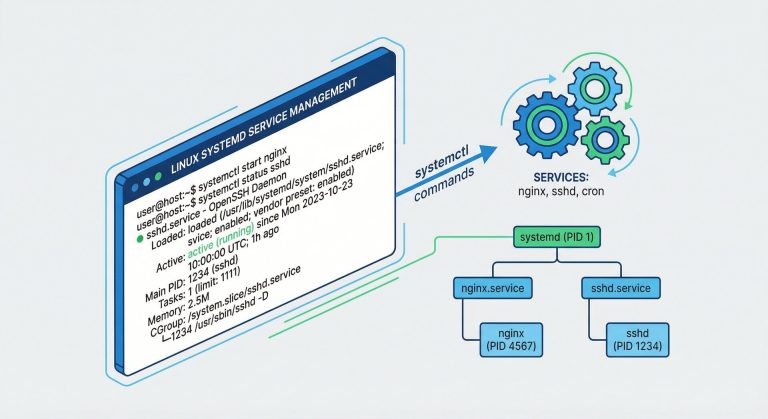
Bash shell scripting automation is the cornerstone of efficient Linux system administration, enabling you to automate repetitive tasks, schedule operations, and build powerful workflows that save hours of manual work. In 2026, mastering bash shell scripting automation has become essential for DevOps engineers, system administrators, and developers managing Linux infrastructure.
This comprehensive tutorial covers everything from basic bash shell scripting automation fundamentals to advanced techniques including cron job scheduling, error handling, parallel processing, and real-world automation projects. Whether you’re automating backups, system monitoring, or deployment pipelines, this guide provides practical examples and best practices for effective bash shell scripting automation.
Why Bash Shell Scripting Automation Is Essential in 2026
The demand for bash shell scripting automation skills continues to grow exponentially. Modern infrastructure management requires automated solutions that can handle complex workflows reliably and efficiently.
Key advantages of bash shell scripting automation:
- Eliminate repetitive manual tasks and reduce human error
- Schedule operations to run automatically with cron
- Process files, logs, and data streams efficiently
- Integrate with CI/CD pipelines and DevOps workflows
- Maintain consistent configurations across multiple servers
- Monitor systems proactively and respond to events automatically
Before diving into bash shell scripting automation, familiarize yourself with What is Bash (Bourne Again SHell) to understand the underlying shell environment.
Getting Started with Bash Shell Scripting Automation
Bash shell scripting automation begins with understanding script structure and basic syntax. Every automation script should be well-structured, maintainable, and robust.
Creating Your First Automation Script
Create a basic bash shell scripting automation template:
#!/bin/bash
# Script: system-backup.sh
# Purpose: Automated system backup
# Author: Your Name
# Date: 2026-02-25

set -euo pipefail  # Exit on error, undefined variables, pipe failures

# Configuration variables
BACKUP_DIR="/backups"
SOURCE_DIR="/home"
DATE=$(date +%Y-%m-%d-%H%M%S)

# Main automation logic
echo "[$(date)] Starting backup automation..."
mkdir -p "${BACKUP_DIR}"
tar -czf "${BACKUP_DIR}/backup-${DATE}.tar.gz" "${SOURCE_DIR}"
echo "[$(date)] Backup completed successfully!"
Make script executable and test:
chmod +x system-backup.sh
./system-backup.sh
Essential Bash Shell Scripting Automation Best Practices
Effective bash shell scripting automation requires following industry best practices:
- Always use shebang: Start with
#!/bin/bash - Enable strict mode: Use
set -euo pipefail - Quote variables: Always use
"${variable}" - Check dependencies: Verify required commands exist
- Log operations: Record actions with timestamps
- Handle errors: Implement proper error checking
- Document code: Add clear comments explaining logic
Variables and Arguments in Bash Shell Scripting Automation
Proper variable handling is crucial for robust bash shell scripting automation.
Working with Variables
#!/bin/bash

# Variable declarations for bash shell scripting automation
SERVER_NAME="production-web-01"
MAX_RETRIES=3
LOG_FILE="/var/log/automation.log"

# Read-only variables (constants)
readonly BACKUP_RETENTION_DAYS=30
readonly CONFIG_FILE="/etc/automation.conf"

# Environment variables
export API_ENDPOINT="https://api.example.com"
export DEBUG_MODE="true"

# Command substitution
CURRENT_USER=$(whoami)
SYSTEM_LOAD=$(uptime | awk '{print $10}')

echo "Server: ${SERVER_NAME}"
echo "User: ${CURRENT_USER}"
echo "System Load: ${SYSTEM_LOAD}"
Processing Command-Line Arguments
Bash shell scripting automation often requires flexible argument handling:
#!/bin/bash
# Advanced argument processing for automation

show_usage() {
    echo "Usage: $0 -s source -d destination [-v]"
    echo "  -s: Source directory"
    echo "  -d: Destination directory"
    echo "  -v: Verbose mode (optional)"
    exit 1
}

VERBOSE=0
SOURCE=""
DESTINATION=""

while getopts "s:d:vh" opt; do
    case $opt in
        s) SOURCE="$OPTARG" ;;
        d) DESTINATION="$OPTARG" ;;
        v) VERBOSE=1 ;;
        h) show_usage ;;
        *) show_usage ;;
    esac
done

if [[ -z "${SOURCE}" || -z "${DESTINATION}" ]]; then
    echo "Error: Source and destination required"
    show_usage
fi

[[ ${VERBOSE} -eq 1 ]] && echo "Verbose mode enabled"
echo "Copying from ${SOURCE} to ${DESTINATION}"
Control Flow for Bash Shell Scripting Automation
Conditional logic and loops are essential for effective bash shell scripting automation.
Conditional Statements
#!/bin/bash
# Conditional logic in bash shell scripting automation

CPU_USAGE=$(top -bn1 | grep "Cpu(s)" | awk '{print $2}' | cut -d'%' -f1)

if (( $(echo "${CPU_USAGE} > 80" | bc -l) )); then
    echo "[CRITICAL] CPU usage above 80%: ${CPU_USAGE}%"
    # Trigger alert automation
    /usr/local/bin/send-alert.sh "High CPU usage detected"
elif (( $(echo "${CPU_USAGE} > 60" | bc -l) )); then
    echo "[WARNING] CPU usage elevated: ${CPU_USAGE}%"
else
    echo "[OK] CPU usage normal: ${CPU_USAGE}%"
fi

# File existence checks
if [[ -f "/var/log/application.log" ]]; then
    echo "Log file exists, processing..."
    grep -i "error" /var/log/application.log
elif [[ -d "/var/log/application" ]]; then
    echo "Log directory exists"
else
    echo "Log location not found"
fi
Loops for Automation Tasks
Bash shell scripting automation extensively uses loops for repetitive operations:
#!/bin/bash
# Loop examples for bash shell scripting automation

# For loop - Process multiple servers
SERVERS=("web-01" "web-02" "db-01" "cache-01")

for server in "${SERVERS[@]}"; do
    echo "Checking ${server}..."
    ping -c 1 "${server}.example.com" &> /dev/null
    if [[ $? -eq 0 ]]; then
        echo "✓ ${server} is online"
    else
        echo "✗ ${server} is offline - sending alert"
    fi
done

# While loop - Monitor log file
LOG_FILE="/var/log/application.log"
tail -f "${LOG_FILE}" | while read -r line; do
    if echo "${line}" | grep -q "CRITICAL"; then
        echo "[$(date)] Critical error detected: ${line}"
        # Automation action: restart service
        systemctl restart application.service
    fi
done

# Until loop - Wait for service
until systemctl is-active --quiet nginx; do
    echo "Waiting for nginx to start..."
    sleep 2
done
echo "Nginx is now running!"
Functions for Modular Bash Shell Scripting Automation
Functions make bash shell scripting automation more maintainable and reusable:
#!/bin/bash
# Function-based bash shell scripting automation

# Logging function
log_message() {
    local level="$1"
    local message="$2"
    local timestamp=$(date '+%Y-%m-%d %H:%M:%S')
    echo "[${timestamp}] [${level}] ${message}" | tee -a /var/log/automation.log
}

# Error handling function
handle_error() {
    local error_message="$1"
    local exit_code="${2:-1}"
    log_message "ERROR" "${error_message}"
    exit "${exit_code}"
}

# Backup function with validation
perform_backup() {
    local source="$1"
    local destination="$2"

    log_message "INFO" "Starting backup: ${source} -> ${destination}"

    if [[ ! -d "${source}" ]]; then
        handle_error "Source directory does not exist: ${source}"
    fi

    mkdir -p "${destination}"

    if tar -czf "${destination}/backup-$(date +%Y%m%d-%H%M%S).tar.gz" "${source}"; then
        log_message "SUCCESS" "Backup completed successfully"
        return 0
    else
        handle_error "Backup failed"
    fi
}

# Cleanup function
cleanup_old_backups() {
    local backup_dir="$1"
    local retention_days="$2"

    log_message "INFO" "Cleaning backups older than ${retention_days} days"
    find "${backup_dir}" -name "backup-*.tar.gz" -mtime +"${retention_days}" -delete
}

# Main automation workflow
main() {
    log_message "INFO" "Automation script started"
    perform_backup "/home/data" "/backups/daily"
    cleanup_old_backups "/backups/daily" 30
    log_message "INFO" "Automation script completed"
}

main "$@"
For security considerations, review our guide on Debian Shell Script Security Best Practices 2026.
File Processing and Text Manipulation
Text processing is a core skill in bash shell scripting automation:
Using Sed, Awk, and Grep
#!/bin/bash
# Text processing for bash shell scripting automation

LOG_FILE="/var/log/apache2/access.log"

# Extract error responses with grep
echo "=== Error Responses ==="
grep " 500 \| 502 \| 503 " "${LOG_FILE}" | tail -20

# Parse log with awk
echo "=== Top 10 IP Addresses ==="
awk '{print $1}' "${LOG_FILE}" | sort | uniq -c | sort -rn | head -10

# Modify configuration with sed
echo "=== Updating Configuration ==="
sed -i 's/MaxClients 150/MaxClients 300/g' /etc/apache2/apache2.conf
sed -i '/^ServerTokens/s/.*/ServerTokens Prod/' /etc/apache2/apache2.conf

# Advanced awk - Calculate average response time
echo "=== Average Response Time ==="
awk '{sum+=$NF; count++} END {print sum/count " ms"}' response-times.log
File Operations Automation
#!/bin/bash
# File operations for bash shell scripting automation

# Process multiple files
for file in /var/log/application/*.log; do
    if [[ -f "${file}" ]]; then
        lines=$(wc -l < "${file}")
        echo "Processing ${file}: ${lines} lines"

        # Compress old logs
        if [[ ${lines} -gt 10000 ]]; then
            gzip "${file}"
            echo "Compressed large file: ${file}.gz"
        fi
    fi
done

# Batch rename files
for file in *.txt; do
    newname="processed-${file}"
    mv "${file}" "${newname}"
done

# Directory synchronization
rsync -avz --delete /source/data/ /backup/data/
Cron Job Scheduling for Bash Shell Scripting Automation
Scheduling is what transforms scripts into true bash shell scripting automation. According to DigitalOcean Community Tutorials, cron is the standard Linux job scheduler.
Understanding Cron Syntax
# Cron syntax for bash shell scripting automation
# * * * * * command
# │ │ │ │ │
# │ │ │ │ └─── Day of week (0-7, Sunday=0 or 7)
# │ │ │ └──────── Month (1-12)
# │ │ └───────────── Day of month (1-31)
# │ └────────────────── Hour (0-23)
# └─────────────────────── Minute (0-59)
Practical Cron Examples
# Edit crontab
crontab -e

# Daily backup at 2 AM
0 2 * * * /usr/local/bin/daily-backup.sh >> /var/log/backup.log 2>&1

# Hourly monitoring check
0 * * * * /usr/local/bin/monitor-system.sh

# Every 15 minutes log cleanup
*/15 * * * * /usr/local/bin/cleanup-logs.sh

# Weekly report on Sundays at 6 AM
0 6 * * 0 /usr/local/bin/generate-weekly-report.sh

# Monthly maintenance first day of month
0 3 1 * * /usr/local/bin/monthly-maintenance.sh

# Multiple times per day (8 AM, 12 PM, 6 PM)
0 8,12,18 * * * /usr/local/bin/sync-data.sh
Cron-Compatible Script Template
Scripts for bash shell scripting automation with cron need specific considerations:
#!/bin/bash
# Cron-compatible automation script

# Set PATH (cron has minimal environment)
export PATH="/usr/local/sbin:/usr/local/bin:/usr/sbin:/usr/bin:/sbin:/bin"

# Set working directory
cd /home/automation || exit 1

# Load environment variables if needed
if [[ -f ".env" ]]; then
    source .env
fi

# Logging function
LOG_FILE="/var/log/automation/cron-job.log"
log() {
    echo "[$(date '+%Y-%m-%d %H:%M:%S')] $*" >> "${LOG_FILE}"
}

# Main automation logic
log "Starting automated task"

# Your automation code here
if /usr/bin/python3 /home/automation/script.py; then
    log "Task completed successfully"
else
    log "Task failed with exit code $?"
    # Send email alert
    echo "Cron job failed" | mail -s "Automation Alert" admin@example.com
fi

log "Automation task finished"
Error Handling and Debugging
Robust error handling distinguishes professional bash shell scripting automation:
Comprehensive Error Handling
#!/bin/bash
# Error handling for bash shell scripting automation

set -euo pipefail  # Strict mode

# Trap errors and cleanup
cleanup() {
    local exit_code=$?
    echo "[$(date)] Script exiting with code: ${exit_code}"
    # Cleanup temporary files
    rm -f /tmp/automation-*
    exit "${exit_code}"
}

trap cleanup EXIT ERR INT TERM

# Function with error checking
safe_operation() {
    local operation="$1"

    if ! eval "${operation}"; then
        echo "ERROR: Operation failed: ${operation}"
        return 1
    fi
    return 0
}

# Retry mechanism
retry_operation() {
    local max_attempts=3
    local attempt=1
    local delay=5

    while [[ ${attempt} -le ${max_attempts} ]]; do
        echo "Attempt ${attempt}/${max_attempts}..."

        if "$@"; then
            echo "Operation succeeded"
            return 0
        fi

        echo "Attempt failed, waiting ${delay}s before retry"
        sleep "${delay}"
        ((attempt++))
    done

    echo "All attempts failed"
    return 1
}

# Usage example
retry_operation curl -f https://api.example.com/health
Debugging Techniques
#!/bin/bash
# Debugging bash shell scripting automation

# Enable debug mode
set -x  # Print commands before execution

# Conditional debug output
DEBUG=${DEBUG:-0}

debug_log() {
    if [[ ${DEBUG} -eq 1 ]]; then
        echo "[DEBUG] $*" >&2
    fi
}

# Usage
debug_log "Processing file: ${filename}"

# Disable debug for specific sections
set +x
# Code without debug output
set -x

# Run script with debugging:
# DEBUG=1 ./script.sh
# bash -x ./script.sh
Advanced Bash Shell Scripting Automation Techniques
Parallel Processing
Speed up bash shell scripting automation with parallel execution:
#!/bin/bash
# Parallel processing for bash shell scripting automation

# Background processes
process_file() {
    local file="$1"
    echo "Processing ${file}..."
    # Simulated processing
    sleep 2
    echo "${file} completed"
}

# Process files in parallel
for file in /data/*.log; do
    process_file "${file}" &
done

# Wait for all background jobs
wait
echo "All files processed"

# Using xargs for parallelism
find /data -name "*.txt" | xargs -P 4 -I {} bash -c 'process_file "$@"' _ {}

# GNU parallel (install: apt install parallel)
parallel -j 4 process_file ::: /data/*.log
Working with APIs
#!/bin/bash
# API integration for bash shell scripting automation

API_URL="https://api.example.com"
API_KEY="your-api-key-here"

# GET request
get_data() {
    curl -s -H "Authorization: Bearer ${API_KEY}" \
         "${API_URL}/endpoint" | jq '.'
}

# POST request
send_data() {
    local payload="$1"
    curl -s -X POST \
         -H "Content-Type: application/json" \
         -H "Authorization: Bearer ${API_KEY}" \
         -d "${payload}" \
         "${API_URL}/endpoint"
}

# Example automation workflow
DATA=$(get_data)
COUNT=$(echo "${DATA}" | jq '.items | length')

if [[ ${COUNT} -gt 100 ]]; then
    ALERT_PAYLOAD='{"message": "High count detected", "count": '"${COUNT}"'}'
    send_data "${ALERT_PAYLOAD}"
fi
Database Operations
#!/bin/bash
# Database automation with bash shell scripting automation

DB_HOST="localhost"
DB_USER="automation"
DB_PASS="password"
DB_NAME="production"

# MySQL query
run_query() {
    local query="$1"
    mysql -h "${DB_HOST}" -u "${DB_USER}" -p"${DB_PASS}" "${DB_NAME}" \
          -e "${query}" -s -N
}

# Export data
run_query "SELECT * FROM users WHERE created > NOW() - INTERVAL 1 DAY" > daily-users.txt

# Automated cleanup
DELETED=$(run_query "DELETE FROM logs WHERE created < NOW() - INTERVAL 90 DAY")
echo "Deleted ${DELETED} old log entries"

# Database backup automation
mysqldump -h "${DB_HOST}" -u "${DB_USER}" -p"${DB_PASS}" "${DB_NAME}" | \
    gzip > "/backups/db-backup-$(date +%Y%m%d).sql.gz"
Real-World Bash Shell Scripting Automation Projects
Project 1: Automated System Monitoring
#!/bin/bash
# system-monitor.sh - Comprehensive monitoring automation

ALERT_EMAIL="admin@example.com"
WARNING_THRESHOLD=80
CRITICAL_THRESHOLD=95

check_disk_usage() {
    df -h | awk 'NR>1 {gsub("%",""); if($5 > '"${CRITICAL_THRESHOLD}"') print "CRITICAL: " $0; else if($5 > '"${WARNING_THRESHOLD}"') print "WARNING: " $0}'
}

check_memory() {
    local mem_usage=$(free | awk '/Mem:/ {printf "%.0f", $3/$2 * 100}')
    if [[ ${mem_usage} -gt ${CRITICAL_THRESHOLD} ]]; then
        echo "CRITICAL: Memory usage at ${mem_usage}%"
    fi
}

check_services() {
    local services=("nginx" "mysql" "redis")
    for service in "${services[@]}"; do
        if ! systemctl is-active --quiet "${service}"; then
            echo "CRITICAL: ${service} is not running"
            systemctl start "${service}"
        fi
    done
}

# Main monitoring loop
DISK_ALERTS=$(check_disk_usage)
MEM_ALERTS=$(check_memory)
SVC_ALERTS=$(check_services)

if [[ -n "${DISK_ALERTS}${MEM_ALERTS}${SVC_ALERTS}" ]]; then
    {
        echo "System Monitoring Alert - $(date)"
        echo "${DISK_ALERTS}"
        echo "${MEM_ALERTS}"
        echo "${SVC_ALERTS}"
    } | mail -s "[ALERT] System Monitoring" "${ALERT_EMAIL}"
fi
Project 2: Automated Deployment Pipeline
#!/bin/bash
# deploy.sh - Application deployment automation

set -euo pipefail

APP_DIR="/var/www/application"
REPO_URL="https://github.com/user/repo.git"
BRANCH="main"

deploy() {
    echo "[$(date)] Starting deployment..."

    # Pull latest code
    cd "${APP_DIR}" || exit 1
    git fetch origin
    git reset --hard "origin/${BRANCH}"

    # Install dependencies
    npm ci --production

    # Run tests
    if ! npm test; then
        echo "Tests failed, aborting deployment"
        return 1
    fi

    # Build application
    npm run build

    # Restart services
    systemctl restart application

    # Health check
    sleep 5
    if curl -f http://localhost:3000/health; then
        echo "[$(date)] Deployment successful!"
        return 0
    else
        echo "Health check failed, rolling back"
        git reset --hard HEAD@{1}
        systemctl restart application
        return 1
    fi
}

deploy
Testing and Validation
Professional bash shell scripting automation includes testing:
#!/bin/bash
# test-suite.sh - Automated testing

RUNNING_TESTS=0
PASSED_TESTS=0
FAILED_TESTS=0

assert_equals() {
    local expected="$1"
    local actual="$2"
    local test_name="$3"

    ((RUNNING_TESTS++))

    if [[ "${expected}" == "${actual}" ]]; then
        echo "✓ PASS: ${test_name}"
        ((PASSED_TESTS++))
    else
        echo "✗ FAIL: ${test_name}"
        echo "  Expected: ${expected}"
        echo "  Actual: ${actual}"
        ((FAILED_TESTS++))
    fi
}

# Test cases
assert_equals "5" "$(expr 2 + 3)" "Addition test"
assert_equals "hello" "$(echo 'hello')" "Echo test"

# Summary
echo ""
echo "=== Test Results ==="
echo "Total: ${RUNNING_TESTS}"
echo "Passed: ${PASSED_TESTS}"
echo "Failed: ${FAILED_TESTS}"

[[ ${FAILED_TESTS} -eq 0 ]] && exit 0 || exit 1
Performance Optimization
Optimize bash shell scripting automation for speed and efficiency:
#!/bin/bash
# Performance tips for bash shell scripting automation

# Bad: Multiple command invocations
#for file in $(ls *.txt); do
#    process "${file}"
#done

# Good: Use shell globbing
for file in *.txt; do
    [[ -f "${file}" ]] && process "${file}"
done

# Bad: cat file | grep pattern
# Good: grep pattern file
grep "pattern" file.txt

# Bad: Repeated file operations
#while read line; do
#    echo "${line}" >> output.txt
#done < input.txt

# Good: Single redirection
{
    while read -r line; do
        echo "${line}"
    done < input.txt
} > output.txt

# Use built-in commands over external
# Bad: result=$(echo "$string" | awk '{print $1}')
# Good: result=${string%% *}
Conclusion: Mastering Bash Shell Scripting Automation
Bash shell scripting automation is a critical skill for modern Linux system administration and DevOps. This comprehensive tutorial covered everything from basics to advanced techniques, providing you with the knowledge to build robust automation solutions.
Key takeaways for successful bash shell scripting automation:
- Start with clear requirements and plan your automation workflow
- Follow best practices: strict mode, error handling, logging
- Use functions for modularity and code reuse
- Leverage cron for scheduled automation tasks
- Implement comprehensive error handling and retry logic
- Test your scripts thoroughly before production deployment
- Document your code for maintainability
- Optimize for performance and resource efficiency
According to Red Hat System Administrator, automated solutions reduce operational overhead by up to 70% while improving reliability and consistency.
Continue learning by exploring Understanding What is a Shell for deeper shell concepts, and practice building your own automation projects. The more you automate, the more efficient and valuable your bash shell scripting automation skills become.
Remember: great bash shell scripting automation is iterative. Start simple, test thoroughly, and gradually add complexity. Your automation journey begins with a single script—make it count!

Hi, I’m Mark, the author of Clever IT Solutions: Mastering Technology for Success. I am passionate about empowering individuals to navigate the ever-changing world of information technology. With years of experience in the industry, I have honed my skills and knowledge to share with you. At Clever IT Solutions, we are dedicated to teaching you how to tackle any IT challenge, helping you stay ahead in today’s digital world. From troubleshooting common issues to mastering complex technologies, I am here to guide you every step of the way. Join me on this journey as we unlock the secrets to IT success.